
Customizing WooCommerce emails isn’t just a visual tweak; it’s a key part of your customer experience, brand trust, and conversion funnel.
Done right, email customisation helps customers understand their order status, reduces support requests, and creates moments to upsell or re-engage.
Let’s check out how WooCommerce emails can be customized perfectly.
Step-by-step: Customizing WooCommerce emails with Icegram
Step 1: Install and activate Icegram Express
Go to your WordPress dashboard → Plugins → Add New, and search for “Icegram Express”.
Install and activate the plugin. Once activated, Icegram Express integrates with your WooCommerce store automatically, pulling in customer and order data that you can use in your emails.
Step 2: Choose a pre-built email template or create one from scratch
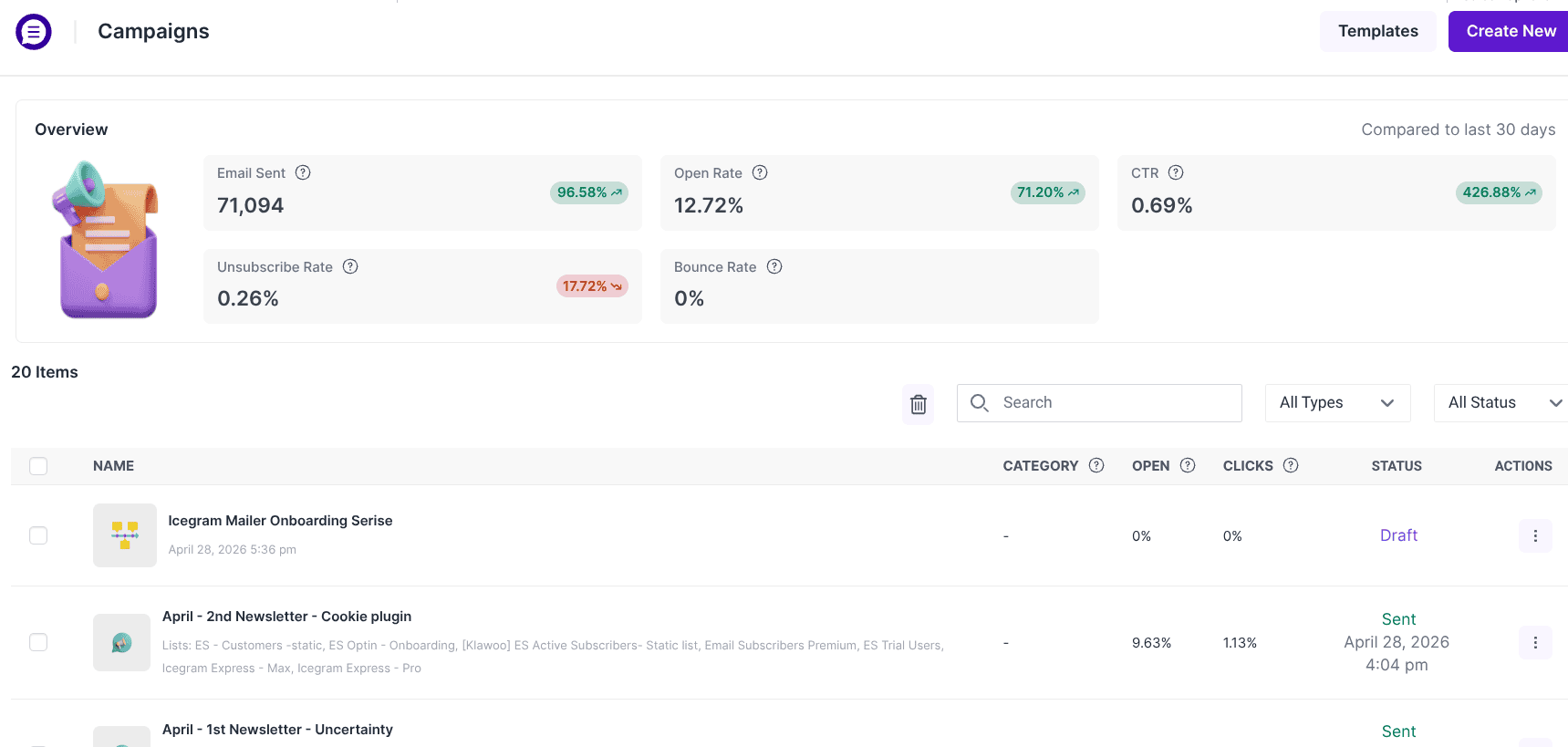
Navigate to Icegram Express → Campaigns → New Email.
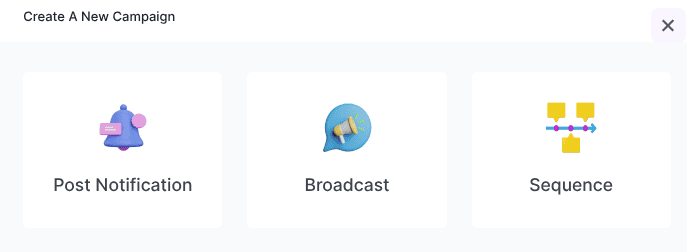
Users can pick from options including post notification, broadcast, and sequence.
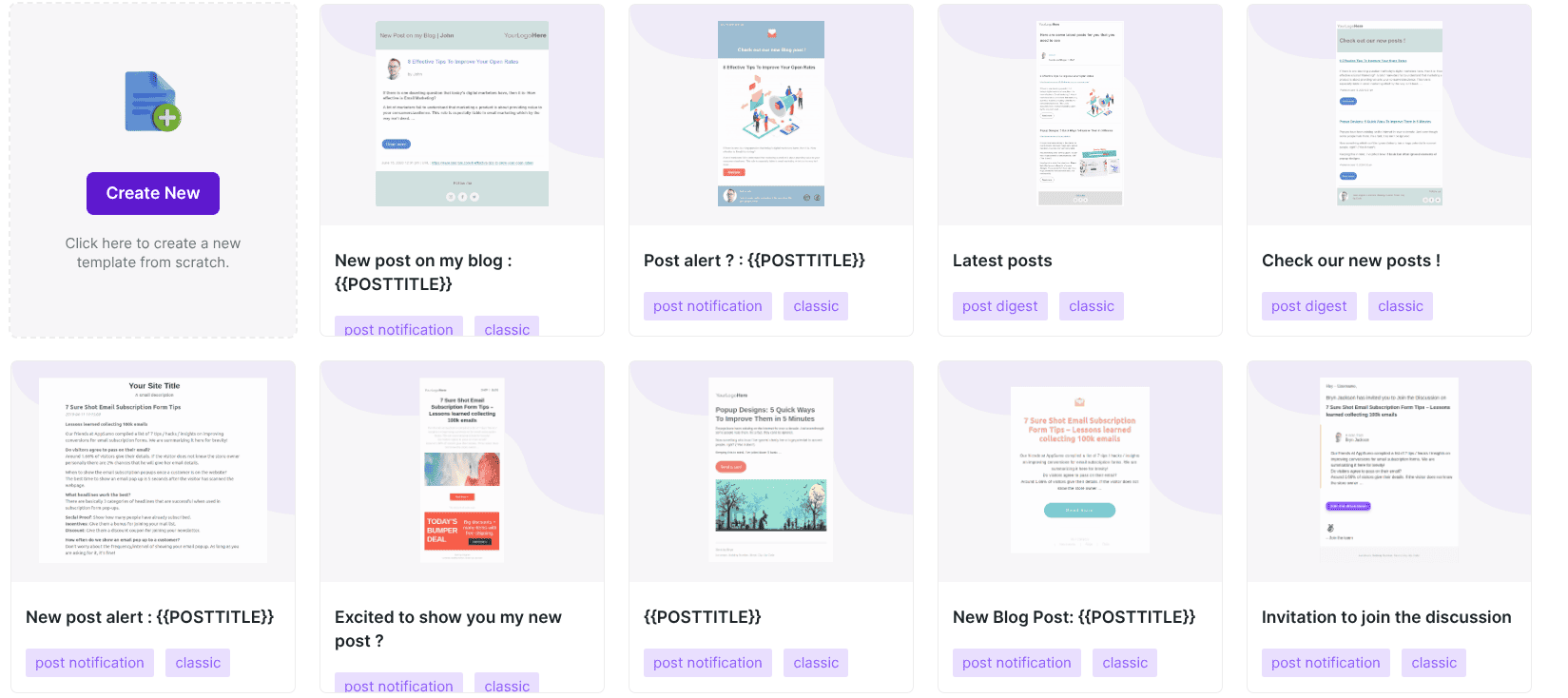
You can either choose a ready-made design or start from a blank template to create a fully custom email layout that matches your brand style.
Step 3: Create a new email
Once you click on ‘Create New’ 2 options pop up:
- Classic Editor
- Drag-and-drop editor
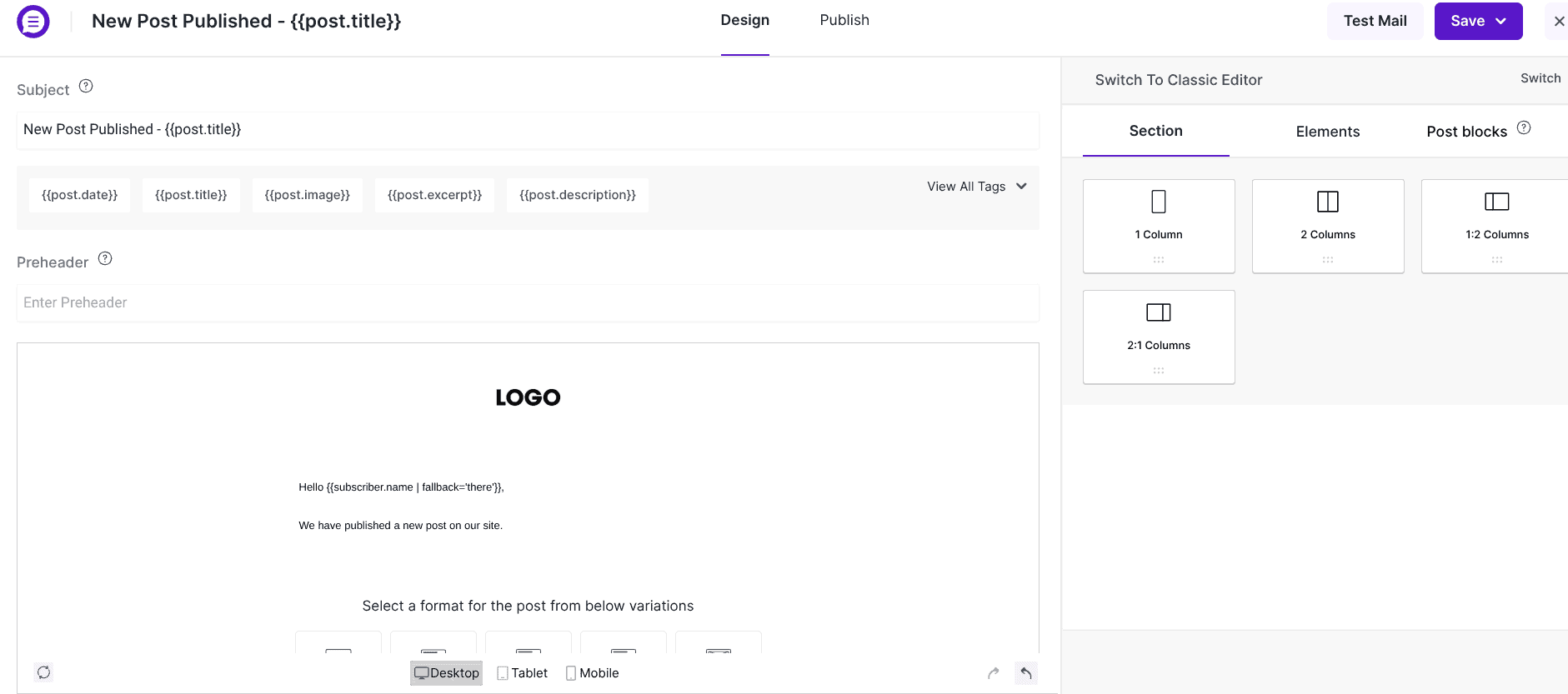
Once you select either of those, the ground is open for you to create the perfect WooCommerce email.
Icegram Express supports dynamic personalization tags, for example:
- {name} for customer’s name
- {order_id}, {order_total}, {order_date} for WooCommerce order details
- {site_name}, {unsubscribe_link}, etc.
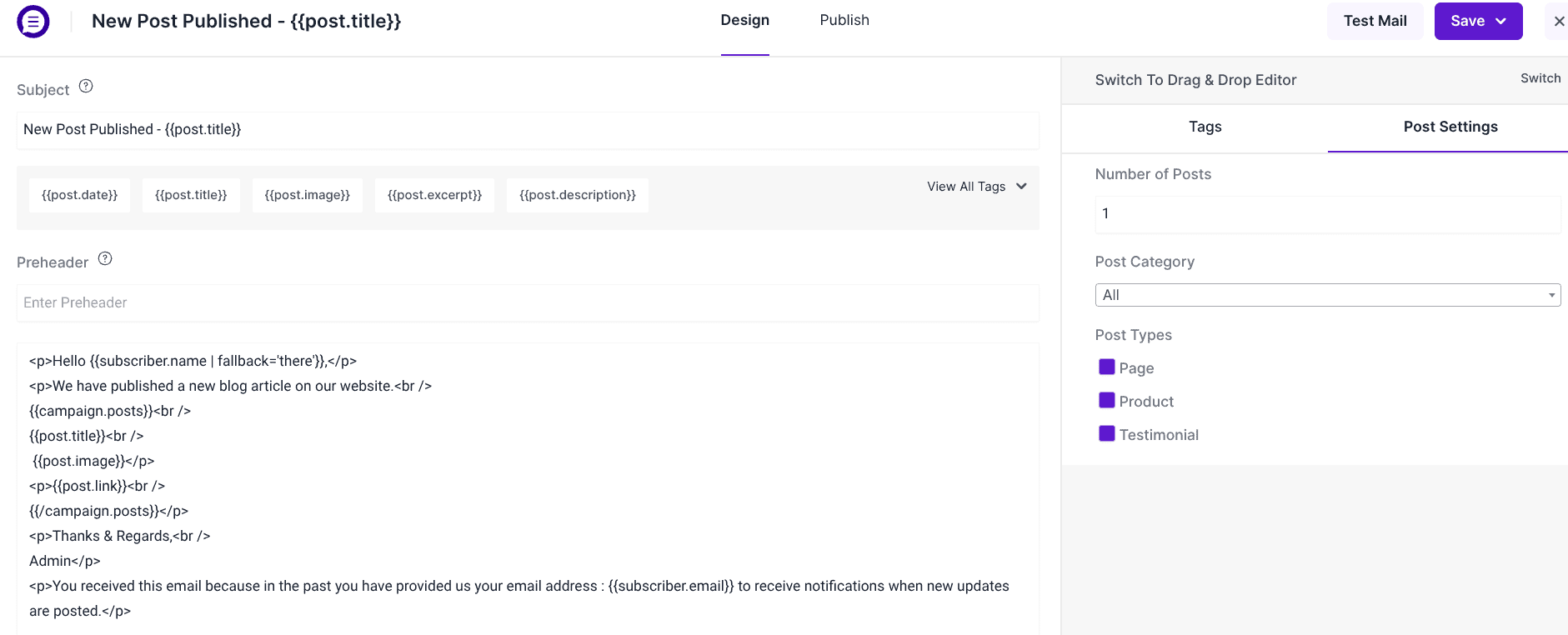
These tags help make each message feel personal and relevant, increasing engagement and trust.
Step 5: Automate triggers for customer actions
You can automate emails based on specific WooCommerce events, such as:
- A new order is placed
- A product is shipped or delivered
- A cart is abandoned
- A customer subscribes or completes a purchase
Step 6: Preview and test before sending
Before activating your campaign, use the Preview option to see how your email looks on desktop and mobile.
Send a test email to yourself to ensure all links, personalization tags, and formatting display correctly.
Once confirmed, you can schedule or publish your email automation.
What’s more?: Use the drag-and-drop option
Icegram Express offers a block-based visual editor where you can drag and drop elements like text blocks, images, buttons, and dividers.
You can change text, buttons, video, header, footer and a lot more — no coding required.
This gives you complete control over branding and design consistency across all WooCommerce emails.
Why do people use Icegram for email customization?
Advanced design control without coding
Icegram Express offers a visual drag-and-drop email editor that makes it simple to design beautiful, responsive WooCommerce emails, no HTML or CSS required.
You can easily adjust layouts, add images, customize fonts and colors, and align your email design with your brand identity.
Personalized and automated communication
With dynamic personalization tags, you can insert customer names, order details, and recommendations directly into your emails.
Combine this with automated workflows that trigger messages based on actions, such as purchases, abandoned carts, or sign-ups, and you get a fully personalized communication system.
Consistent branding across all touchpoints
Every interaction counts. Icegram helps you maintain brand consistency across marketing and transactional emails, from headers and footers to color schemes and typography.
You can reuse templates across campaigns, ensuring customers recognize your brand instantly.
Better engagement and conversions through dynamic content
Icegram supports smart segmentation and dynamic content blocks, allowing you to tailor messages based on user behavior, preferences, and purchase history.
This means customers receive only the most relevant content, like product suggestions, offers, or updates, driving higher engagement, open rates, and conversions.
Time-saving templates and automation workflows
Instead of creating every email from scratch, Icegram Express offers ready-made templates and prebuilt automation flows for common eCommerce scenarios. This includes welcome emails, order updates, cart recovery, and more.
You can quickly set up automated campaigns, saving hours of manual work while ensuring consistent communication that keeps your customers informed and engaged.
Best practices for customizing WooCommerce emails
Customizing WooCommerce emails goes beyond design; it’s about ensuring every message is functional, reliable, and customer-friendly. To achieve the perfect balance between branding and usability, follow these best practices:
Ensure mobile responsiveness
- More than 60% of customers check order confirmations and shipping updates on their smartphones.
- Use templates that automatically adjust for smaller screens.
- Keep columns minimal (prefer single-column layouts) to prevent content from breaking on mobile.
- Test CTAs and buttons for tap-friendliness (minimum button size: 44x44px).
Quick tip: Always preview emails on both desktop and mobile before sending.
Maintain readability (fonts, spacing, layouts)
- Use web-safe fonts like Arial, Helvetica, or Georgia for cross-client compatibility.
- Stick to font sizes between 14px–16px for body text and 20px+ for headings.
- Ensure proper line height (1.4–1.6) for readability.
- Use enough white space to separate sections (order summary, shipping details, support links).
Why it matters: Clean, readable emails reduce confusion and make important information — like order numbers or tracking links — easy to find.
Test across different email clients
- Rendering varies between Gmail, Outlook, Apple Mail, Yahoo, and others. What looks perfect in one may break in another.
- Test using tools, or the built-in preview/test-send feature in WooCommerce plugins.
- Don’t rely solely on one client or device. A large portion of customers will open your emails on multiple platforms.
Pro tip: Always check:
- Fonts rendering properly
- Images scaling correctly
- Links and CTAs working as expected
Keep content clear, actionable, and not overly designed
- Transactional emails are meant to inform, not distract.
- Include the essentials: order details, payment confirmation, delivery expectations, and contact information.
- Place CTAs (e.g., “Track Your Order,” “Leave a Review”) in visible, clickable areas.
- Avoid heavy graphics or complex layouts that may slow loading or trigger spam filters.
Best approach: Short, direct, and customer-focused content with one or two clear actions.
Balance branding with functionality
- Add your logo, brand colors, and tone of voice for consistency.
- Ensure branding never overshadows the main purpose, delivering accurate order and shipping information.
- Keep a neutral fallback style in case images fail to load (e.g., alt text for logos and banners).
- Avoid excessive styling or custom code that may not render correctly in certain clients.
Conclusion
Customizing WooCommerce emails isn’t just a design exercise; it’s a critical step in shaping how customers experience your brand after checkout.
The good news is that WooCommerce offers flexibility for every type of user. If you only need small tweaks like adding a logo or adjusting colors, the built-in settings are enough. For a more polished, on-brand design without coding, visual plugins provide drag-and-drop convenience.
And for developers, hooks and template overrides unlock complete control, making it possible to deliver dynamic, fully tailored email experiences.
The final takeaway is simple: the perfect WooCommerce email customization strikes a balance.
Prioritize clarity first, branding second, and polish last, and you’ll have emails that don’t just deliver information, but also leave a lasting impression on your customers.
FAQ
How often should I review or update WooCommerce email templates?
It’s recommended to review email templates after any major WooCommerce update, plugin updates, or design changes. Additionally, check templates quarterly to ensure:
- Branding consistency with your website.
- Updated shipping or refund policies.
- Proper rendering on new email clients or devices.
Are there accessibility considerations for WooCommerce emails?
Absolutely. Accessible emails improve readability and usability for all users:
- Use alt text for images
- Ensure sufficient color contrast for text vs background
- Avoid small font sizes
- Provide meaningful link text instead of “Click here.”
How do I test WooCommerce emails effectively before sending them to real customers?
- Use staging or test environments to place sample orders.
- Send test emails to multiple clients (Gmail, Outlook, Apple Mail) and devices (desktop, mobile, tablet).
- For plugin users, utilize the preview and test-send functionality.
How can I make WooCommerce emails feel more personal?
- Use merge tags for customer name, order details, or delivery dates.
- Include thank-you messages or loyalty points information.
- Send post-purchase follow-up emails with personalized recommendations or coupons.
- Keep a friendly, conversational tone consistent with your brand voice.
Should I prioritize branding or readability in WooCommerce emails?
Both are important, but clarity should come first. Customers must immediately understand order details, tracking info, and next steps. Branding elements like logos, colors, and tone should enhance the experience without interfering with functionality.