

How to Schedule Cron Emails in Icegram Express
Understand how cron scheduling works in Icegram Express and how to automate background email delivery.
To send emails in manageable batches and prevent server timeouts, Icegram Express queues outgoing campaigns and relies on cron jobs to trigger delivery.
Cron Options in Icegram Express
- Automatic Cloud Cron Pro: Included with Icegram Express Pro and Max. Icegram’s external servers check your queue every 5 minutes and process emails automatically with no setup required. See Automatic Cloud Cron.
- Server-Level Cron Job (Recommended for Free Users): Add a scheduled task in your web hosting control panel to execute your unique Icegram Express Cron URL at regular intervals:
- Default WP-Cron: Enabled out of the box in the free plugin. Executes when visitors browse your website.
Where to Find Your Cron URL
- In your WordPress admin, go to Icegram Express > Settings.
- Switch to the Email Sending tab.
- Locate the Cron job URL field and copy your site’s unique URL (e.g.,
https://example.com/?es=cron&guid=...).
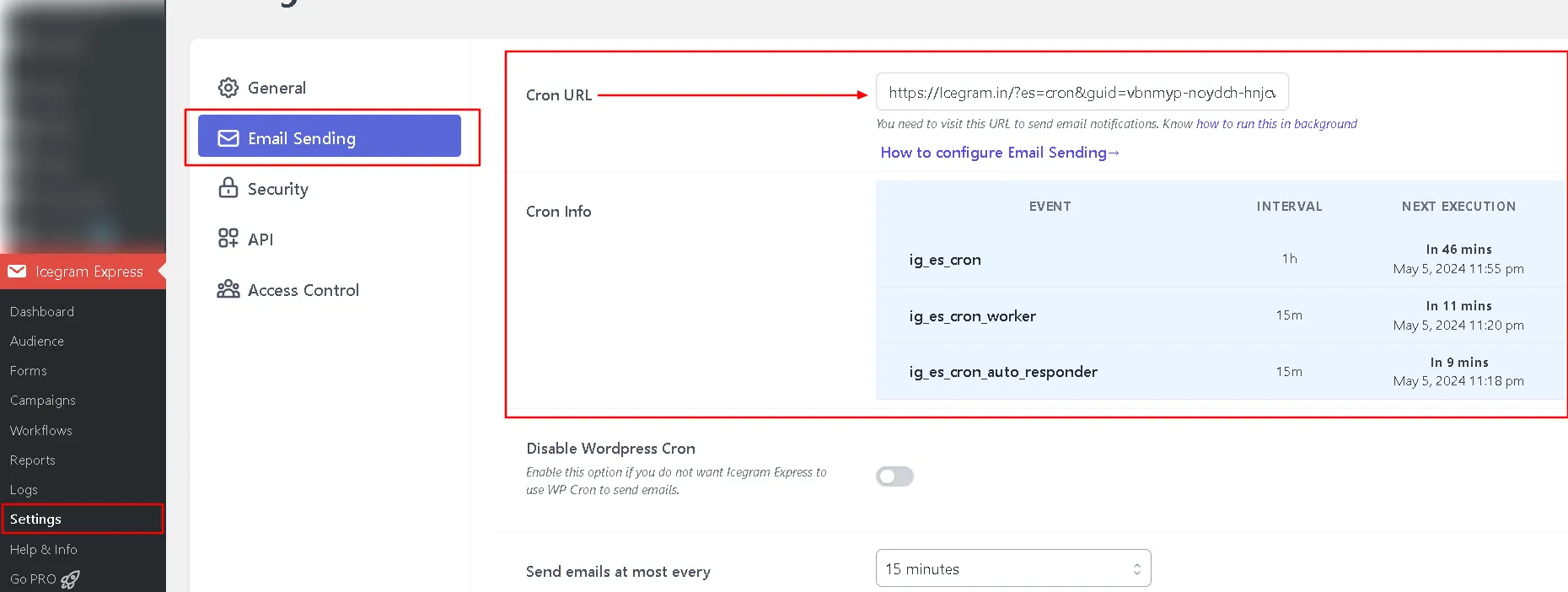
You can paste this URL into cPanel or external cron monitoring services (such as Cron-Job.org or EasyCron).