

How to Export Contacts
Export subscriber email lists and contact details from Icegram Express to a CSV file to ensure high deliverability and subscriber engagement.
Icegram Express allows you to export your subscriber records to a standard CSV (comma-separated values) file. You can export your entire audience, contacts filtered by lifecycle status, or a specific email list.
Steps to Export Contacts
-
In your WordPress admin dashboard, navigate to
Icegram Express→Audience. -
Click the Export Contacts button in the top toolbar.
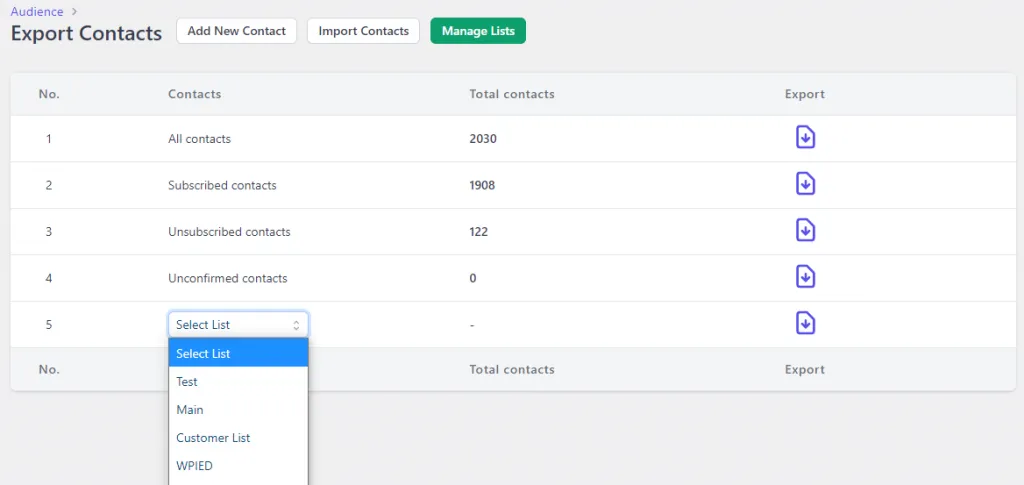
Audience toolbar with Export Contacts button and export dialog -
In the export dialog, choose the contacts you want to export:
- By Status: Export all contacts matching a specific status (Subscribed, Unconfirmed, or Unsubscribed).
- By List: Choose a specific email list from the dropdown to download only members of that list.
-
Click the download icon next to your desired option.
Your browser will automatically download a .csv file containing contact details including email address, first name, last name, and subscription date.