

How to Handle Bounced Email Addresses in Icegram Express
MaxAutomatically track hard and soft bounces via mailer webhooks to maintain pristine sender reputation and clean subscriber lists.
A bounce occurs when an email message is rejected by the recipient’s mail server and cannot be delivered. Regularly pruning bounced addresses is essential to protect your domain reputation and prevent sending throttles.
Types of Email Bounces
- Hard Bounce: A permanent delivery failure caused by an invalid, expired, or non-existent email address (e.g., misspelled domain like
user@gnail.com). Hard bounces should be unsubscribed or deleted immediately. - Soft Bounce: A temporary failure caused by a full recipient mailbox, transient server timeout, or message size limit.
How Bounce Tracking Works in Icegram Express
When an email bounces, supported mailer services (SendGrid, Mailgun, Postmark, SparkPost, Amazon SES) fire a webhook back to Icegram Express.
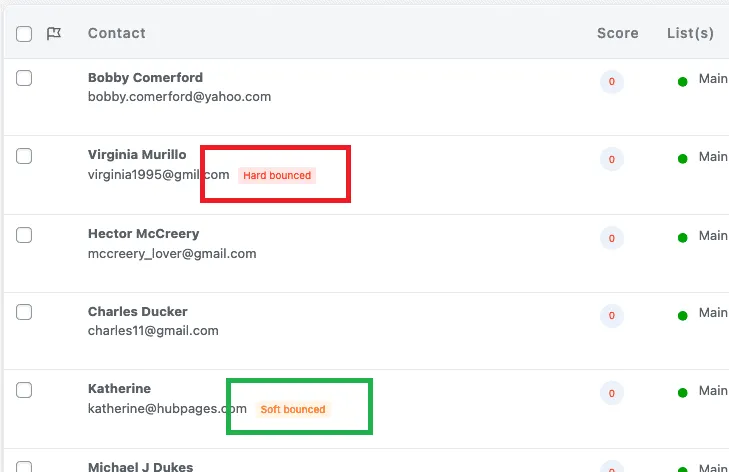
The plugin tags the contact record with the specific bounce type directly on the Audience screen:
Configuring the Bounce Webhook
- In your WordPress admin, go to Icegram Express > Settings > Email Sending.
- Scroll to your active mailer card (e.g., Mailgun, SendGrid, Amazon SES).
- Copy your unique Bounce Webhook URL.
- Log in to your mailer account and open the Webhooks settings.
- Create a new webhook event for Bounces / Dropped Emails and paste your Icegram Express Webhook URL.
- Save the webhook. Future bounce notifications will now sync automatically to your WordPress dashboard.