

How to Install and Activate Icegram Express
Complete guide to installing and activating Icegram Express (Free, Pro, and Max) on single WordPress sites and WordPress Multisite networks.
Whether you are using the free version from WordPress.org or an upgraded plan (Pro or Max), installing and activating Icegram Express takes only a few minutes.
Installing the Free Version
You can install Icegram Express directly from your WordPress dashboard:
- Log in to your WordPress dashboard and go to Plugins > Add New.
- In the search box, type
Icegram Express(orEmail Subscribers). - Locate Icegram Express - Email Subscribers, Newsletters and Marketing Automation Plugin by Icegram.
- Click Install Now, then click Activate.
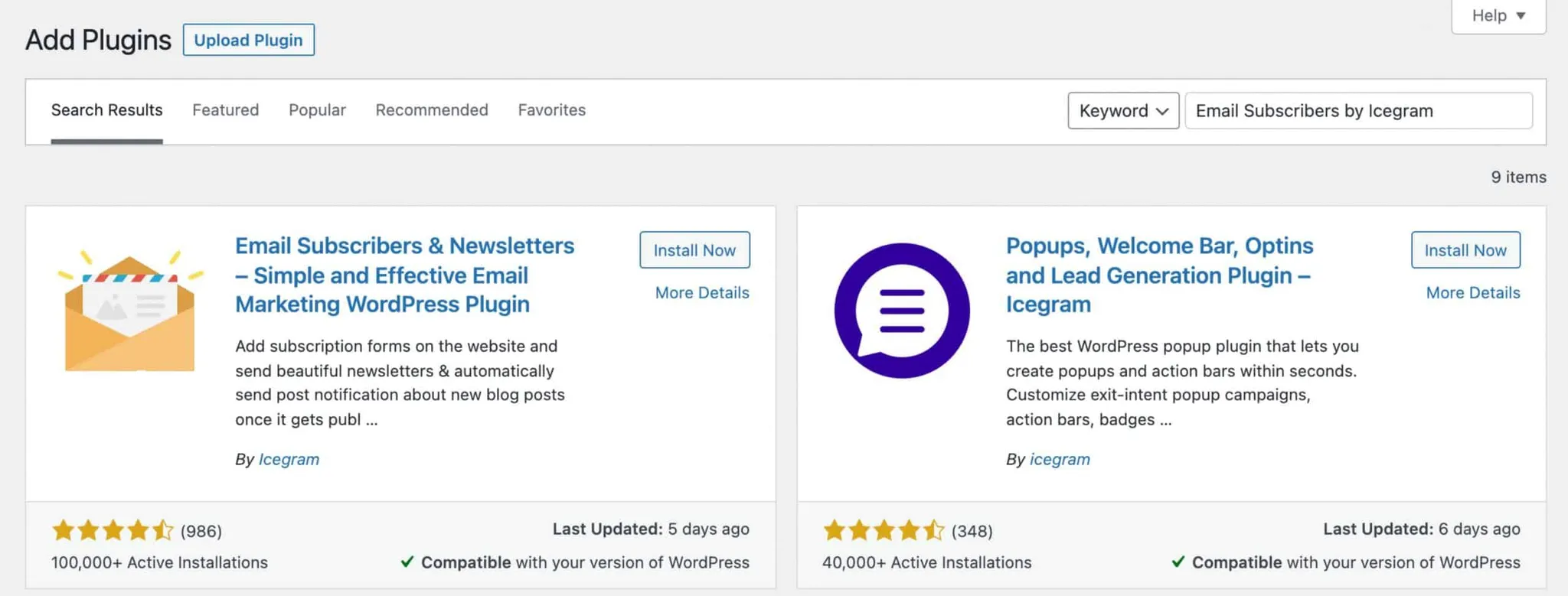
Alternatively, if you downloaded the free .zip file from WordPress.org, go to Plugins > Add New > Upload Plugin, choose the zip file, click Install Now, and click Activate.
Installing Premium Versions (Pro & Max)
When you purchase Icegram Express Pro or Max, you will receive an order confirmation email containing your license key and download link. You can also access your download at any time from your account on Icegram.com.
Option A: Download from Your Icegram Account
-
Log in to your account at Icegram My Account > Downloads.
-
Locate your active Icegram Express purchase and click the link to download the plugin
.zipfile.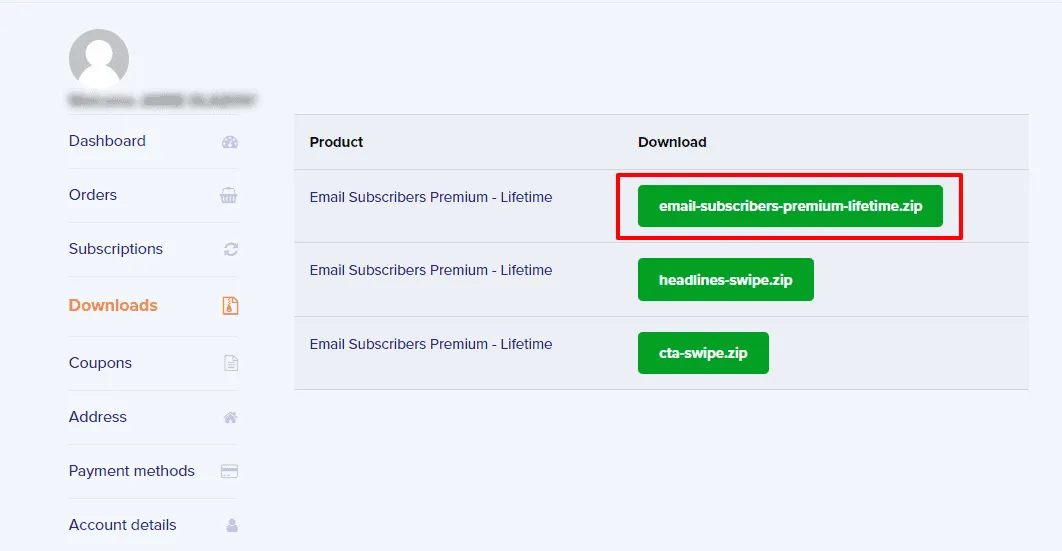
-
Log in to your WordPress dashboard and navigate to Plugins > Add New > Upload Plugin.
-
Click Choose File, select the downloaded
.zipfile, and click Install Now.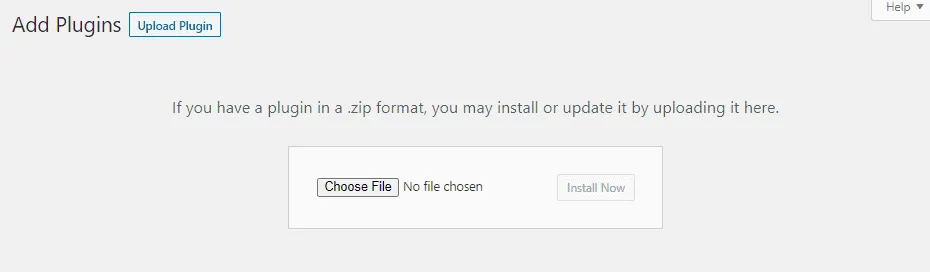
-
After the upload completes, click Activate Plugin.
Option B: Download from Your Order Confirmation Email
- Open the receipt email sent to your inbox upon purchasing Icegram Express.
- Click the direct download link under the product name to download the
.ziparchive. - In WordPress, go to Plugins > Add New > Upload Plugin, choose the downloaded file, and click Install Now.
- Click Activate Plugin.
Single Site vs. Multisite Activation
- Single Site: Simply click Activate after installation to immediately start using the plugin.
- WordPress Multisite Network:
Troubleshooting Installation Issues
- File permission errors: If WordPress cannot unpack or save the plugin files, check folder permissions on your server (
wp-content/pluginsshould typically be set to755for directories and644for files). - Destination folder already exists: If an older installation exists, delete the
email-subscribersoremail-subscribers-premiumfolder via FTP or your hosting file manager before retrying. - Check the official WordPress guide on managing and troubleshooting plugins.
- Need further assistance? Contact Icegram Support and our team will be glad to assist you.