

How to Add a Countdown Timer to an Icegram Engage Campaign
ProCreate urgent countdown timers inside popups and header bars to drive limited-time sales and event signups.
Adding a real-time countdown timer creates a sense of urgency, motivating visitors to take immediate action before a promotion, discount code, or registration deadline expires.
Steps to Add a Countdown Timer
-
In your WordPress dashboard, navigate to
Icegram Engage→Campaignsand edit or create a campaign. -
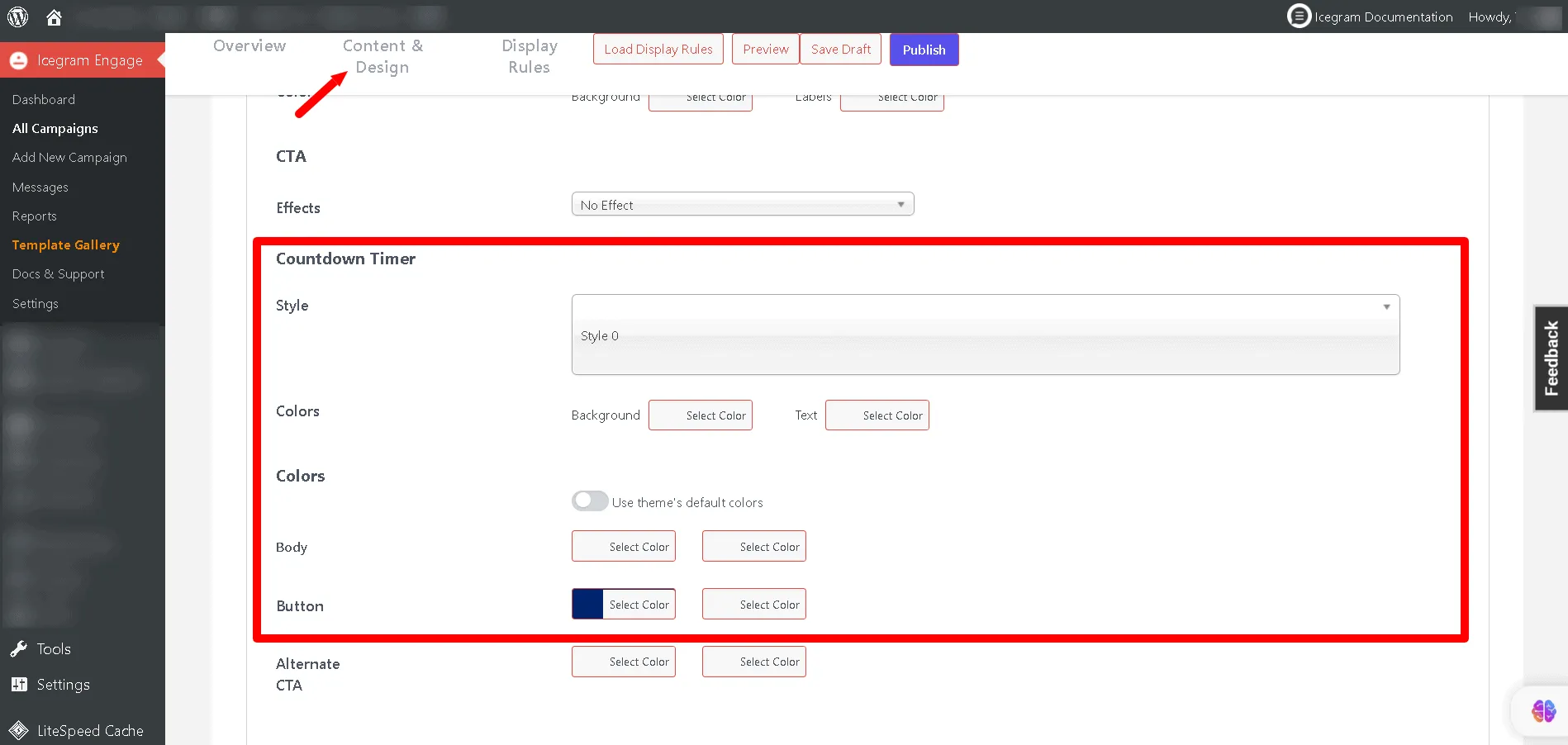
In the message editor, scroll to the Countdown Timer section and toggle it On.
-
Set your target deadline date, time, and timezone.
-
Customize the countdown display format (days, hours, minutes, and seconds) and visual styling to match your brand.
-
Choose the expiration action: automatically hide the message, redirect to a new URL, or display custom expired text.
-
Save or publish your campaign.