How to Create a Slide-in Ribbon Message in Icegram Engage
Create slide-in corner ribbon messages in Icegram Engage for discreet, stylish on-site promotions.
A Ribbon is a sleek slide-in notification that attaches to the corner or edge of the visitor’s screen. It provides an eye-catching visual accent without obstructing your page content.
Steps to Create a Ribbon
-
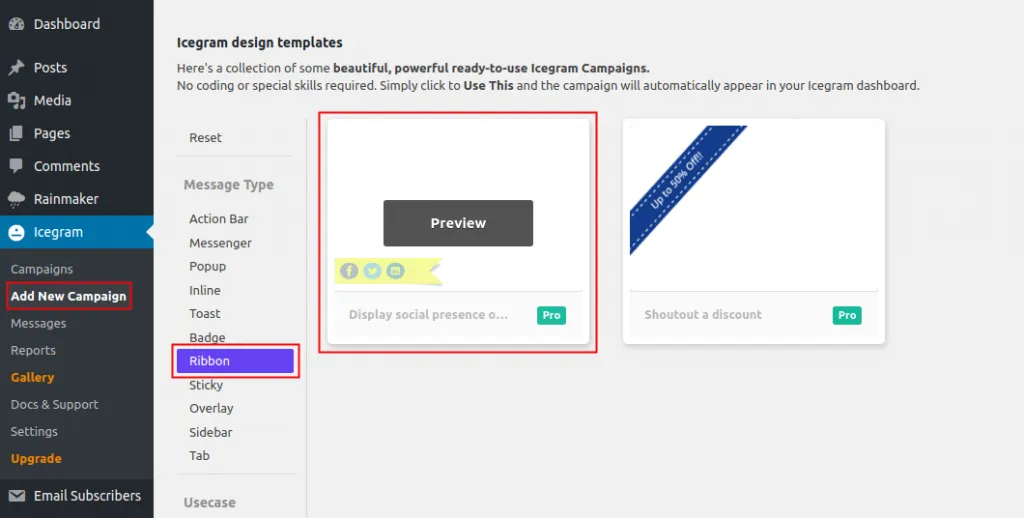
In your WordPress dashboard, navigate to
Icegram Engage→Campaigns→Add New Campaign. -
Filter the template gallery by Ribbon and select a template.
-
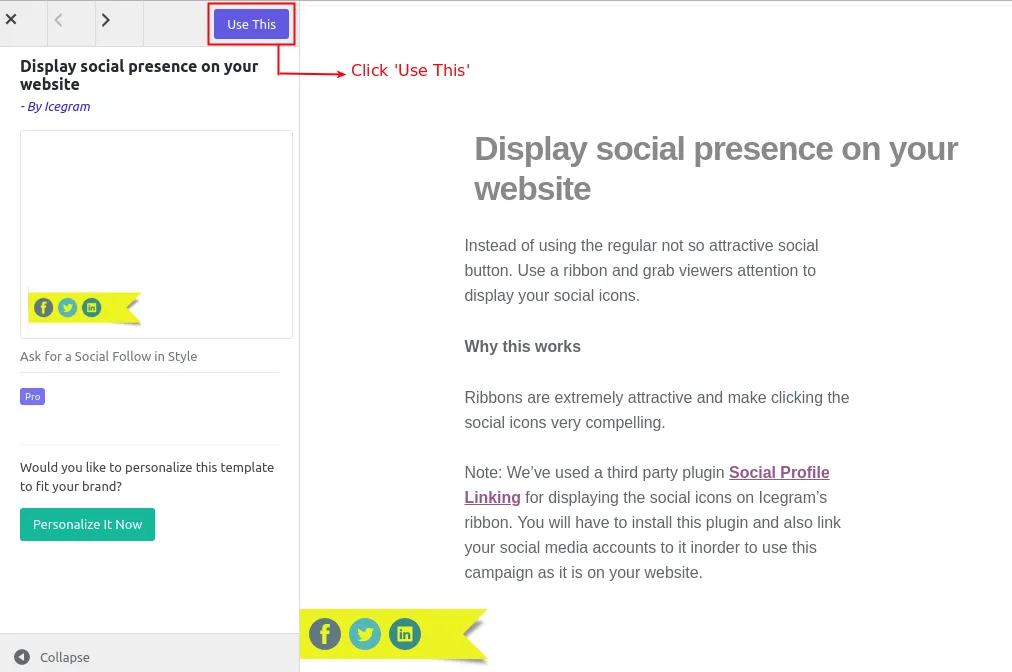
Click Use This on your preferred template.
-
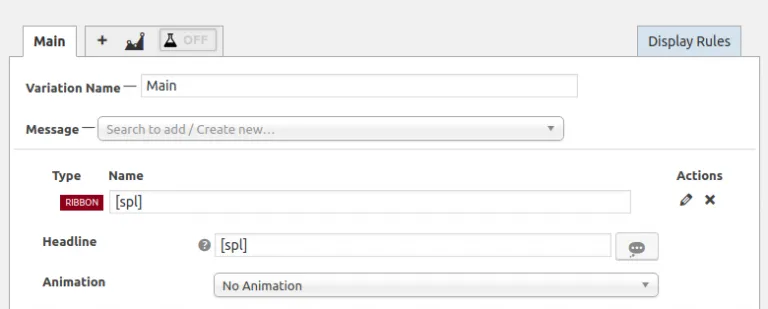
Enter your promotional text, coupon code, and CTA link.
-
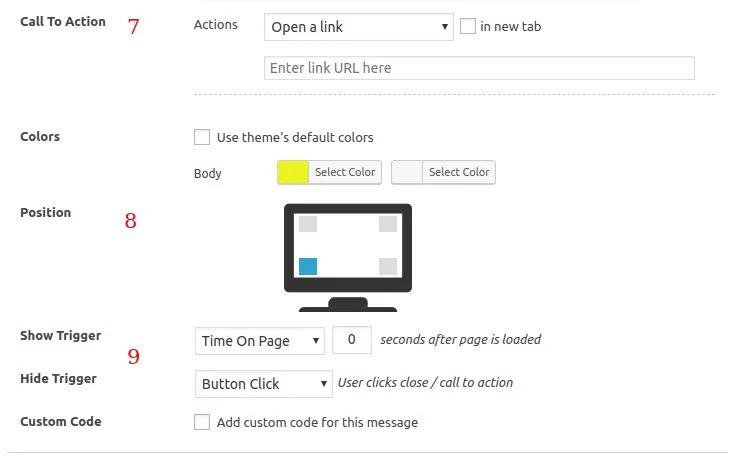
Select the screen corner where the ribbon should anchor (top-right, top-left, bottom-right, or bottom-left).
-
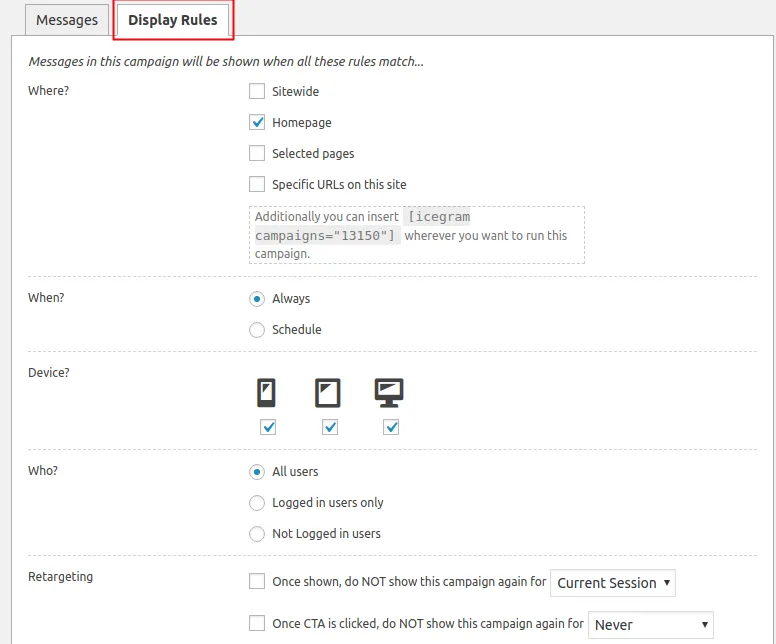
Set display targeting rules and click Publish.