

How to Enable CAPTCHA in Icegram Collect Forms
Protect your Icegram Collect forms from automated spam bot submissions by enabling Google reCAPTCHA verification on your site.
Enabling CAPTCHA adds an anti-spam verification layer to your forms, filtering out automated bot submissions and keeping your contact lists clean.
Steps to Configure CAPTCHA
-
In your WordPress dashboard, navigate to
Icegram Collect→Settings. -
Enter your Google reCAPTCHA Site Key and Secret Key. Click Save Settings.
-
Navigate to
Icegram Collect→Formsand click Edit on your form. -
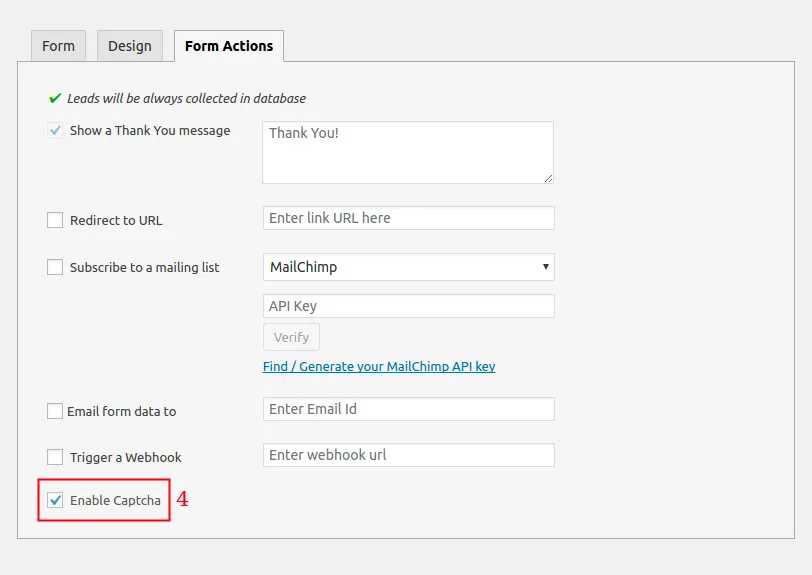
Under the Form tab, check the box next to Enable Captcha.
-
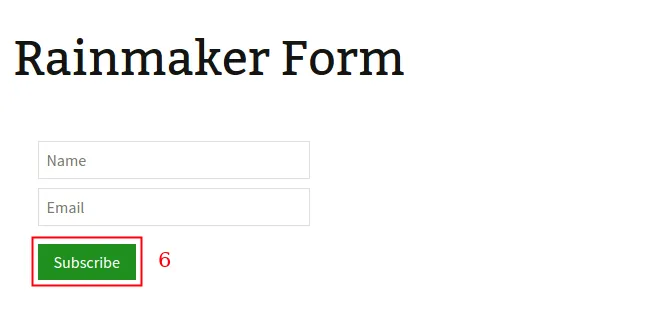
Click Update to save the form.
Your form will now display the Google reCAPTCHA verification badge or checkbox on frontend submissions.