

Add Countdown Timers to Campaigns in Icegram Engage
ProCreate urgent countdown timers inside popups and header bars to drive limited-time sales, flash discounts, and event signups.
Adding a real-time countdown timer creates urgency, motivating visitors to act before a flash sale, seasonal coupon, or webinar registration window closes.
Steps to Add a Countdown Timer
-
In your WordPress dashboard, navigate to
Icegram Engage→Campaignsand edit or create a campaign. -
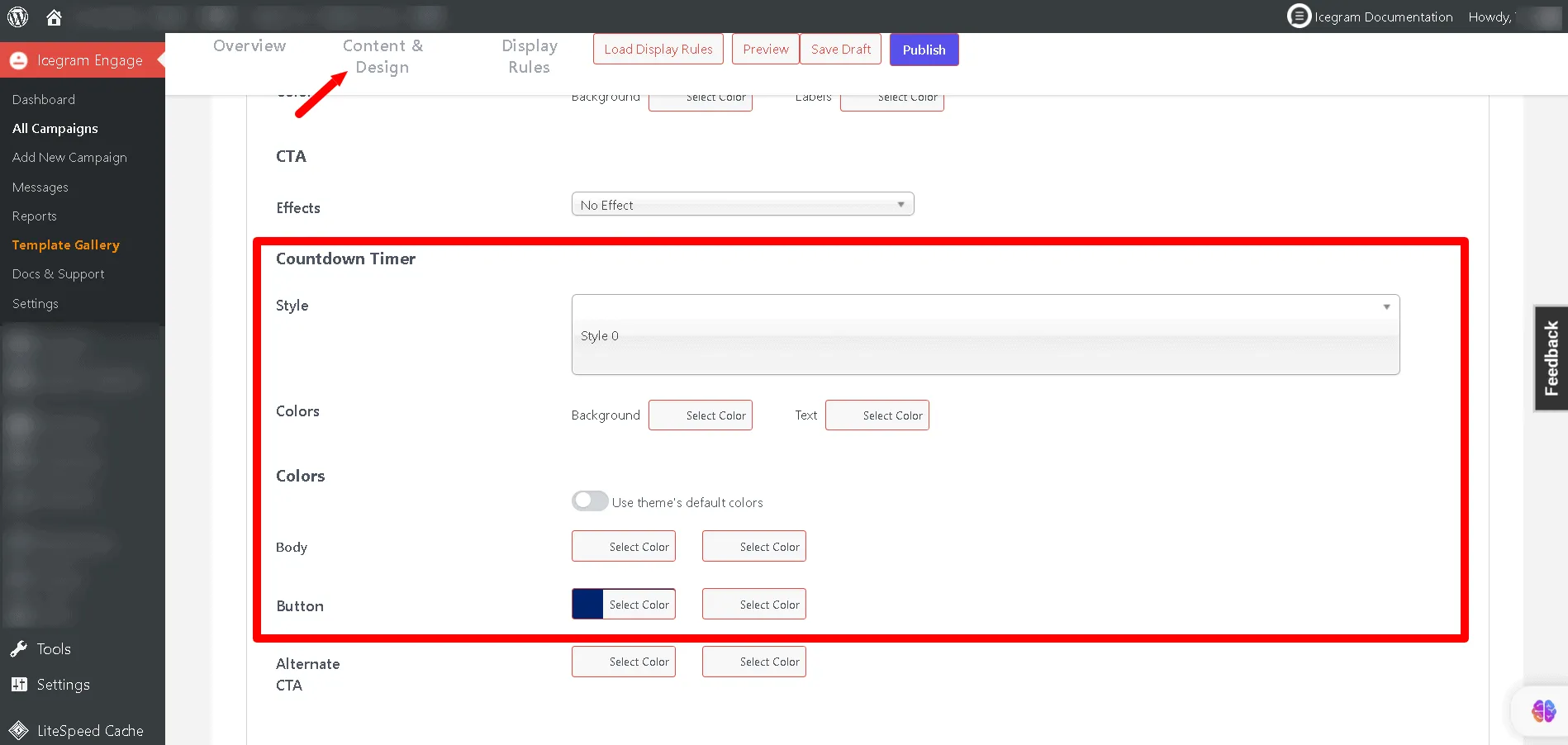
In the campaign settings panel, locate the Countdown Timer section and check Enable Timer.
-
Set your deadline dates and times:
- Start Date & Time: When the timer starts counting down (defaults to current time if left empty).
- End Date & Time: The final expiration deadline.
-
Insert the timer shortcode into your message:
[ig_countdown_timer]Add this shortcode into the message body or headline wherever you want the animated countdown clock to render.
-
Under the message’s Styling options, choose your preferred timer theme and color scheme to complement your design.
-
Save or publish your campaign.
When the deadline is reached, the countdown clock automatically hits zero and the campaign expires according to your campaign scheduling rules.