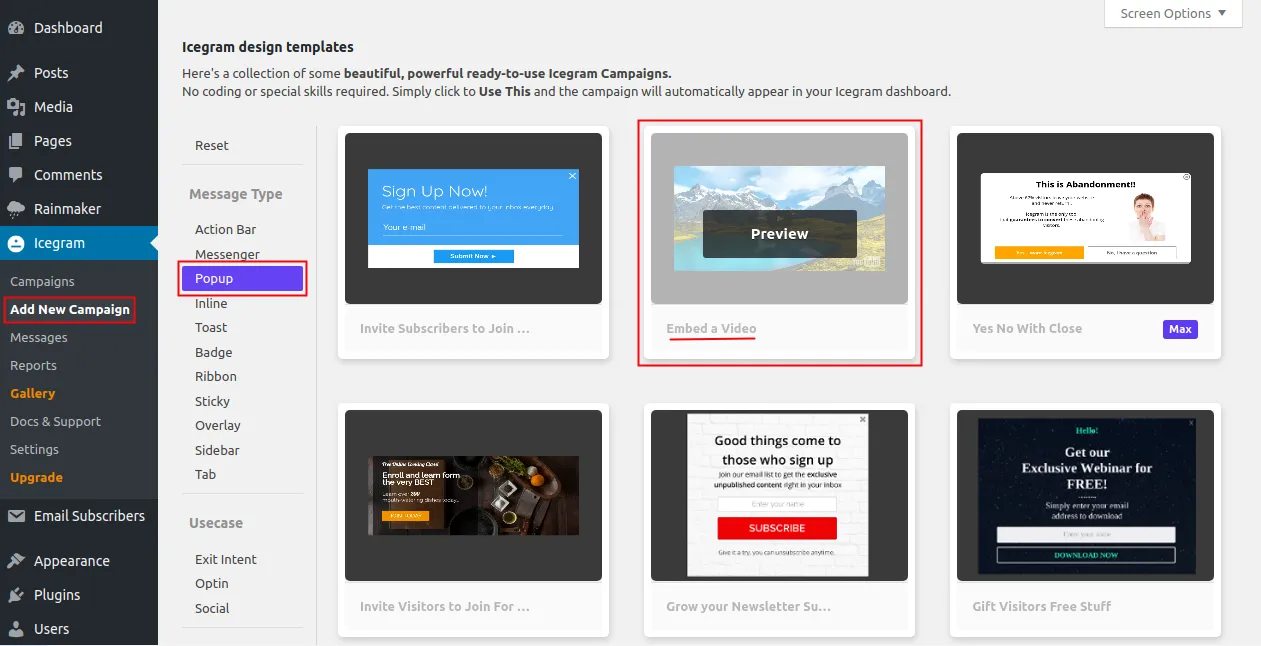

How to Embed Videos in Icegram Engage Messages
Embed responsive YouTube, Vimeo, or self-hosted video players inside Icegram Engage popups, overlays, inline boxes, and sidebars.
Adding a video to your Icegram Engage campaigns is a great way to boost engagement and conversions. You can add video to any message type—including Popups, Inline messages, Overlays, and Sidebars—either by embedding an external video (from YouTube, Vimeo, or Wistia) or uploading a media file.
Method 1: Embed a Video from YouTube, Vimeo, or External Services (Recommended)
Embedding via an iframe or video URL is the fastest method and ensures fast load times for your visitors.
-
In your WordPress dashboard, go to
Icegram Engage→Campaignsand edit or create a campaign. -
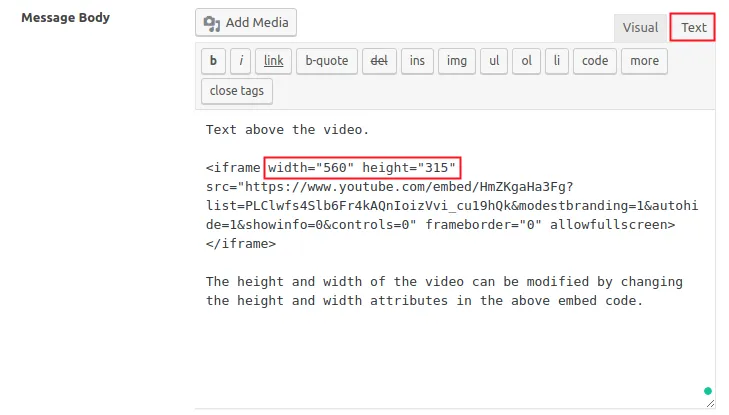
In the message editor, locate the Message Body section and switch to the Text (HTML) tab of the WordPress editor.
-
Paste your video embed code (or iframe code) into the editor. You can add text, headings, or call-to-action buttons above or below the video.
-
Save or update the campaign to see your embedded video in action.
Method 2: Upload a Video from Your WordPress Media Library
If you have a self-hosted MP4 or video clip:
-
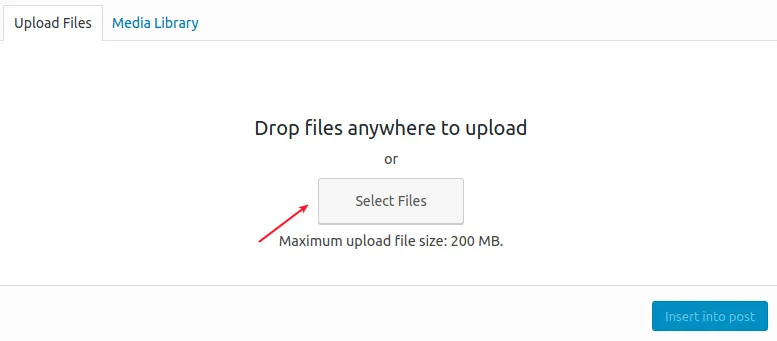
In the message editor, click the Add Media button above the Message Body editor.
-
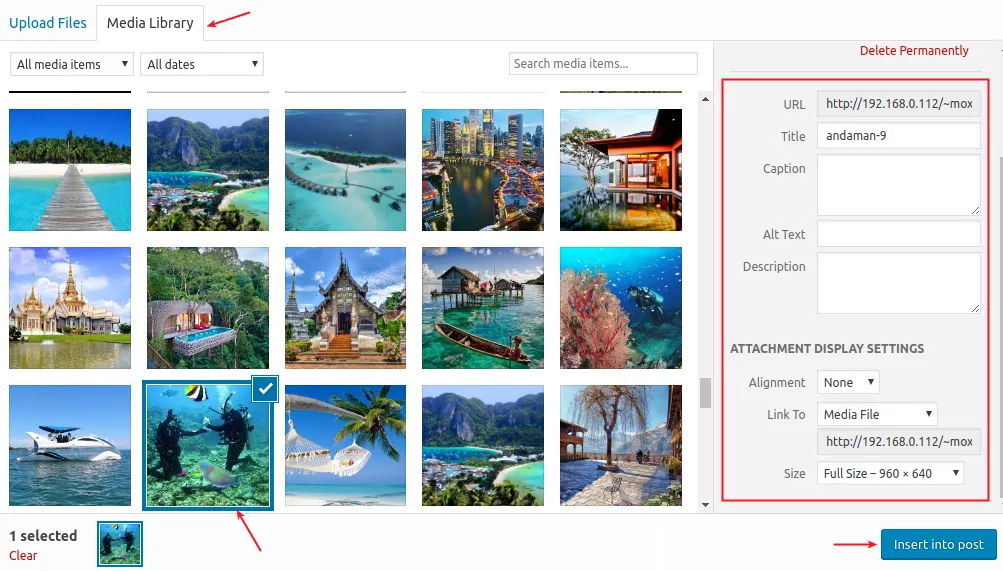
Either upload a video file from your computer using Upload Files, or choose an existing video from your Media Library.
-
Adjust the alignment and display settings in the right sidebar, then click Insert into post.
-
Publish or update your campaign.
Using Pre-Built Video Templates
Icegram Engage also includes dedicated pre-built video templates in the template gallery. When creating a new campaign, select the Embed a video template to get a pre-styled, responsive video popup ready out of the box.