

How to Connect E-goi with Icegram Engage
Integrate E-goi email marketing forms and subscriber lists directly into high-converting Icegram Engage popups on WordPress.
You can easily collect subscribers into your E-goi mailing lists directly from any Icegram Engage message type (popups, action bars, slide-ins, etc.) using E-goi’s raw HTML form code.
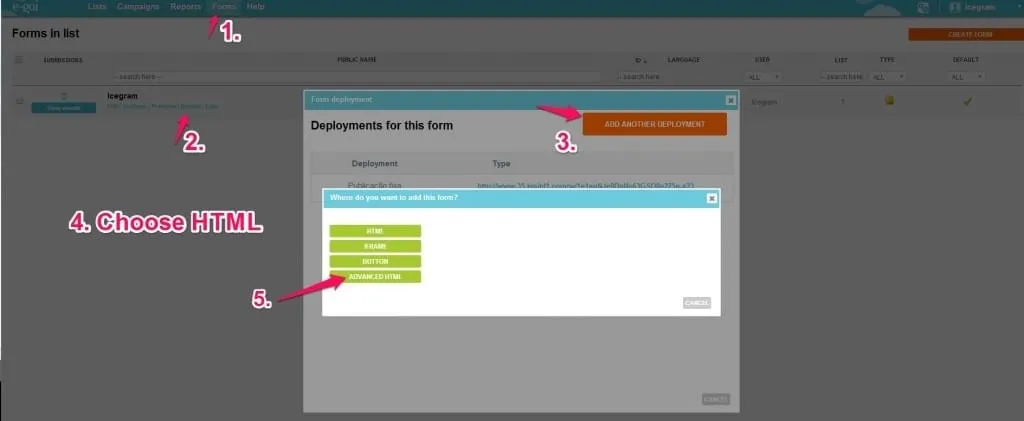
How to Get the Form HTML from E-goi
- Log in to your E-goi account and navigate to Forms in the main menu.
- Choose the form you want to deploy and click Deploy.
- Select Add Another Deployment.
- Choose HTML, then select Advanced HTML.
- Copy the generated HTML code snippet provided in the modal window.
How to Embed the Form into Icegram Engage
- In WordPress, go to Icegram Engage > Campaigns and edit or create a campaign.
- Under the message content settings, check the Form option.
- In the form code area, select Use your own HTML and paste the E-goi HTML snippet into the embed box.
- Set the form position and field styling to match your message layout.
- Save your changes and preview the message to confirm the subscription form displays and submits correctly.