
How to Connect Mailchimp with Icegram Engage
Integrate Mailchimp signup forms directly inside Icegram Engage popups and floating ribbons to grow your subscriber audiences.
You can integrate any email service provider—including Mailchimp—with Icegram Engage by embedding the provider’s form HTML directly into your campaigns.
Part 1: Get the Form Code from Mailchimp
-
In your Mailchimp account, go to Audience > Signup forms and select Embedded forms.
-
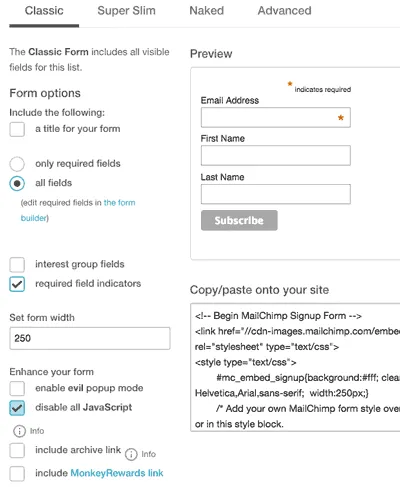
Mailchimp offers several formats. The Classic form includes JavaScript validation and CSS:
-
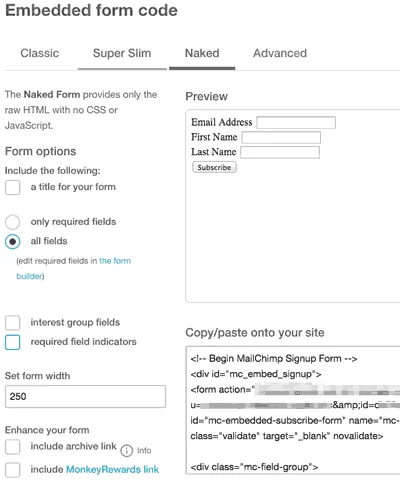
For best compatibility inside popups and action bars, choose the Naked or Condensed form layout. This generates clean HTML without conflicting styles:
-
Copy the raw HTML code from the embed code box.
-
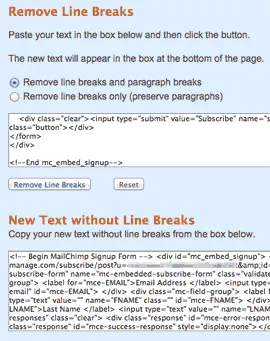
If the embed code has unnecessary line breaks or extra paragraph tags, clean it up using an online tool (like TextFixer) before pasting it into WordPress:
Part 2: Insert the Form Code into Icegram Engage
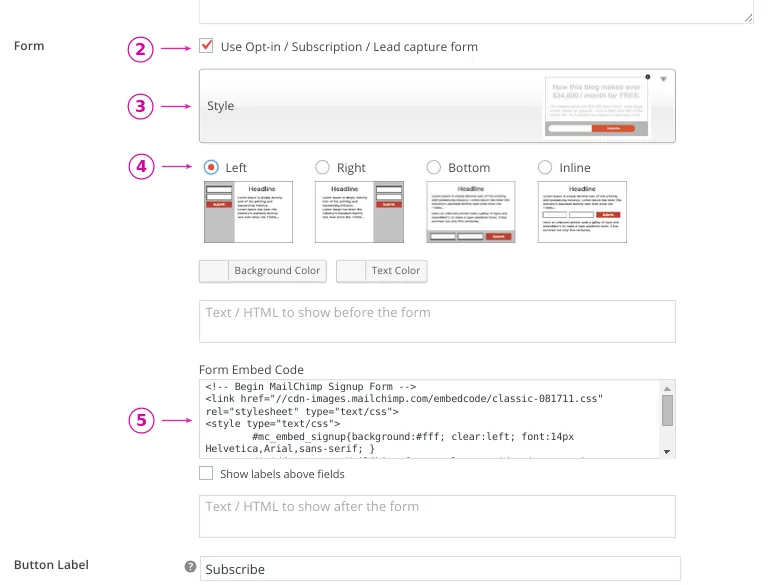
- In your WordPress admin, go to Icegram Engage > Campaigns and edit or create a campaign.
- Under the message configuration, enable the Form checkbox.
- Select your preferred Form Style for the input fields and buttons.
- Choose the Form Position (e.g., bottom, inline). If you choose Inline, place the shortcode
[ig_form]where you want the fields to appear in your body text. - Paste the Mailchimp embed HTML into the Form Code textarea.
- Save as draft and click Preview to verify styling and submission behavior before going live.