

How to Hide the Close Button on Messages in Engage
ProRemove or hide close buttons on required announcements, terms agreements, or age verification overlays using Icegram Engage.
In certain scenarios—such as mandatory age-verification gates, terms acceptance, or cookie consent walls—you may want to ensure visitors interact directly with the provided buttons rather than dismissing the overlay via the default close icon.
Steps to Hide the Close Button
-
In your WordPress dashboard, go to
Icegram Engage→Campaignsand edit your overlay message. -
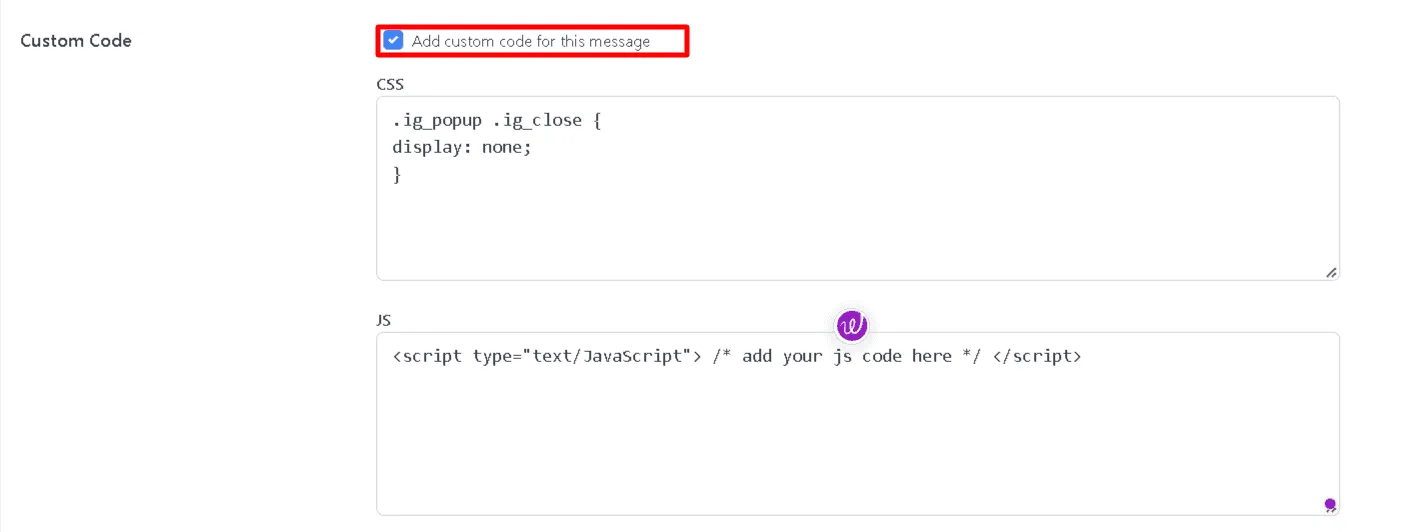
Scroll to the Custom Code section at the bottom of the message editor.
-
In the Custom CSS field, paste the following snippet:
.icegram_overlay .icegram_close_btn {
  display: none !important;
}
-
Save your changes.