

Assign Icegram Express Permissions to Specific User Roles
ProDelegate Icegram Express menu access and permissions for Audience, Forms, Campaigns, Reports, Sequences, and Workflows to custom WordPress roles.
By default, only WordPress Administrators have access to manage Icegram Express campaigns, lists, and settings. With the Access Control feature, you can delegate specific responsibilities to other user roles (such as Editors, Authors, or Shop Managers) without granting full administrative privileges.
Supported Access Control Menus
The permission matrix lets you toggle access for six specific plugin areas:
- Audience: View and manage subscriber contacts, lists, and sync options.
- Forms: Create, edit, and configure subscription forms.
- Campaigns: Draft, schedule, and send newsletters and post notifications.
- Reports: Inspect delivery analytics, open/click metrics, and unsubscribe counts.
- Sequences: Set up and manage automated email drip sequences.
- Workflows: Configure automated triggers and multi-step marketing actions.
How to Set User Role Permissions
- In your WordPress admin, go to Icegram Express > Settings.
- Click the User Roles (or Access Control) tab.
- Review the permission matrix table listing each registered WordPress role alongside the six manageable modules.
- Check the boxes corresponding to the modules each role should be allowed to view and manage.
- Click Save Settings.
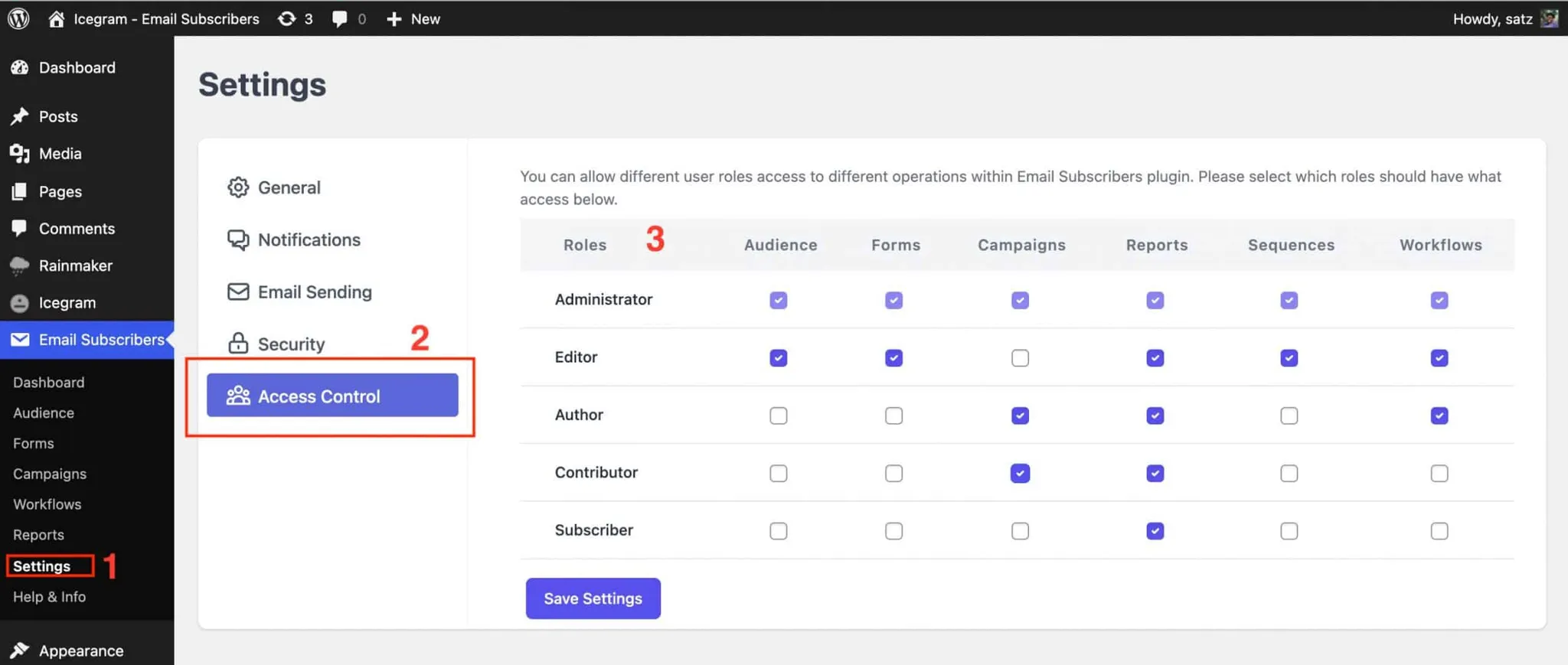 Note: Image illustrates permission checkboxes; current interface reflects updated styling.
Users logged in under those assigned roles will see only their authorized Icegram Express menu items in the WordPress sidebar.