

How Audience Filtering Works in Icegram Express
MaxSegment subscribers using quick dropdowns or multi-condition Advanced Filters by engagement score, country, bounce status, and list in Icegram Express.
The Audience dashboard in Icegram Express includes both quick table-level filters and a multi-condition Advanced Filters builder to segment subscribers, isolate engagement tiers, and execute targeted bulk operations.
Quick Table Filters
Above the subscriber table, quick filters let you isolate contacts instantly:
- List Filter: View contacts belonging to a specific mailing list.
- Status Filter: Filter by lifecycle status (Subscribed, Unconfirmed, Unsubscribed, or Bounced).
- Search: Search by email address, first name, or last name.
- Sort by Last Opened: Click the Last Opened column header to sort contacts by recent email activity.
- Subscriber IP Addresses: When Track IP Address is enabled in General Settings, subscriber signup and activity IPs appear in the audience records.
Multi-Condition Advanced Filters (Max)
Click Advanced Filters above the table to open the condition builder modal:
- In your WordPress admin, go to Icegram Express > Audience.
- Click the Advanced Filters button beside the search bar.
- Select a filter criteria category:
- List & Status: Filter by assigned List or subscription Status.
- Subscriber Attributes: Filter by Bounce Status, Engagement Score (0–5 stars), Country, or Email.
- Choose an operator:
is equal to,is not equal to,contains,does not contain,starts with, orends with. - Select or enter values. Multi-select is supported for lists, statuses, and bounce codes.
- Combine criteria using AND (contacts matching all conditions) or OR (contacts matching either condition) logic groups.
- Check the real-time matching recipient count displayed at the bottom of the modal.
- Click Apply Filters to update the contact table.
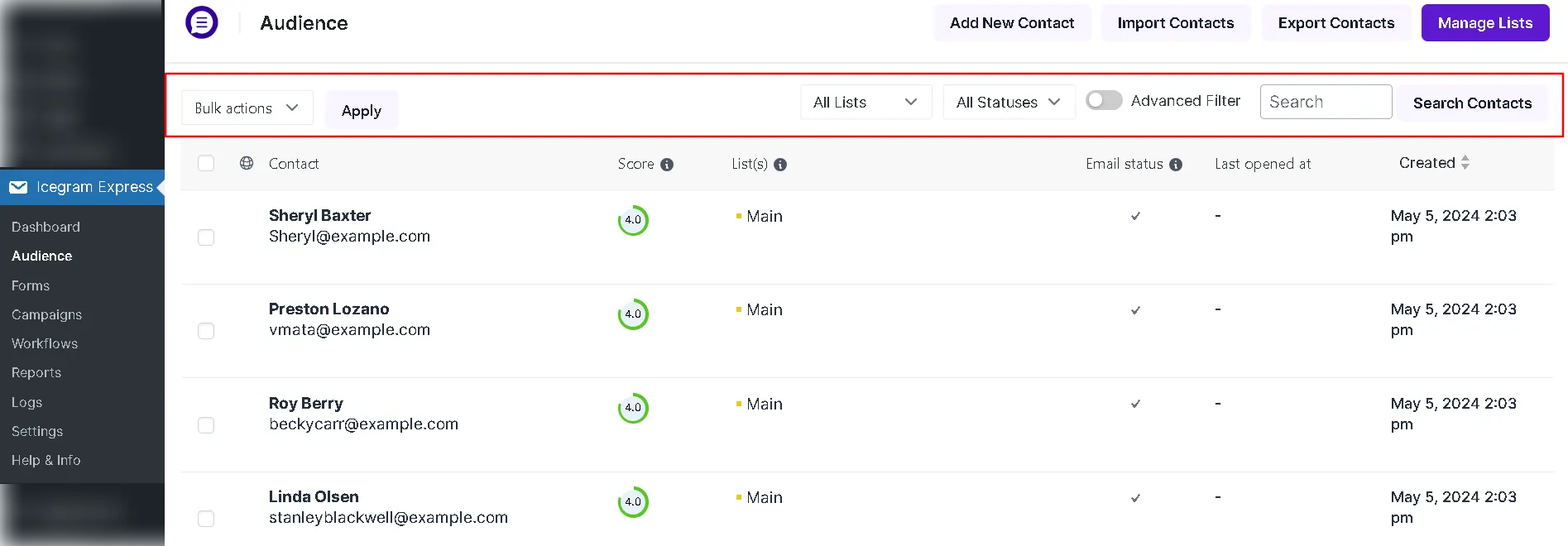 Note: Image illustrates filter selection; current admin uses modern navigation tabs and a dedicated Advanced Filters modal.
Supported Bulk Actions
After filtering, select subscribers via checkboxes and choose a command from the Bulk Actions dropdown:
- Move to List: Reassign selected contacts from their current list to a target list.
- Add to List: Assign selected contacts to an additional list while retaining existing memberships.
- Change Status: Bulk-update status to Subscribed, Unconfirmed, or Unsubscribed.
- Send Confirmation Email: Re-send double opt-in confirmation links to unconfirmed subscribers.
- Delete: Permanently remove selected contacts.