

Manage Audience Lists and Statuses in Icegram Express
Organize audience lists and monitor subscriber lifecycle statuses like subscribed, unconfirmed, and unsubscribed in Icegram Express.
The Audience area in Icegram Express is your subscriber management hub. From here, you can organize contacts into targeted lists, monitor subscriber engagement, and oversee email lifecycle statuses.
The Audience dashboard is organized into clear administrative tabs:
- Contacts: Browse, search, filter, and manage individual subscriber records.
- Lists: Create, edit, and segment audience lists.
- Sync: Synchronize WordPress users, WooCommerce customers, and third-party members.
- Bounce: Track hard and soft bounce records and review delivery failure codes.
- Import / Export: Migrate subscriber data via CSV files.
How to Create and Manage an Email List
- In your WordPress admin, go to Icegram Express > Audience.
- Click the Lists tab in the top navigation bar.
- Click the New List button.
- Enter a descriptive title (such as Weekly Newsletter, WooCommerce VIPs, or Product Announcements).
- Click Save List.
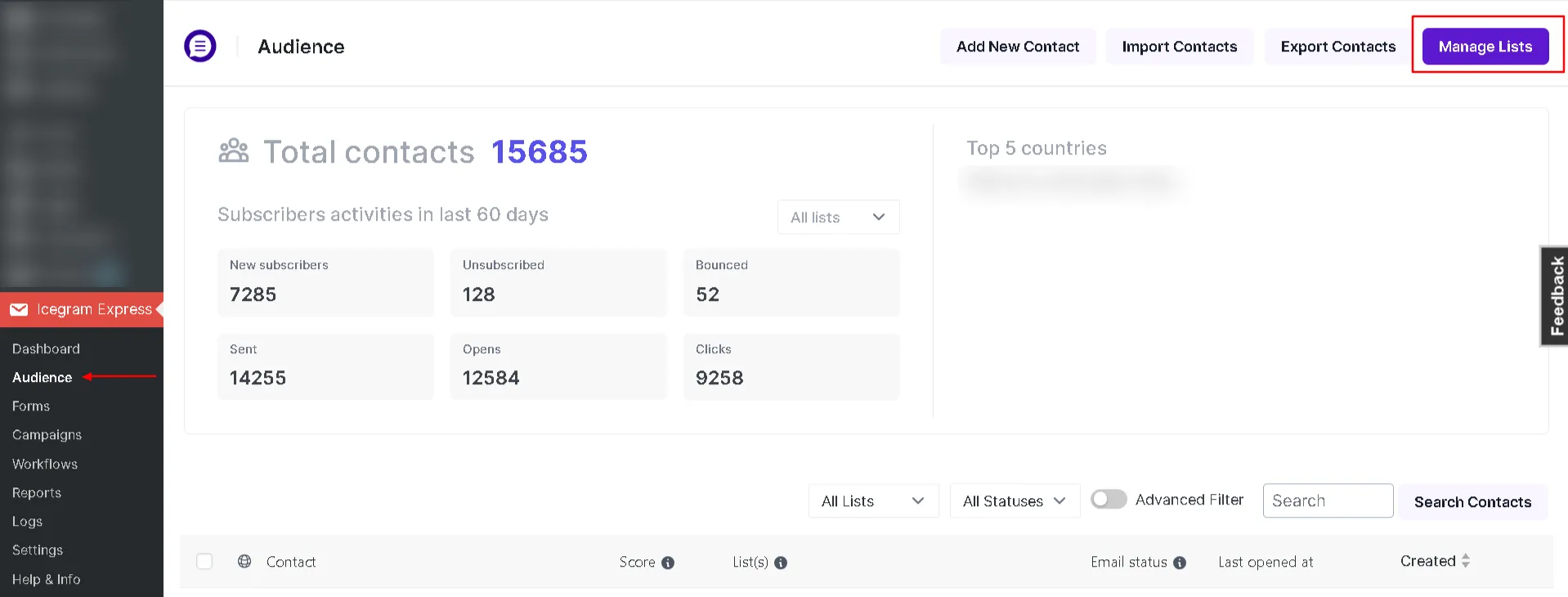 Note: Image depicts list management controls; current admin utilizes the modern tabbed layout.
Moving Subscribers to Another List
Moving contacts transfers them to a new list and automatically removes them from their previous list.
- Go to Icegram Express > Audience and stay on the Contacts tab.
- Select the contacts you wish to reassign using the checkboxes.
- In the Bulk Actions dropdown, select Move to list.
- In the adjacent dropdown, select your destination list.
- Click Apply.
Subscriber Lifecycle Statuses Explained
Icegram Express classifies subscriber availability using three core statuses:
- Subscribed (Green): Confirmed, active contacts eligible to receive newsletters, post notifications, and automated workflows.
- Unconfirmed (Yellow): Contacts who submitted a double opt-in subscription form but have not yet clicked their email confirmation link. Unconfirmed contacts are excluded from campaigns until validated.
- Unsubscribed (Red): Contacts who opted out via your email unsubscribe link or list management page. Icegram Express suppresses future broadcasts to prevent spam violations.
- Bounced: Addresses that failed delivery due to invalid mailboxes, DNS errors, or server rejections.
How to Manually Update Contact Statuses
- In your WordPress admin, go to Icegram Express > Audience.
- Select the contacts whose status needs adjustment.
- In the Bulk Actions dropdown, select Change Status.
- Choose the target status (Subscribed, Unconfirmed, or Unsubscribed) from the secondary dropdown.
- Click Apply.
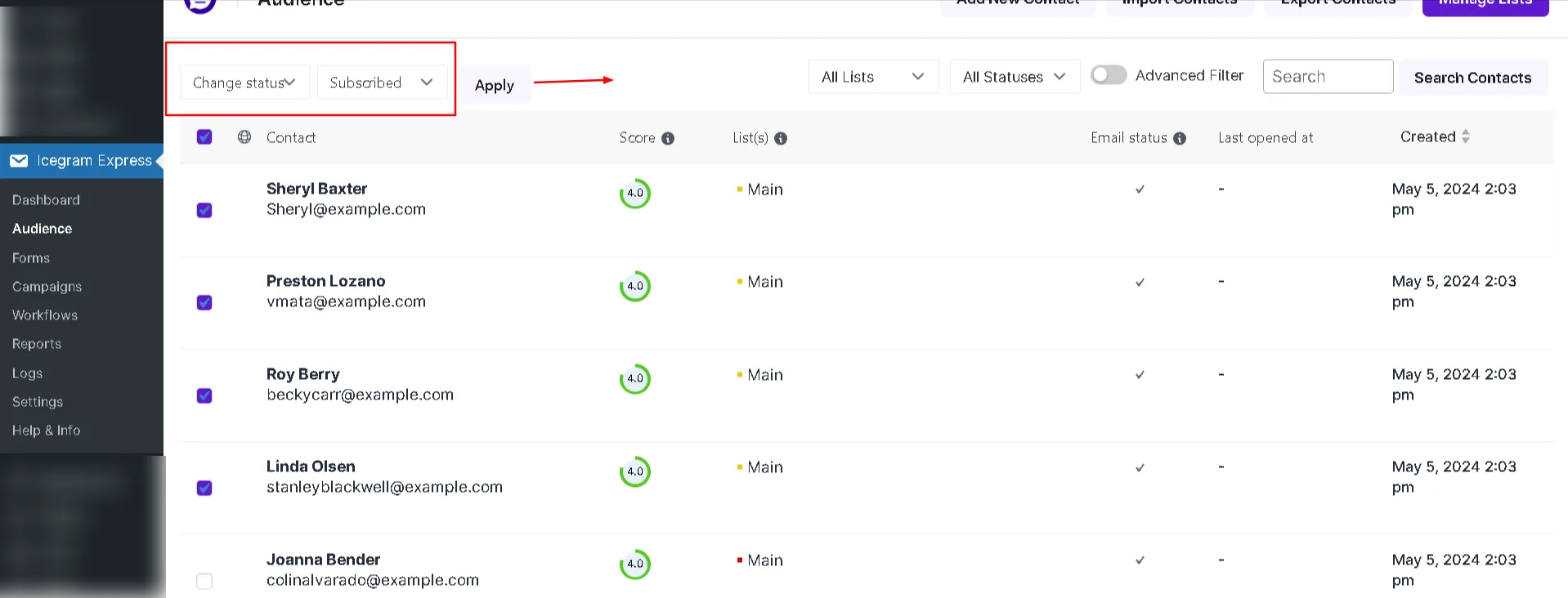 Note: Image depicts status bulk actions; current interface uses modern styling.