

How to Pause, Resume, or Resend Email Campaigns
MaxHalt, resume, or retry delivery for email campaigns and broadcast batches directly from Icegram Express reports and campaign dashboards.
If you discover an error (such as a broken link or incorrect date) while a large email batch is actively sending, you can immediately pause the dispatch queue. You can also re-trigger delivery for campaigns interrupted by mailer API timeouts.
Pausing or Resuming an Active Campaign
To halt an outgoing broadcast while it is dispatching:
-
In your WordPress admin dashboard, navigate to
Icegram Express→Reports(orCampaigns). -
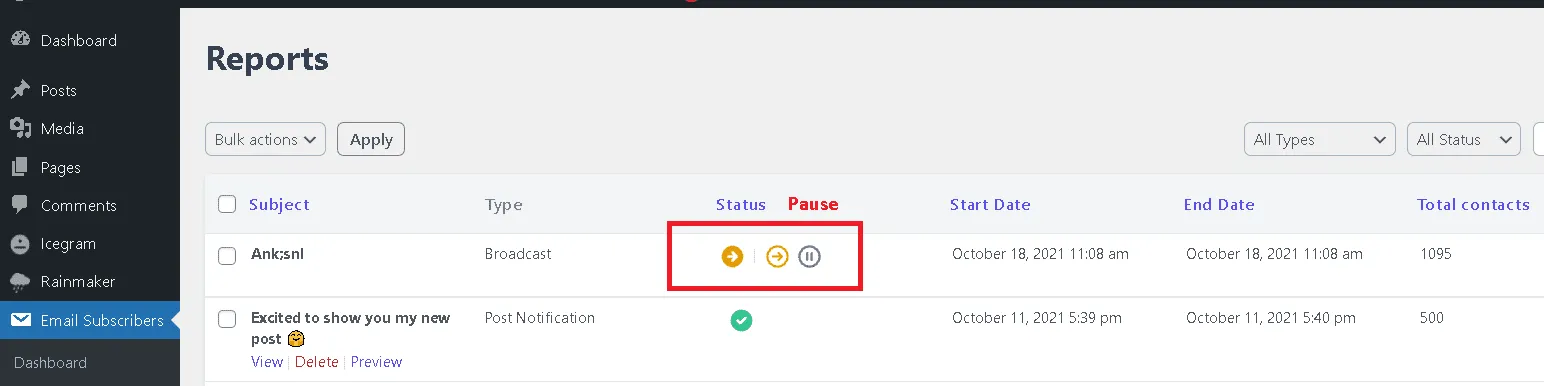
Locate the campaign currently showing the Sending or In Queue status.
-
In the actions column, click the Pause icon. Icegram Express will immediately stop processing remaining batches.
-
Edit your email template or recipient list parameters as needed.
-
When ready to continue delivery, return to the campaign row and click Resume. Icegram Express resumes dispatching messages to remaining subscribers without resending to contacts who already received it.
Resending a Failed Campaign
If an external mailer service experiences temporary downtime, rate limits, or network timeouts during dispatch, the campaign status marks as Failed.
-
In your WordPress admin dashboard, navigate to
Icegram Express→Campaigns. -
Filter campaigns by status or locate the entry marked Failed.
-
Click the Resend action button in the campaign options menu (or within the campaign detailed report view).
-
Icegram Express re-verifies delivery logs and re-enqueues only those contacts who did not receive the initial transmission.