

Save WooCommerce Customer Emails to Icegram Express Lists
MaxAutomatically capture customer emails during WooCommerce checkout and sync them to targeted subscriber lists using Icegram Express for WordPress.
The WooCommerce order workflow in Icegram Express allows you to automatically capture customer email addresses upon checkout or order completion and add them directly into your subscriber lists.
Steps to Create a WooCommerce Customer Sync Workflow
-
In your WordPress admin dashboard, navigate to
Icegram Express→Workflows→Add New.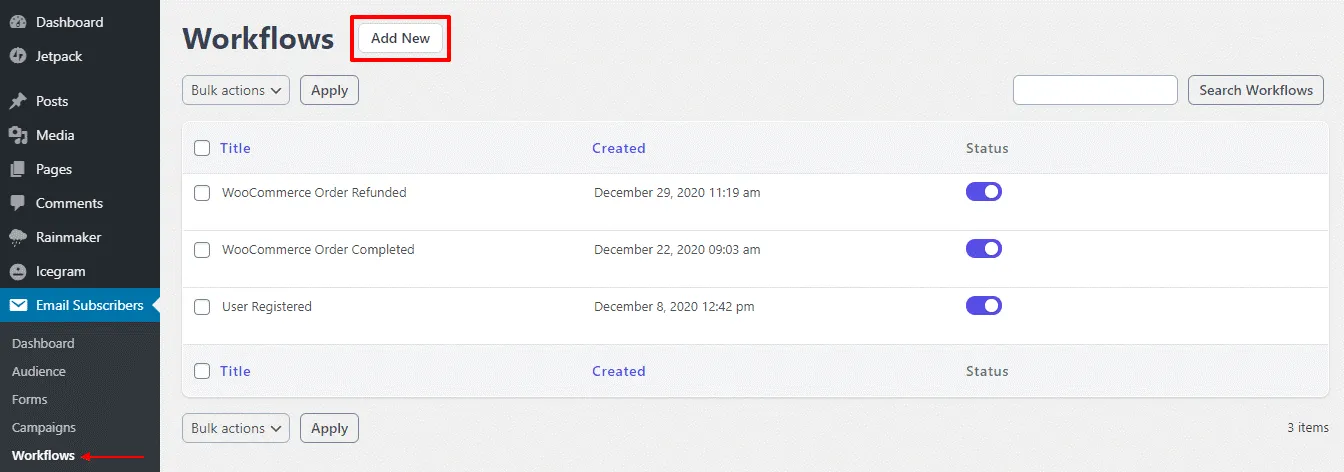
Add new workflow button in Icegram Express -
Enter a descriptive title for the workflow (e.g., Sync Completed WooCommerce Orders to Customer List).
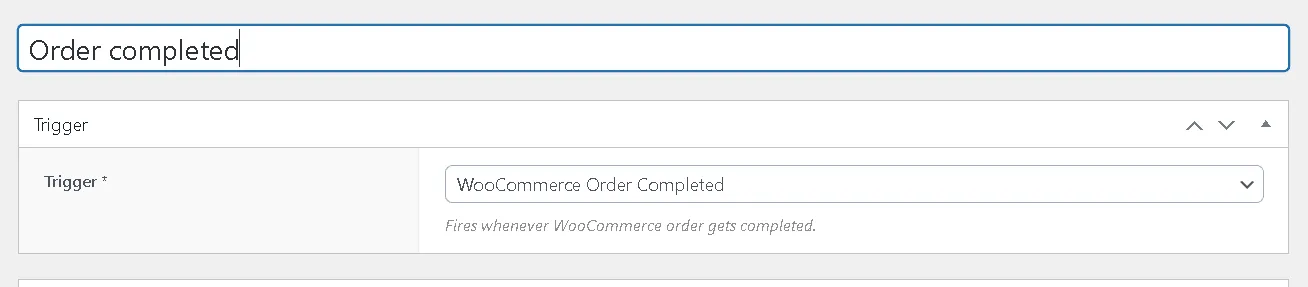
Enter workflow title -
Select your Trigger:
- WooCommerce Order Created: Fires immediately when an order is created at checkout before payment confirmation.
- WooCommerce Order Completed: Fires once the order status transitions to Completed.
- WooCommerce Order Refunded: Fires when an order is refunded (useful for updating contact tags or moving customers to an inactive list).

Select WooCommerce order trigger in workflow builder -
Click Add Action and choose Icegram Express → Add to list.
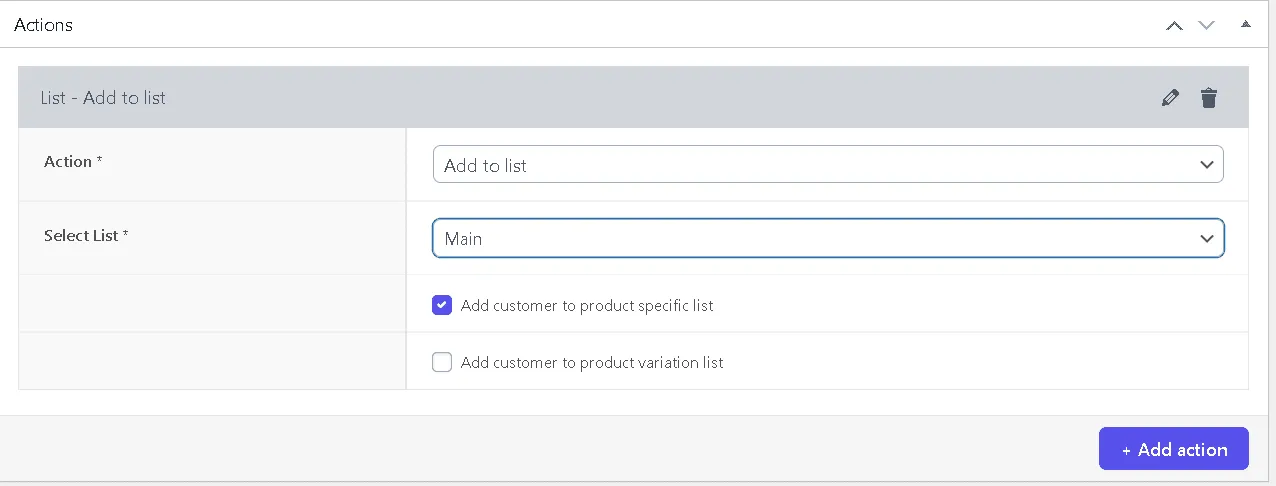
Add to list action in workflow builder Select your target email list. You can also target product-specific lists or variation-specific lists if you sell specialized items.
-
Toggle the workflow to Active and click Save in the top right box.
Once active, every customer who completes an order on your WooCommerce store will automatically be added to your chosen email audience list.