

How to Install and Use Temporary Login Without Password
Create secure, self-expiring WordPress login links for developers, support agents, and contractors without sharing administrative passwords.
Temporary Login Without Password (TLWP) lets you create time-limited, self-expiring login links for your WordPress website. External developers, support specialists, or contractors can log in securely with a single click—no username or password required.
You retain full control over the user role assigned, redirect destinations, language locale, and account expiration.
How to Install the Free Plugin
-
Log in to your WordPress admin dashboard.
-
Navigate to
Plugins→Add New. -
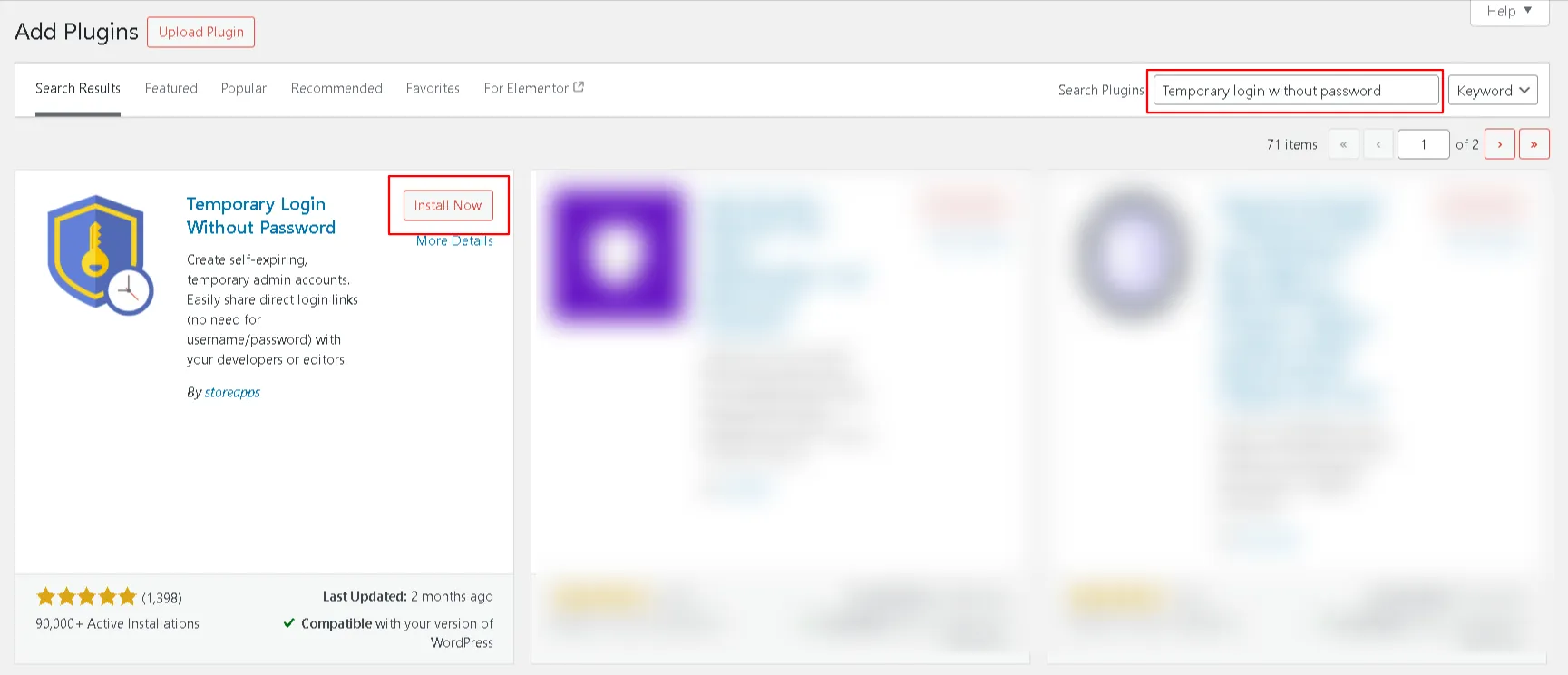
In the search bar, search for Temporary Login Without Password.
-
Click Install Now, then click Activate.
How to Install Temporary Login Without Password Pro
The Pro version unlocks advanced capabilities like detailed activity audit logs, CSV bulk import/export of temporary accounts, login notifications, and configurable maximum login limits.
-
Download the
temporary-login-without-password-pro.zipfile from your Icegram Account Downloads page.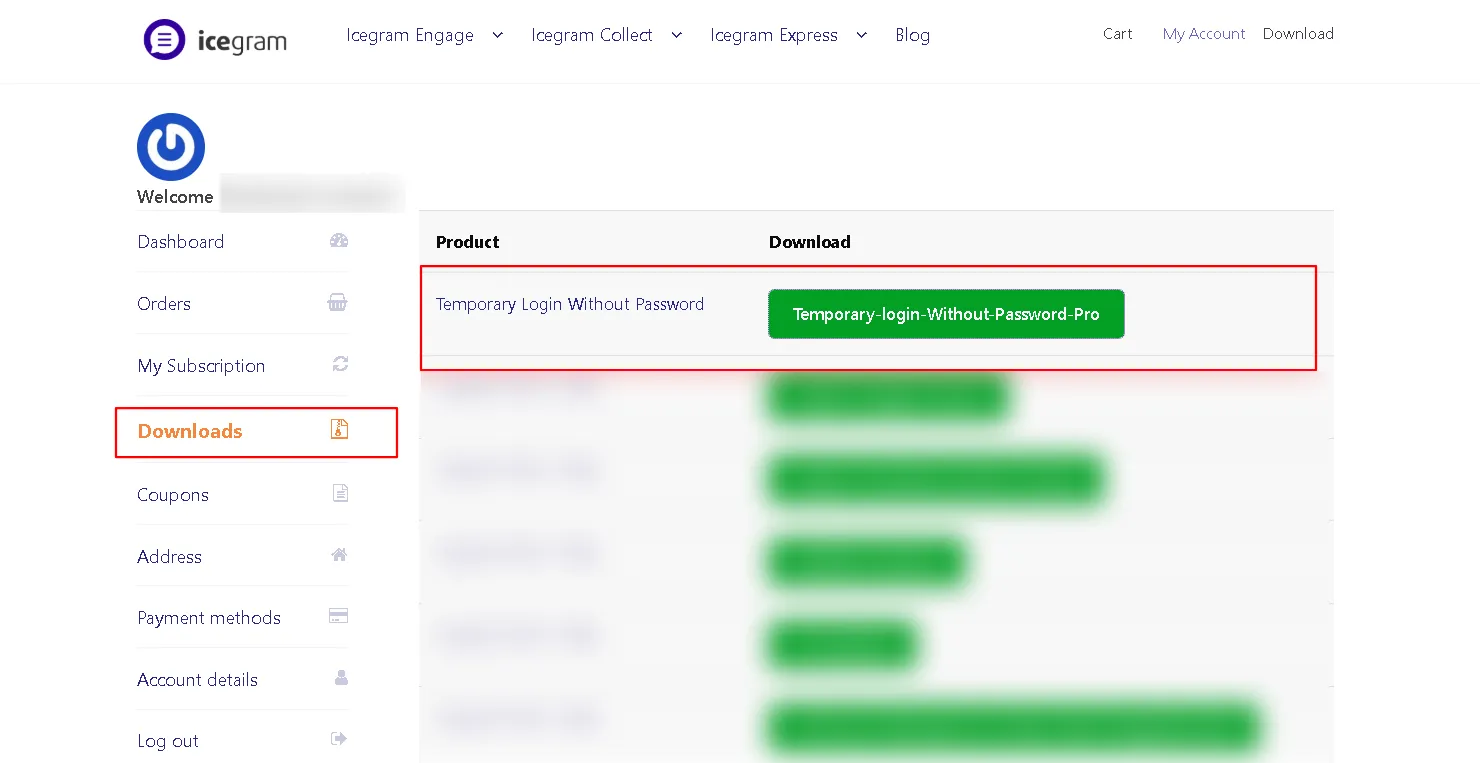
-
In your WordPress dashboard, navigate to
Plugins→Add New→Upload Plugin. -
Choose the
.zipfile from your computer and click Install Now.
-
Click Activate Plugin, then connect your store to activate your license.
How to Generate a Temporary Login Link
-
In your WordPress dashboard, go to
Users→Temporary Logins. -
Click the Create New button at the top of the screen.
-
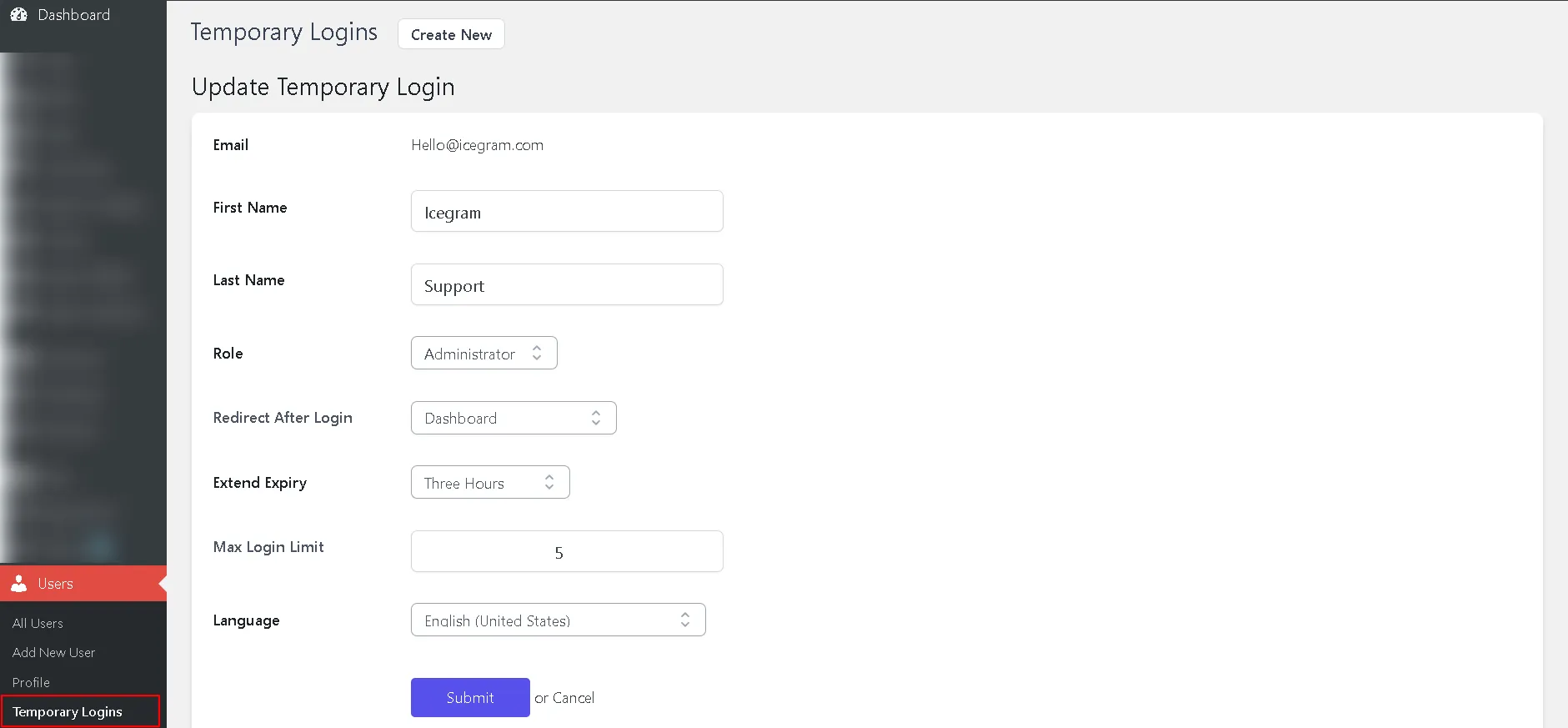
Fill in the user details:
- Email: The recipient’s email address (required).
- First & Last Name: For personal identification in user tables and audit logs.
- Role: Select the assigned user role (e.g., Administrator, Editor) or Super Admin on multisite networks.
- Redirect After Login: Specific dashboard page or settings screen the user lands on immediately after clicking the login link.
- Expiry: Choose when the link expires:
- From Now: One Hour, Three Hours, One Day, Three Days, One Week, or One Month from generation.
- After Access: One Hour, Three Hours, One Day, Three Days, One Week, or One Month starting only when the user first clicks and accesses the link.
- Custom: Set a specific expiration calendar date.
- Max Login Limit (Pro): Restrict the maximum number of times the link can be used before automatically expiring.
- Language: Select the WordPress admin interface language for this temporary user session.
-
Click Submit.
-
Click the copy icon to copy the generated URL, or use the email icon to send the login link directly.