

How to Revoke, Extend, or Delete Temporary Login Links
Instantly revoke active temporary login links, reactivate expired sessions, edit account settings, or delete temporary users from WordPress.
You can manage, invalidate, or extend temporary login accounts at any time from the administration dashboard.
Available Actions in the Temporary Logins Table
-
In your WordPress dashboard, navigate to
Users→Temporary Logins. -
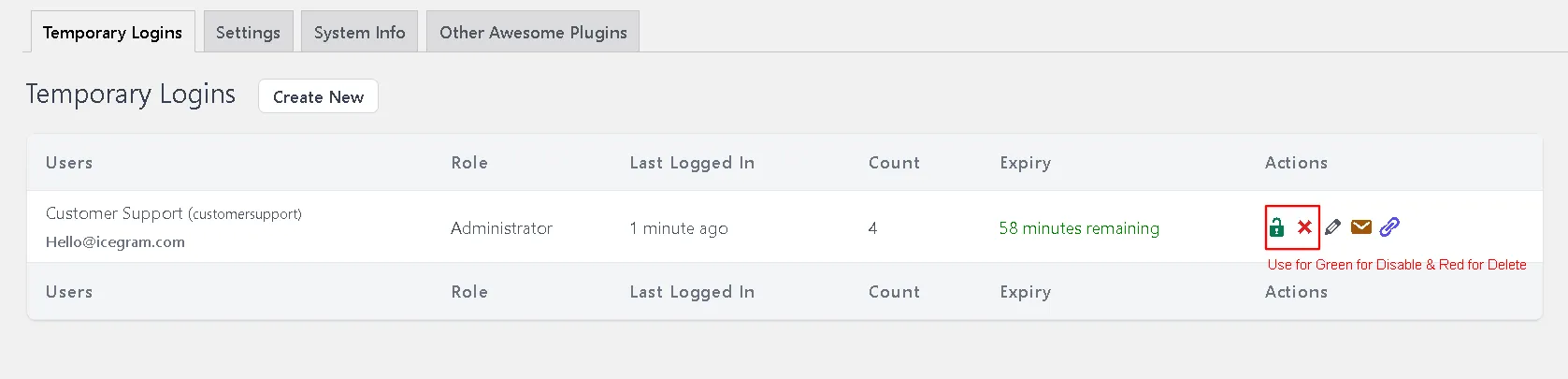
Locate the user row in the temporary logins table:
-
Use the action icons located in the rightmost column for each temporary user:
- Disable (Unlock icon): Instantly locks an active account without deleting it. The login link immediately stops functioning, but past login history and audit logs remain intact.
- Reactivate (Lock icon): Reactivates an expired or disabled user for one additional day with a single click.
- Delete (Cross icon): Permanently deletes the temporary WordPress user account, purges their authentication token, and terminates all active sessions.
- Edit (Pencil icon): Opens the account update screen to modify the assigned role, change expiration dates, update the redirect destination, or adjust user details.
- Email Login Link (Mail icon): Generates a pre-formatted email in your default mail application containing the secure login URL.
- Copy Login Link (Link icon): Copies the active authentication link directly to your clipboard.