Audience, Lists & Statuses
Manage subscriber groups, list memberships, and contact statuses in Icegram Express.
The Audience section in Icegram Express is where you manage your contacts, organize them into targeted email lists, and monitor their subscription lifecycle statuses.
Understanding Audience and Lists
- Audience: Your overall database of contacts. This includes everyone who has subscribed through opt-in forms, registered on your site, or been imported into Icegram Express.
- Lists: Targeted collections of email addresses within your audience. You can create different lists for specific interests, customer segments, or content types (e.g., Product Updates, Weekly Digest, VIP Customers).
How to Create an Email List
-
In your WordPress dashboard, navigate to
Icegram Express→Audience→Manage Lists.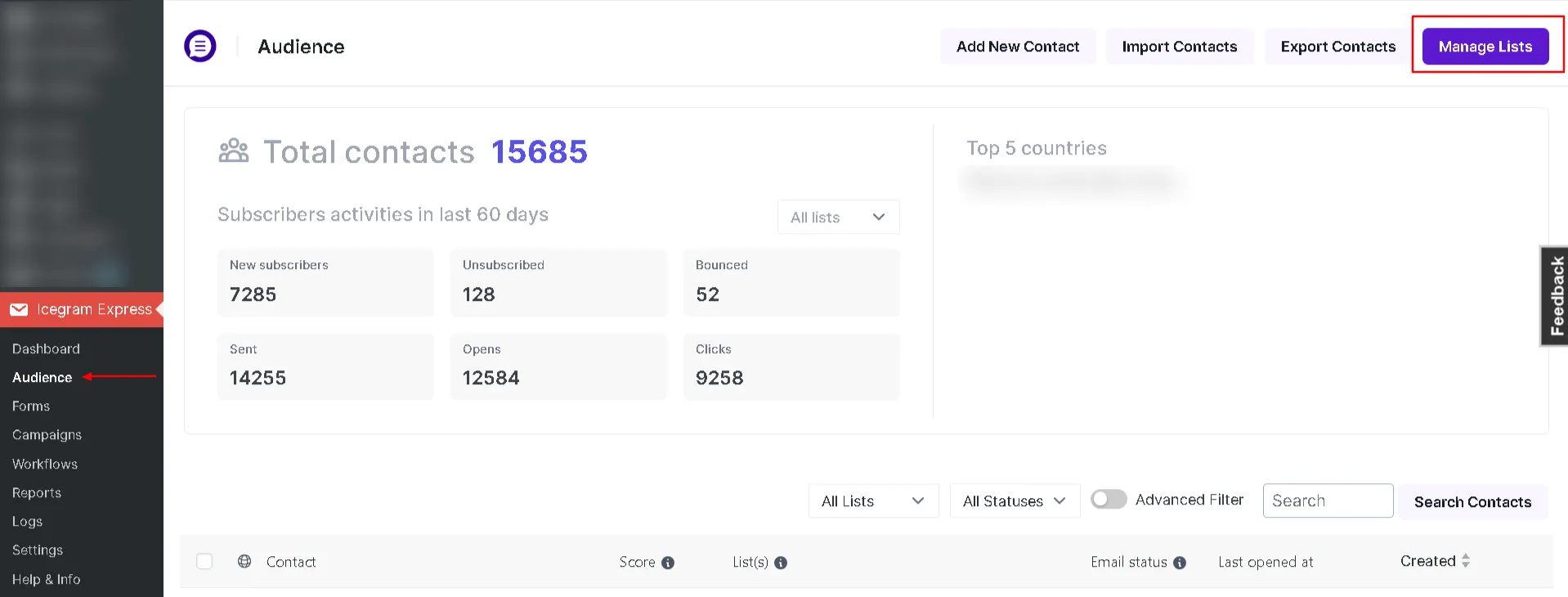
-
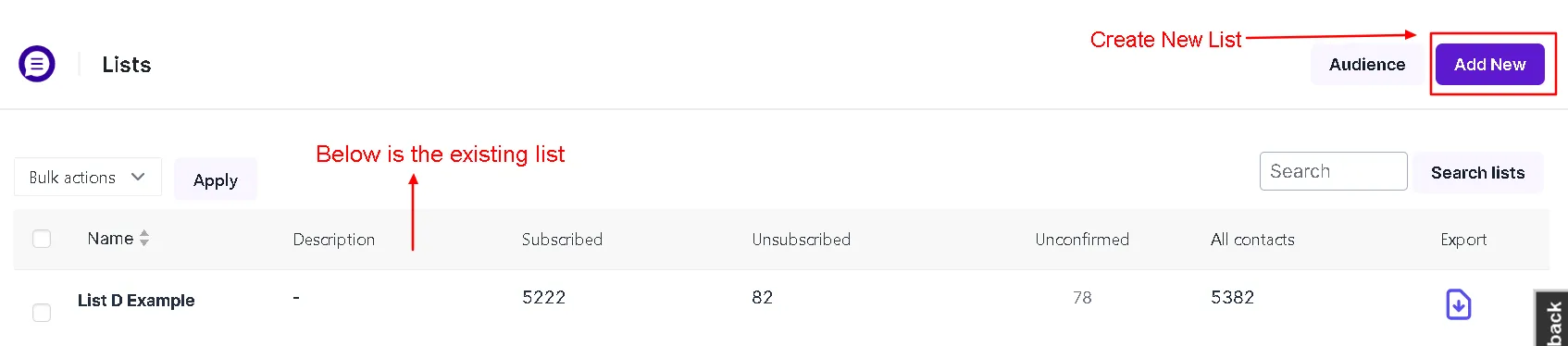
Click the Add New button at the top.
-
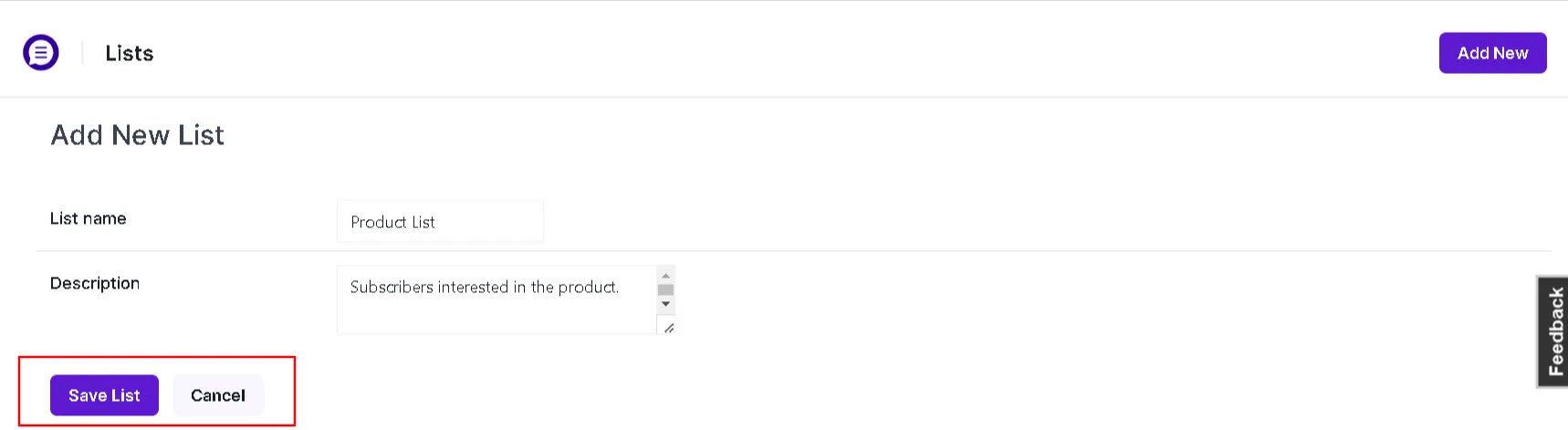
Enter a descriptive name for your list and click Save List.
Moving Subscribers to Another List
Moving subscribers removes them from their current list and places them into a new one.
-
In your WordPress dashboard, navigate to
Icegram Express→Audience. -
Check the boxes next to the contacts you wish to move (or use the master checkbox to select all contacts).
-
In the Bulk Actions dropdown, select Move to list.
-
In the secondary dropdown, select the destination list.
-
Click Apply.
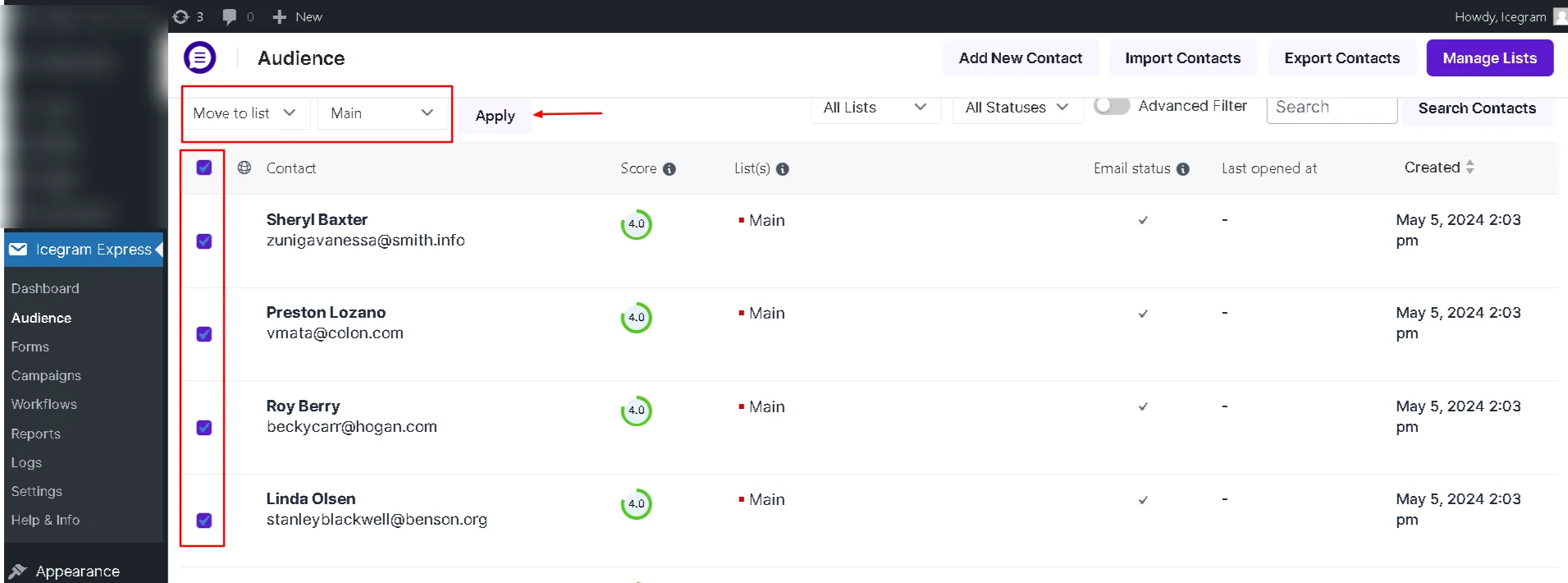
Adding Subscribers to an Additional List
Adding contacts to another list preserves their current list memberships while including them in the new list.
- Navigate to
Icegram Express→Audience. - Select the contacts you wish to add.
- In the Bulk Actions dropdown, select Add to list.
- Select the target list from the second dropdown.
- Click Apply.
Subscriber Statuses Explained
Icegram Express tracks each contact’s subscription lifecycle using visual status indicators:
- Subscribed (Green): Active contacts who have confirmed their subscription (or were imported as subscribed). These contacts receive your newsletters, post notifications, and automated campaigns.
- Unconfirmed (Yellow): Contacts who registered via double opt-in but have not yet clicked the confirmation link in their email. They will not receive regular broadcasts until confirmed.
- Unsubscribed (Red): Contacts who clicked the unsubscribe link and opted out of your emails. Icegram Express automatically suppresses future campaign sends to these addresses.
How to Manually Update Contact Statuses
You can change the status of individual contacts or update multiple contacts in bulk:
-
Navigate to
Icegram Express→Audience. -
Select the contacts whose status you want to update.
-
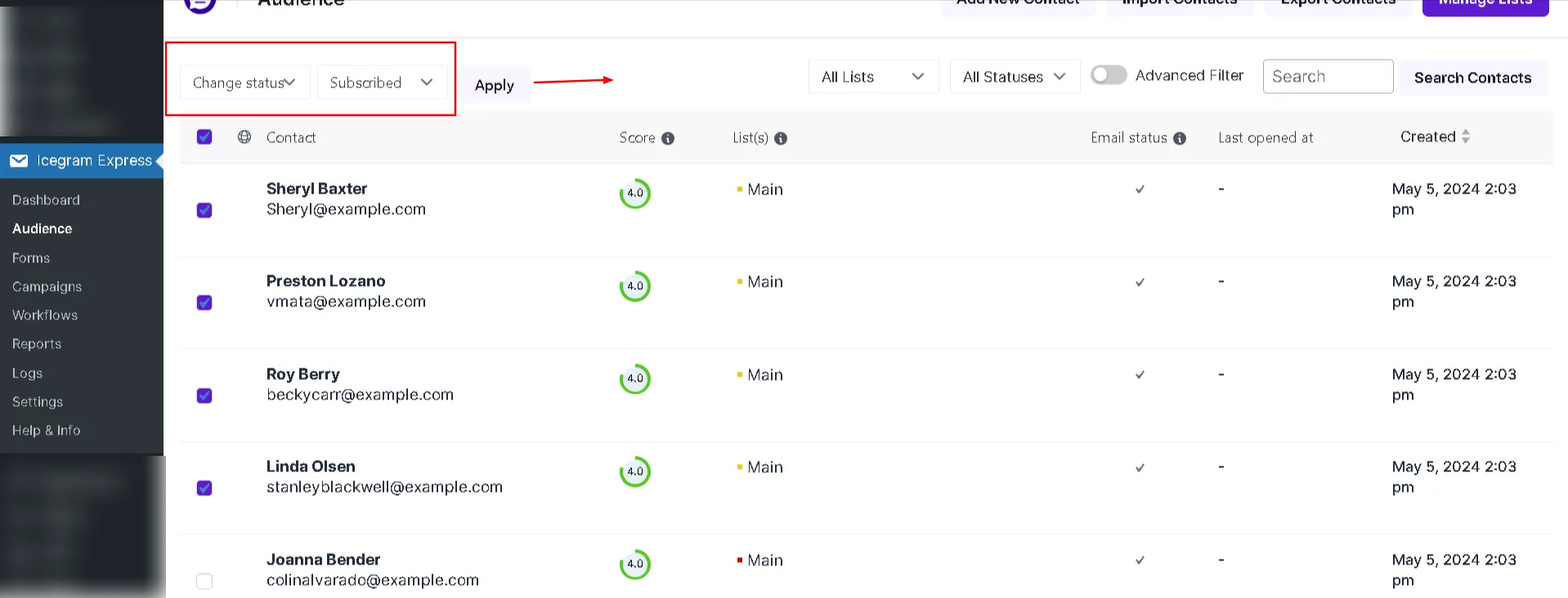
In the Bulk Actions dropdown, select Change Status.
-
Choose the desired status (Subscribed, Unconfirmed, or Unsubscribed) from the adjacent dropdown.
-
Click Apply.