

How to Import and Export Contacts
Complete guide to importing subscribers via CSV, file formatting requirements, and exporting contacts in Icegram Express.
Icegram Express makes it easy to migrate your audience from other email platforms or export your subscribers into a standard CSV file for backup and analysis.
CSV File Format Requirements
Before uploading your contact file, ensure it matches the required format:
- File Type: Standard comma-separated values (
.csv). - Encoding: UTF-8 encoded text to prevent special character corruption.
- Required Columns: An
Emailcolumn is mandatory. - Optional Columns:
First Name,Last Name, and custom fields.
Example CSV Structure
| First Name | Last Name | |
|---|---|---|
| john.doe@example.com | John | Doe |
| jane.smith@example.com | Jane | Smith |
| alex@example.org | Alex | Taylor |
Steps to Import Contacts via CSV
-
In your WordPress admin dashboard, navigate to
Icegram Express→Audience. -
Click Import at the top of the page.
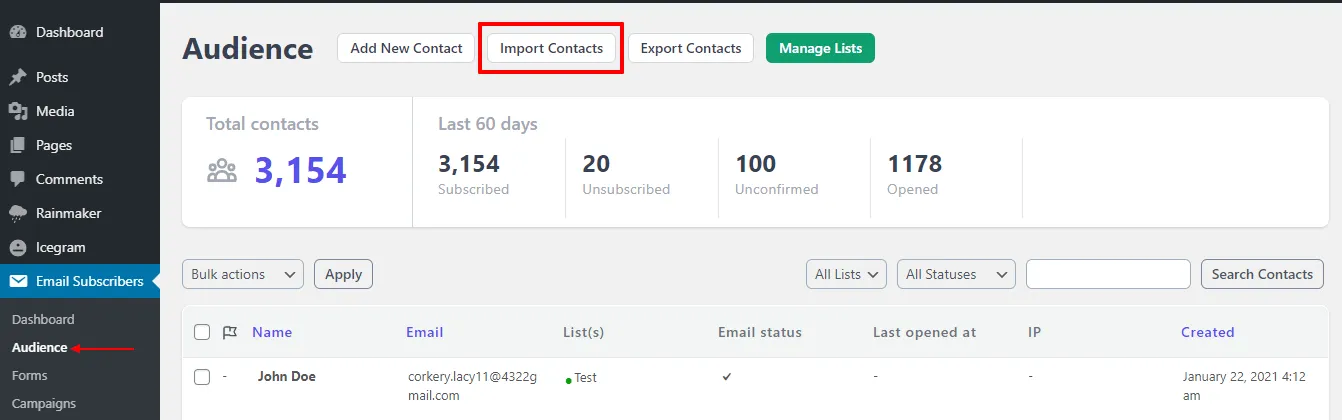
Audience toolbar with import button -
Select Import CSV and choose your
.csvfile.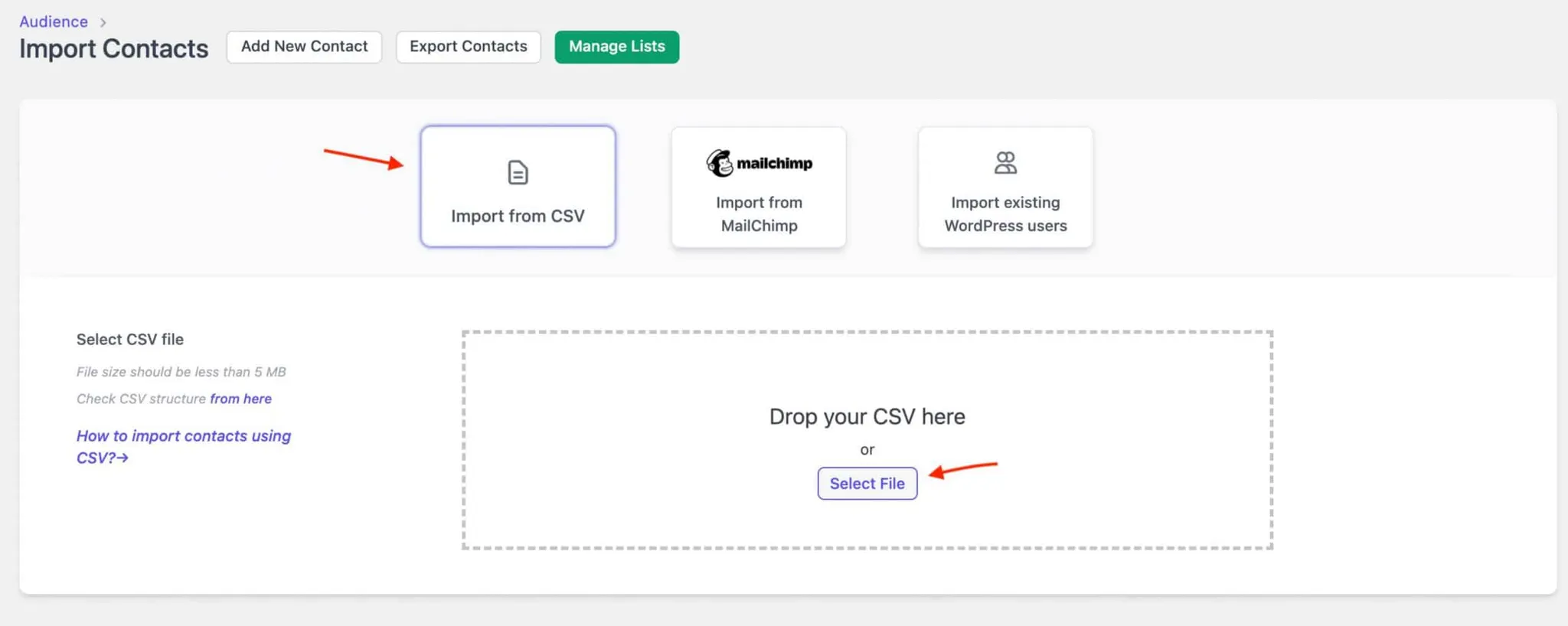
Select CSV file import option -
Map each column from your CSV file to the corresponding Icegram Express field (e.g., map
Emailto Email,First Nameto First Name).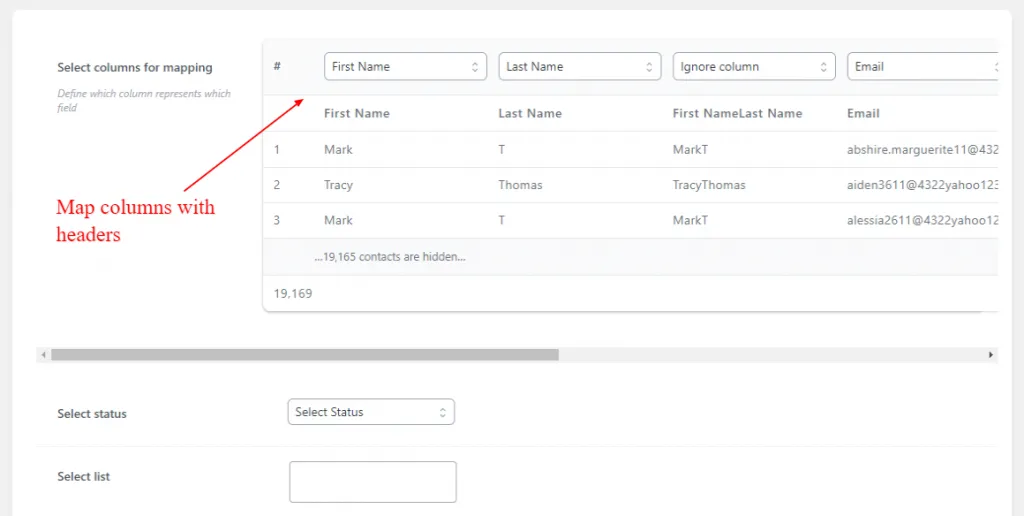
Map CSV columns to Icegram Express subscriber fields -
Select the Status to assign to the imported contacts (Subscribed or Unconfirmed).
-
Select the List where these contacts should be added.
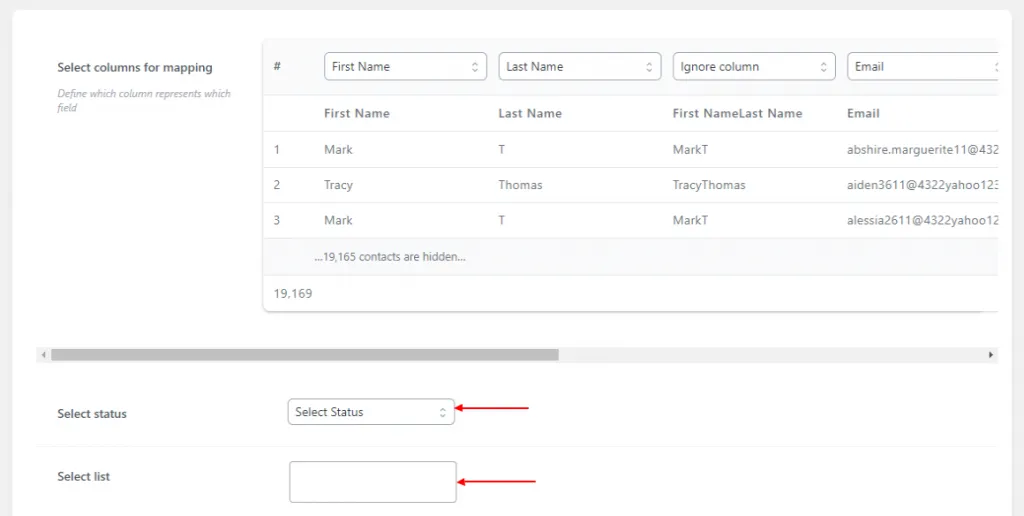
Choose status and target list for imported contacts -
Click Import.
-
Once the process completes, a summary screen displays the number of successfully imported contacts and any rows that could not be imported (with failure reasons such as invalid email syntax).
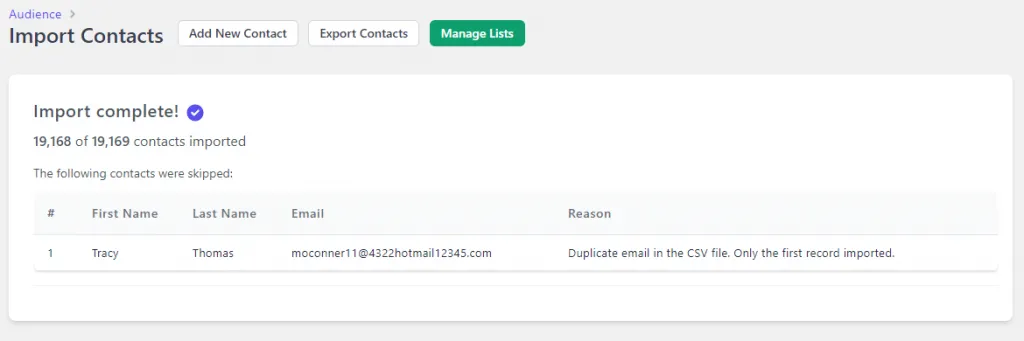
Contact import completion summary