

How to Configure Brevo (Sendinblue) in Icegram Express
MaxConfigure Brevo (formerly Sendinblue) API credentials in Icegram Express to send marketing campaigns and post notifications.
Brevo (formerly Sendinblue) provides reliable email delivery, automated email sequences, and transactional email infrastructure tailored for growing websites.
Part 1: Add and Verify Your Domain in Brevo
- Log in to your Brevo dashboard (or register for a free account).
- Click your account name in the top right and go to Senders, Domains & Dedicated IPs > Domains.
- Click Add a Domain and enter your website domain.
- Brevo provides DNS records (TXT for SPF and DKIM). Add these records to your domain’s DNS management panel.
- Click Verify This Domain once the DNS changes have propagated.
Part 2: Generate an API Key in Brevo
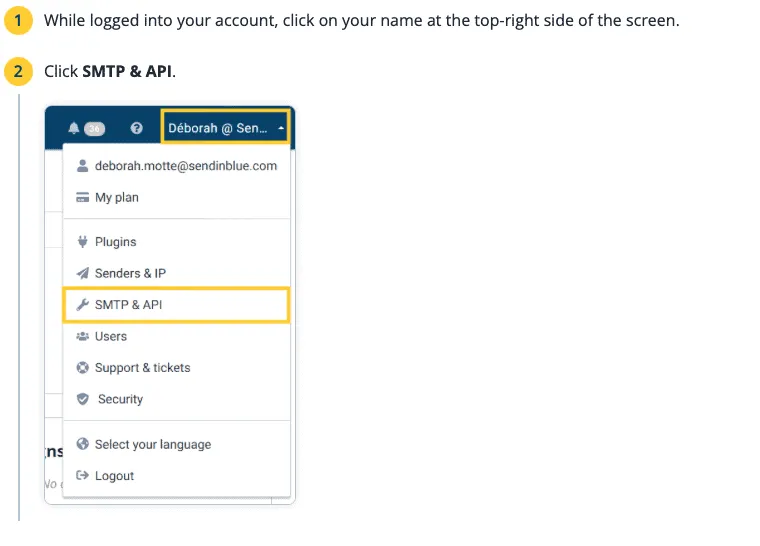
- In your Brevo account menu, go to SMTP & API.
- Switch to the API Keys tab and click Generate a new API key.
- Give your key a name (e.g.,
Icegram Express Mailer) and click Generate. - Copy the API key immediately.
Part 3: Configure Brevo in Icegram Express
- In your WordPress admin, go to Icegram Express > Settings > Email Sending.
- Scroll to the Select a mailer to send mail section and select Sendinblue / Brevo.
- Paste your Brevo API Key into the API key field.
- Ensure your From Email under Settings > General matches the domain you verified in Brevo.
- Click Save Settings.
- Use the Send Test Email section to confirm email delivery.