How to Create a Sliding Sidebar Message in Icegram Engage
Design sliding drawer sidebar messages in Icegram Engage that slide in smoothly from the left or right screen edge.
A Sidebar message slides out smoothly from the left or right edge of the screen like an interactive drawer. It offers ample vertical room for opt-in forms, multi-step offers, social links, or long-form promotional content.
Steps to Create a Sidebar
-
Go to
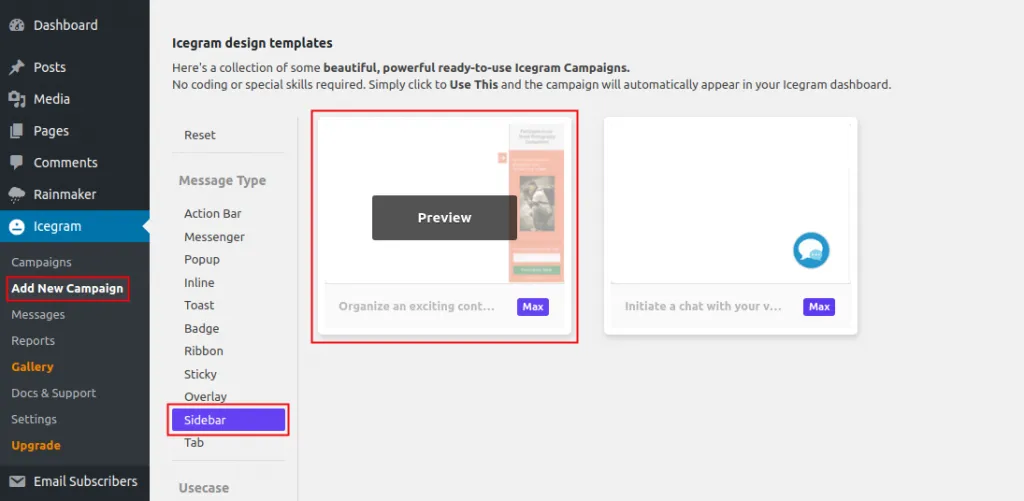
Icegram Engage→Campaigns→Add New Campaign. -
In the template gallery, choose Sidebar.
-
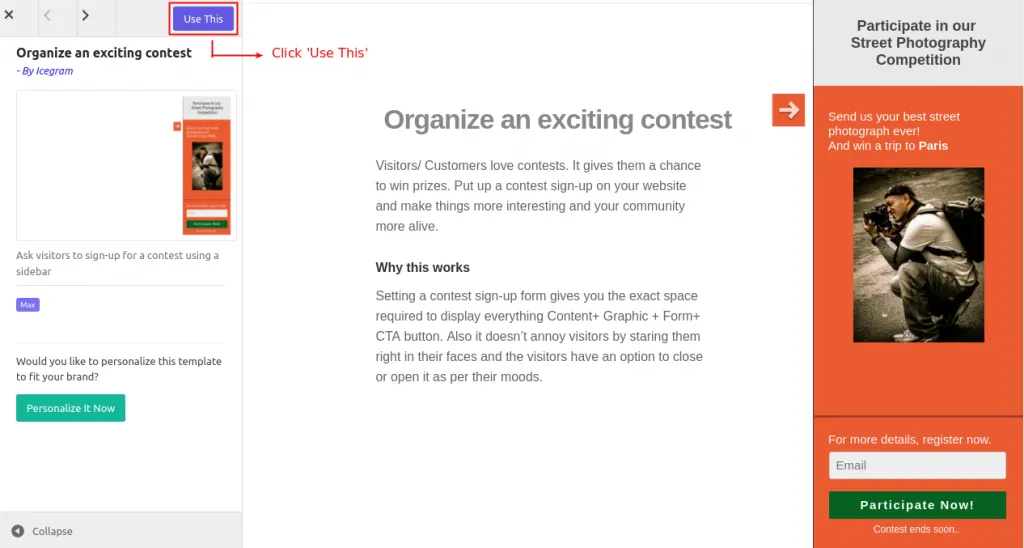
Click Use This on your chosen template.
-
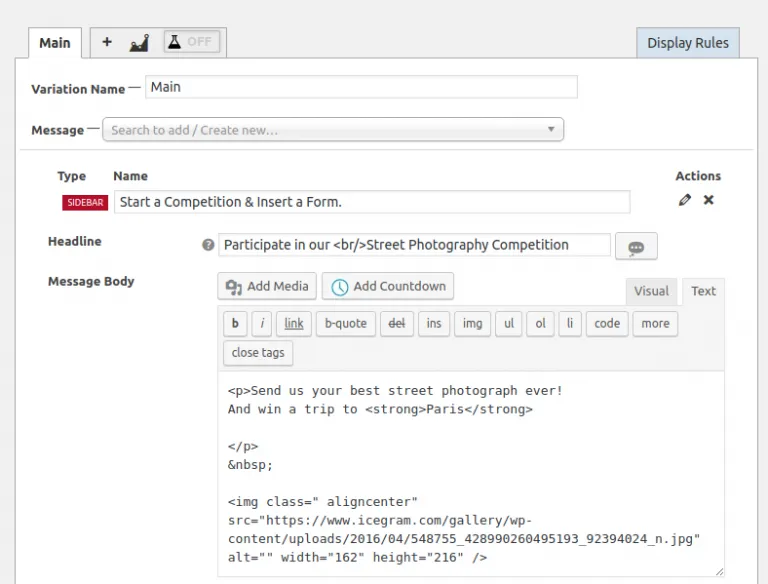
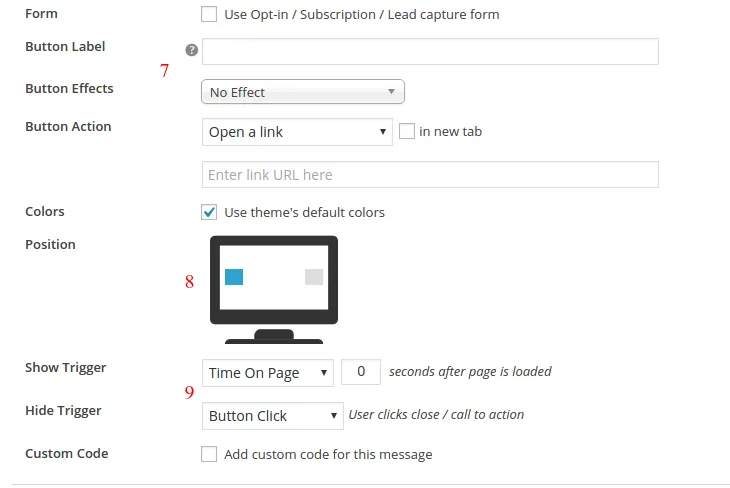
Customize your headline, body text, form fields, and button label.
-
Select whether the sidebar should slide in from the Left or Right side of the screen.
-
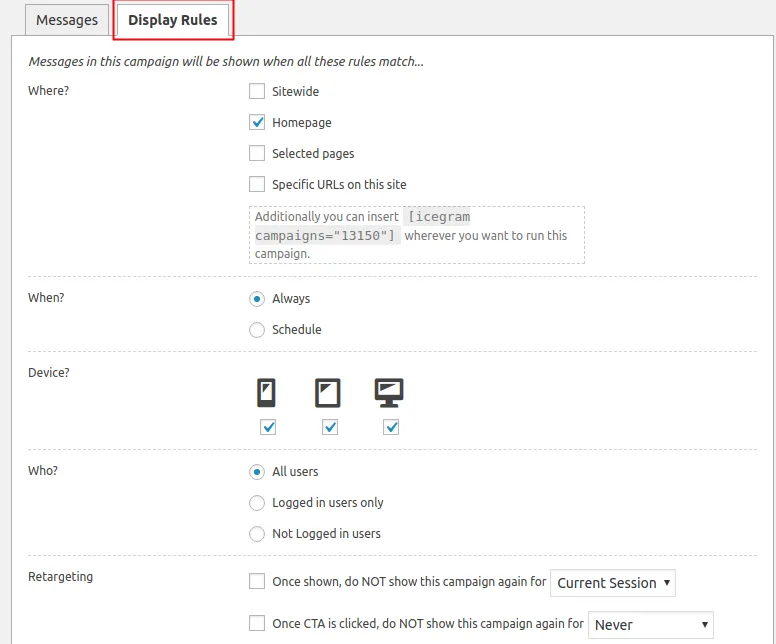
Set display conditions (such as scroll percentage or time delay) and click Publish.