

Add Images and Animated GIFs in Icegram Engage Messages
Insert responsive product photos, custom brand icons, animated GIFs, or banner graphics directly into Icegram Engage message bodies.
Visual assets like product photos, celebratory GIFs, and company logos significantly improve message conversion rates. You can insert any image or GIF into your message body using the WordPress media library.
Steps to Insert an Image or GIF
-
In your WordPress dashboard, go to
Icegram Engage→Campaignsand edit your message. -
In the Message Body editor, place your cursor where you want the image to appear.
-
Click the Add Media button above the editor toolbar.
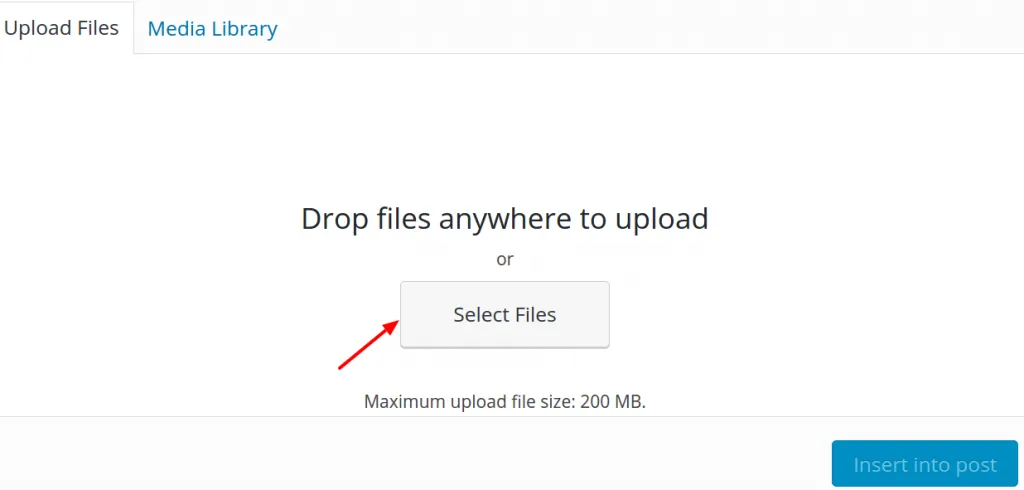
-
Upload an image from your computer or select an existing graphic from your Media Library.
-
In the right sidebar, choose your desired alignment (center, left, or right) and display size (Full size, Medium, or Thumbnail).
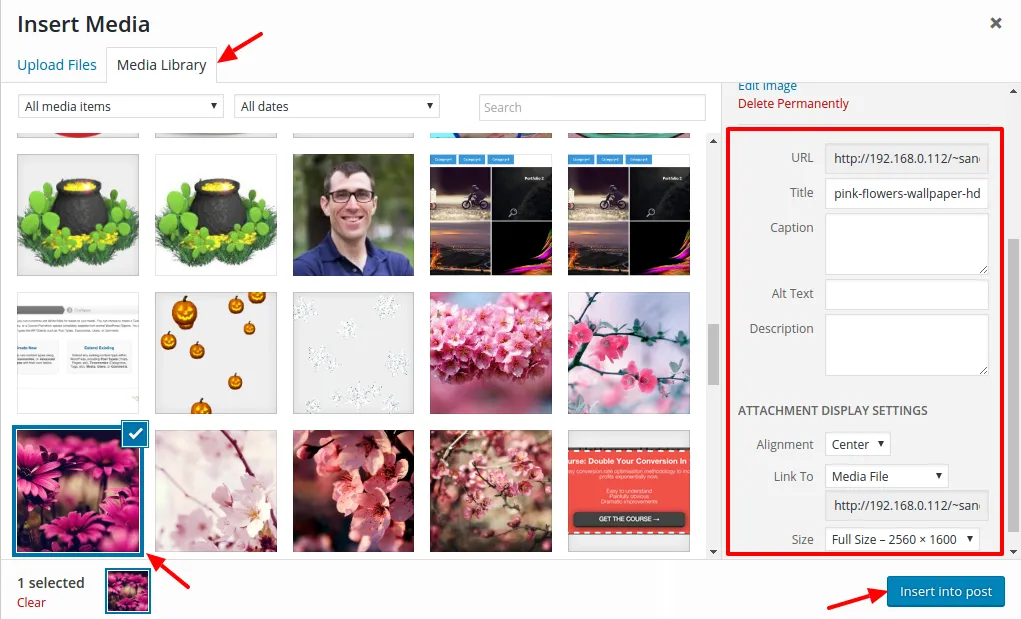
-
Click Insert into post.
-
Click Update to save your campaign.