How to Show a Subscription Form Inside a Popup
Display your Icegram Express newsletter subscription form inside a popup using built-in settings or Icegram Engage campaigns.
Displaying your newsletter signup form inside a popup is one of the most effective ways to capture visitor attention and grow your mailing list. You can implement this in two ways:
- Native Popup Mode (built directly into Icegram Express).
- Icegram Engage Popups (for advanced display rules, animations, and exit-intent triggers).
Method 1: Using the Built-In Icegram Express Popup Option
Icegram Express includes a lightweight popup mode directly in the form builder:
- In your WordPress admin, go to Icegram Express > Forms.
- Click Edit on an existing form or select Add New.
- In the form settings header on the right, toggle on Show in popup.
- Enter the popup headline in the Heading placeholder.
- Save your changes.
- Copy the form shortcode (e.g.,
[email-subscribers-form id="1"]) and embed it on the desired page or widget.
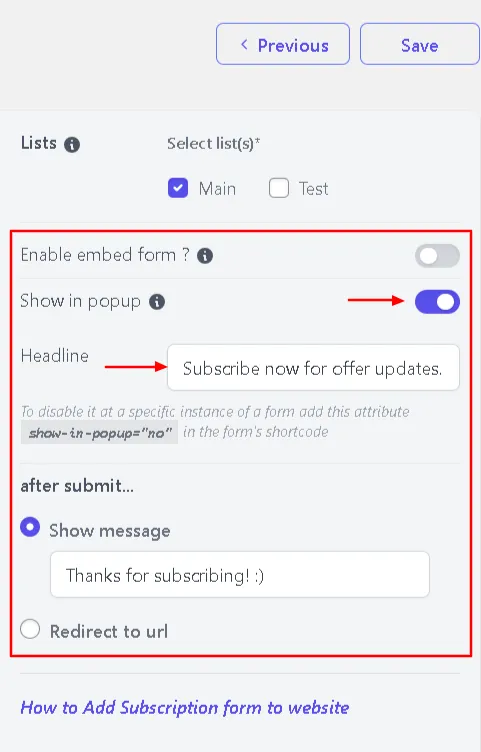
Overriding Popup Mode via Shortcode
If you want to use the same form as a standard inline box on specific pages, add show_in_popup="no" to the shortcode:
[email-subscribers-form id="1" show_in_popup="no"]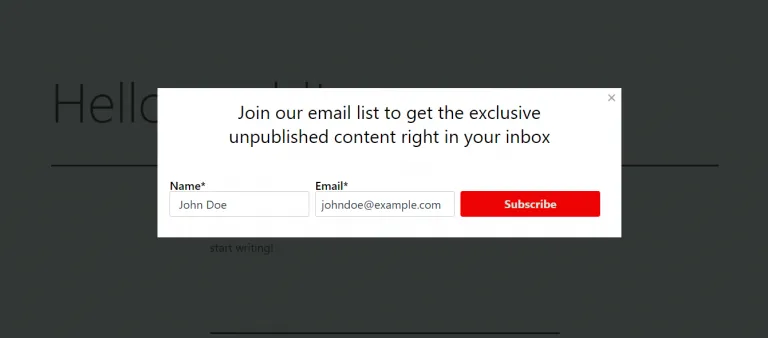
Method 2: Integrating with Icegram Engage (Recommended for Advanced Triggers)
For exit-intent popups, scroll-depth triggers, device targeting, and styled modal themes, pair Icegram Express with Icegram Engage.
- Ensure both Icegram Express and Icegram Engage are activated on your WordPress site.
- In your WordPress admin, navigate to Icegram Engage > Campaigns and click Add New Campaign.
- Select the Popup message type and choose your preferred design template.
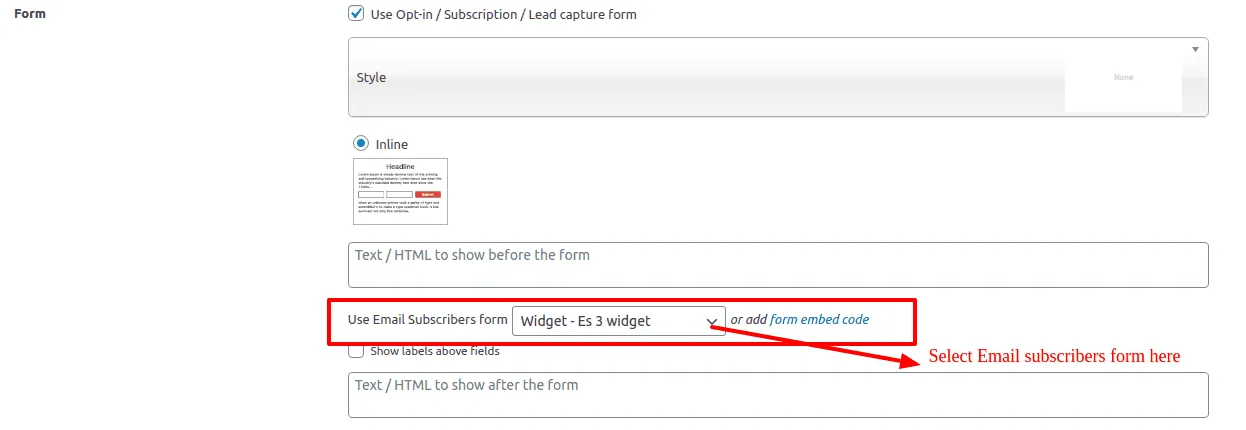
- In the message editor panel, check the Form option.
- In the form dropdown, select your desired Icegram Express form.
- Configure your display triggers (e.g., show after 5 seconds, on exit-intent, or when scrolling past 50% of the page).
- Save and publish your campaign.