

How to Create and Manage Email Templates in Icegram Express
Create, customize, and manage email templates for broadcasts and post notifications using the drag-and-drop or classic editor.
Email templates allow you to design reusable layouts for your newsletters, automated post notifications, and post digests. Once saved, templates can be selected whenever you create a new campaign.
How to Create a New Template
-
In your WordPress dashboard, navigate to
Icegram Express→Campaigns→Templates.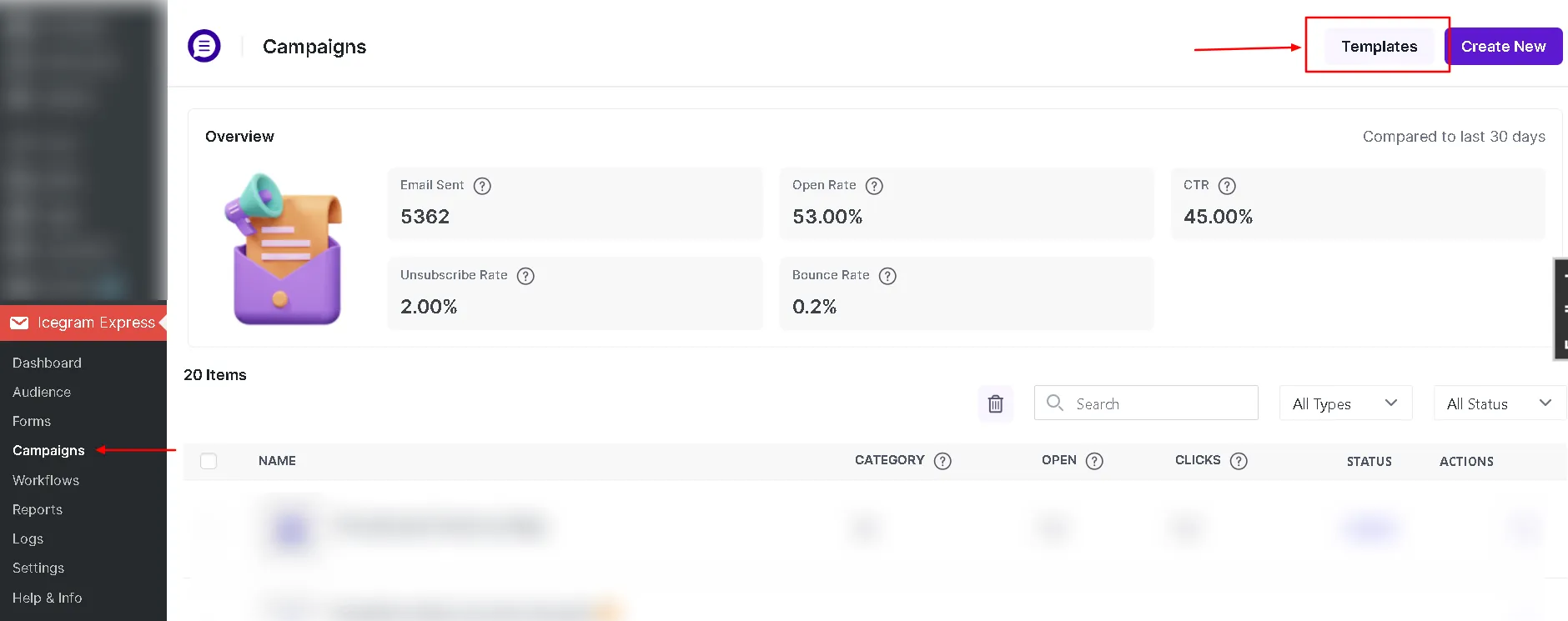
Navigate to Campaigns Templates in Icegram Express -
Click Add New Template, or choose to edit an existing design.
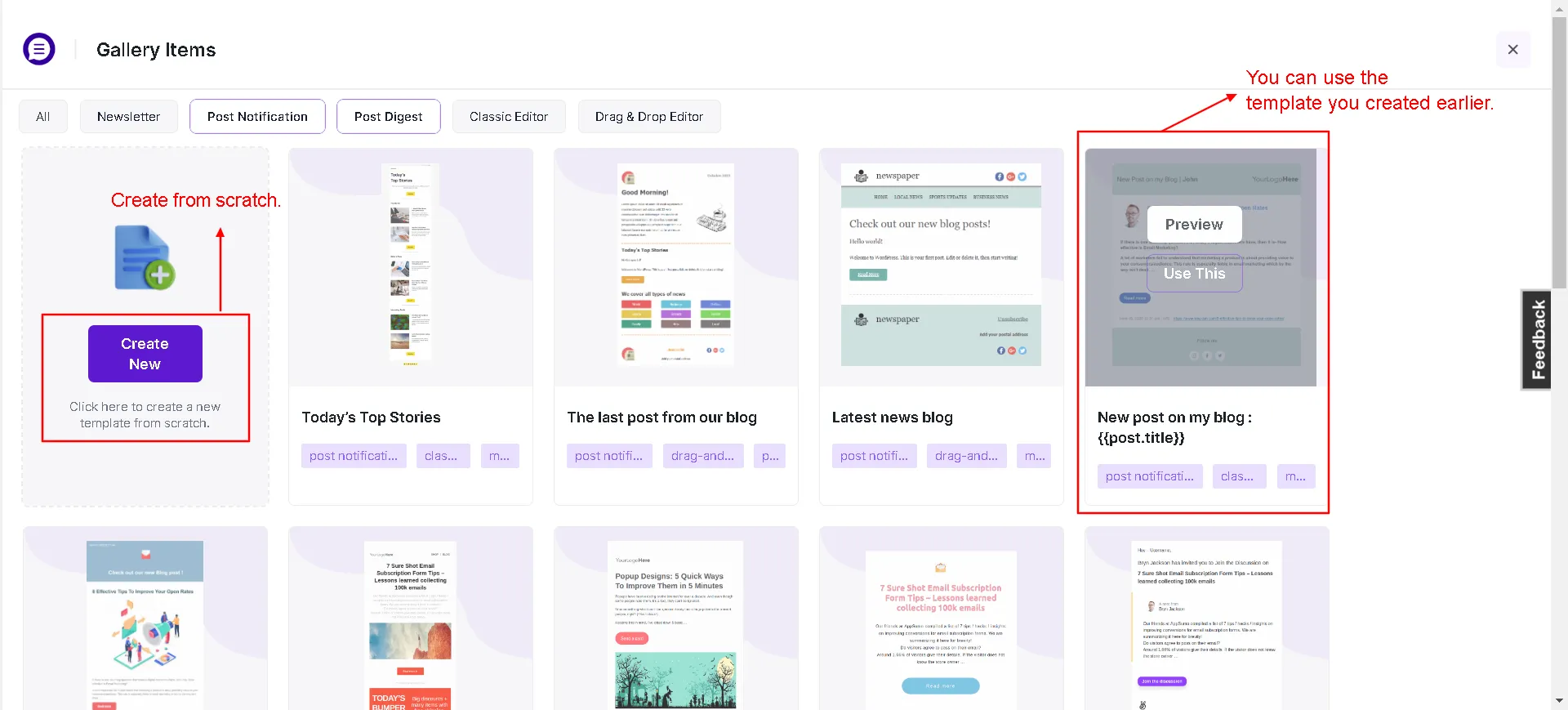
Click Add New Template -
Enter a title for the template and choose the template type (Broadcast, Post Notification, or Post Digest).
-
Select your preferred editor:
- WordPress Classic Editor: Best for straightforward text emails or custom HTML layouts.
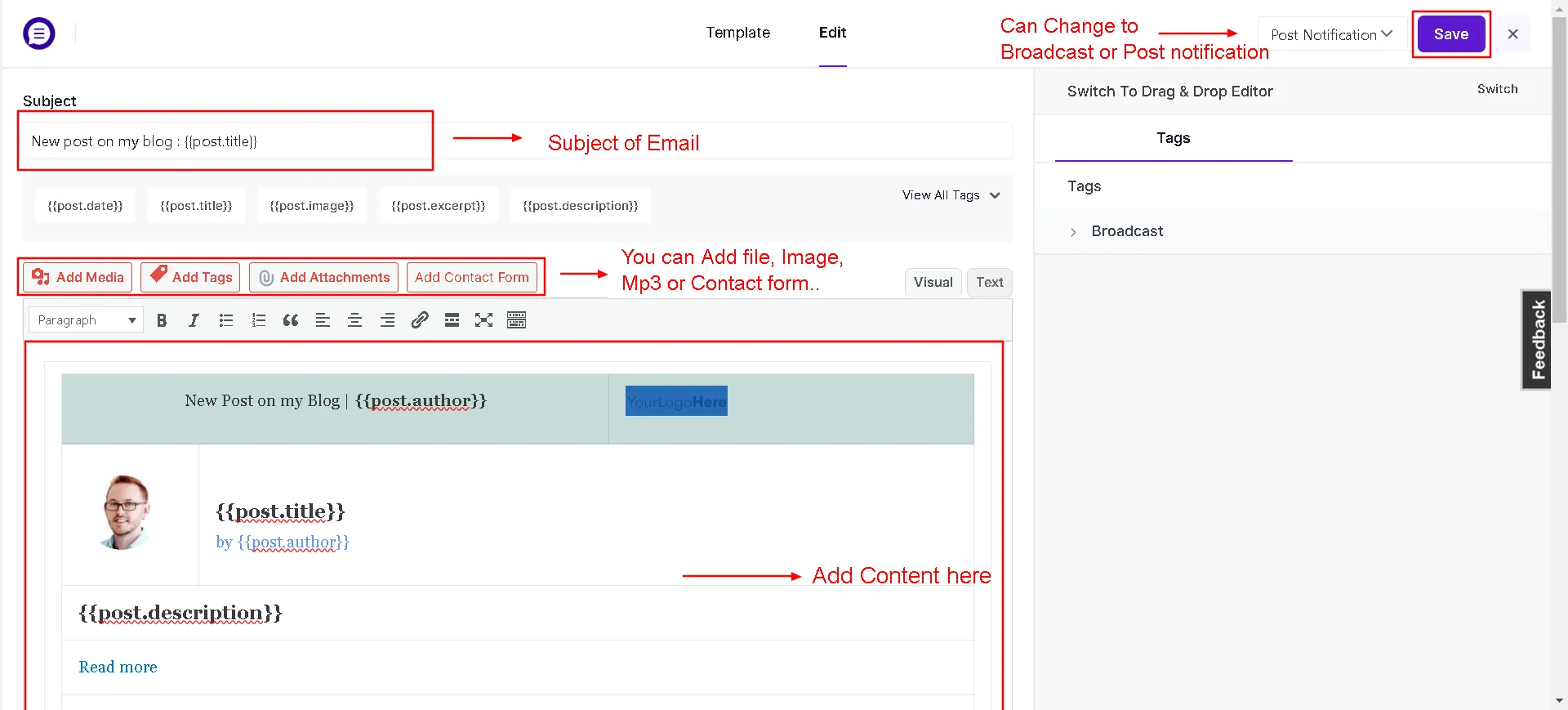
Classic Editor template builder - Drag & Drop Builder: Visual builder allowing you to drag text blocks, buttons, images, dividers, and social icons into the canvas.
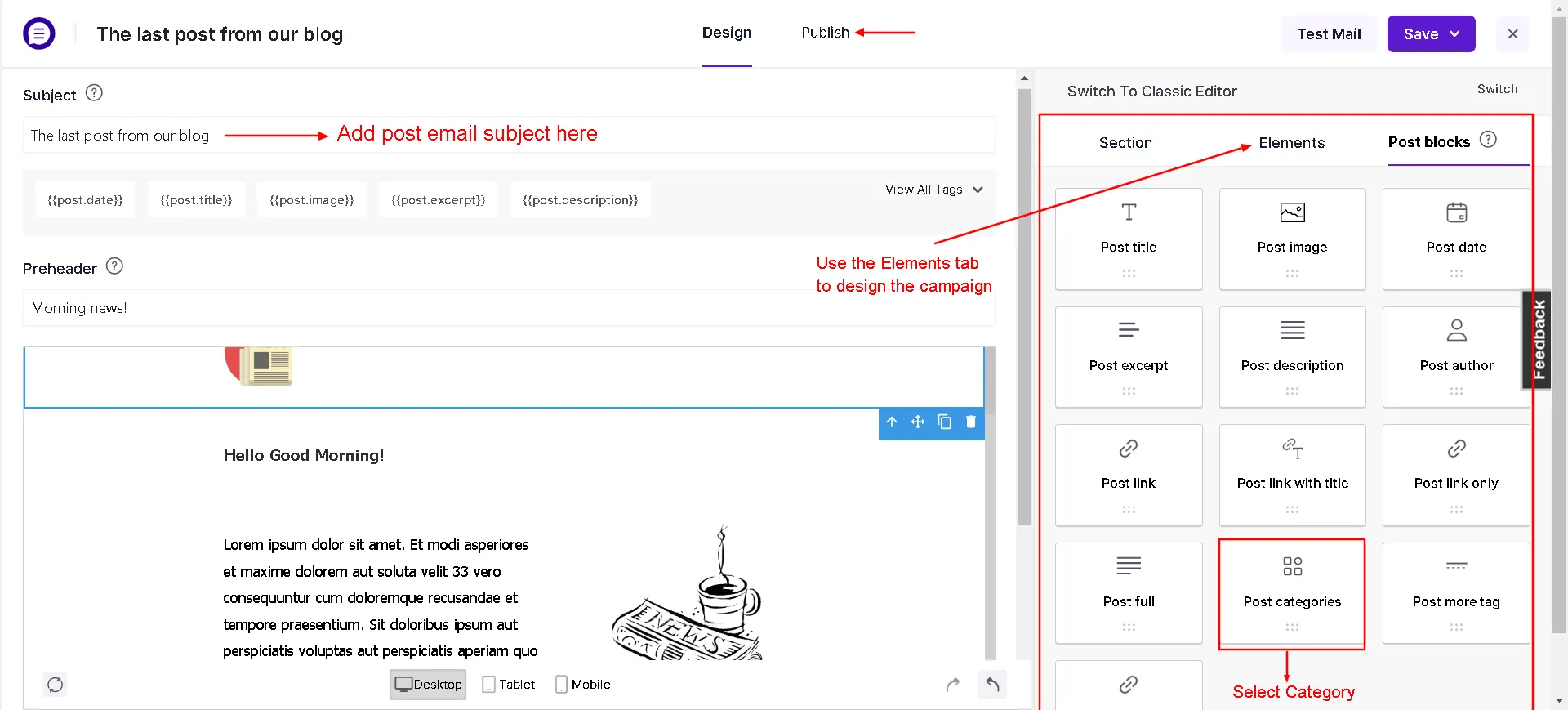
Drag and drop visual email template builder
- WordPress Classic Editor: Best for straightforward text emails or custom HTML layouts.
-
Insert personalization merge tags as needed (e.g.,
{{subscriber.first_name}}or{{post.title}}). See our Merge Tags and Keywords guide for a complete reference. -
Custom CSS: In the Max plan, you can write custom CSS to fine-tune typography, button styling, and layout elements.

Custom CSS panel for email templates -
Spam Score Check: In the Max plan, run an automated spam check to inspect your copy and subject lines before sending.
-
Preview the template across mobile and desktop views, then click Save / Activate.
Exploring the Pre-Built Template Gallery
Icegram Express includes professionally designed templates for product launches, blog roundups, welcome notes, and holiday promotions.
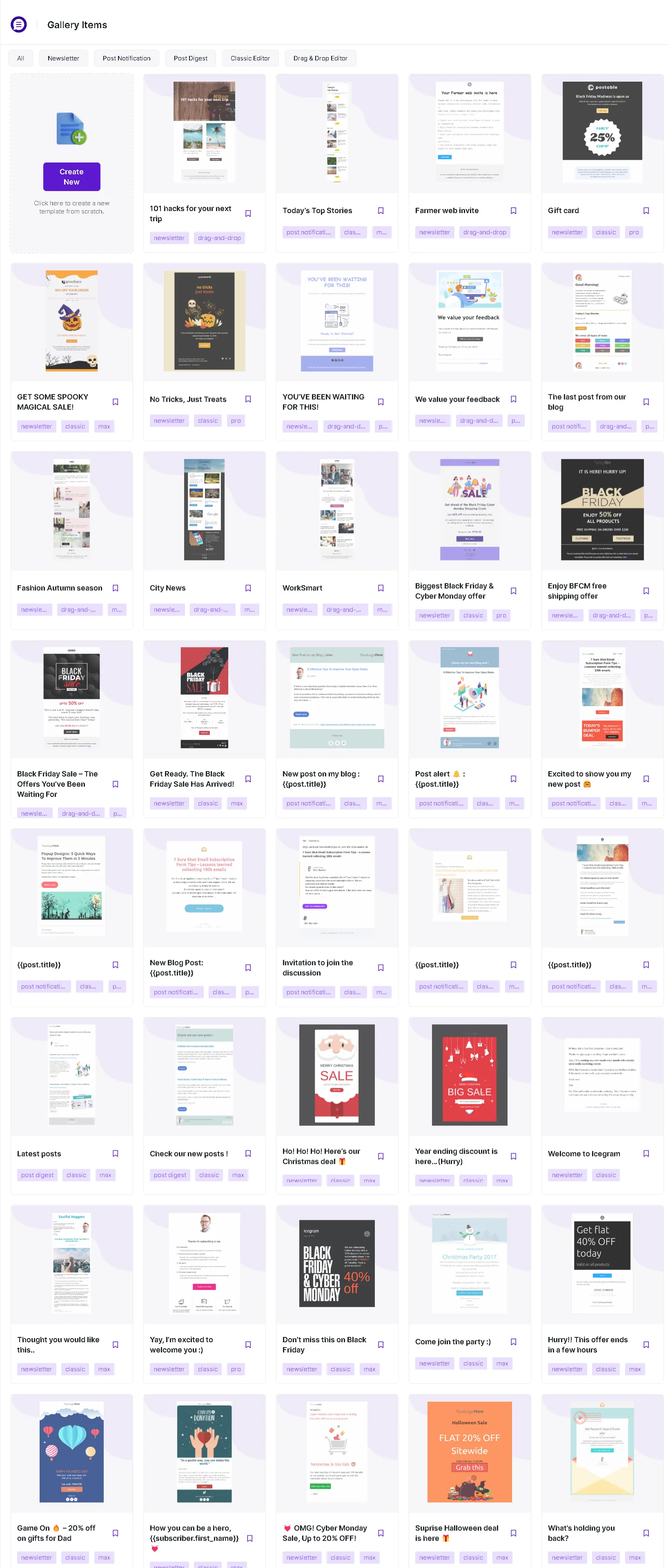
- Starter / Free: Core notification and plain-text templates.
- Pro Plan: 14 high-converting newsletter and marketing designs.
- Max Plan: 25+ customizable layouts including eCommerce promotions and post digests.
How to Edit or Delete an Existing Template
- Go to
Icegram Express→Campaigns→Templates. - Hover over any template row to see available actions: Edit, Duplicate, or Delete.
- Click Edit to modify content in either the Classic or Drag & Drop editor, then save your changes.