
How to Create Inline Messages in Icegram Engage
ProInsert seamless inline notification boxes, content callouts, and subscription forms directly inside your blog post content.
An Inline Message embeds seamlessly directly into your post or page content. Unlike popups or floating bars that overlay the screen, inline messages appear as part of the natural article flow—making them perfect for mid-post opt-in forms and related content callouts.
Steps to Create an Inline Message
-
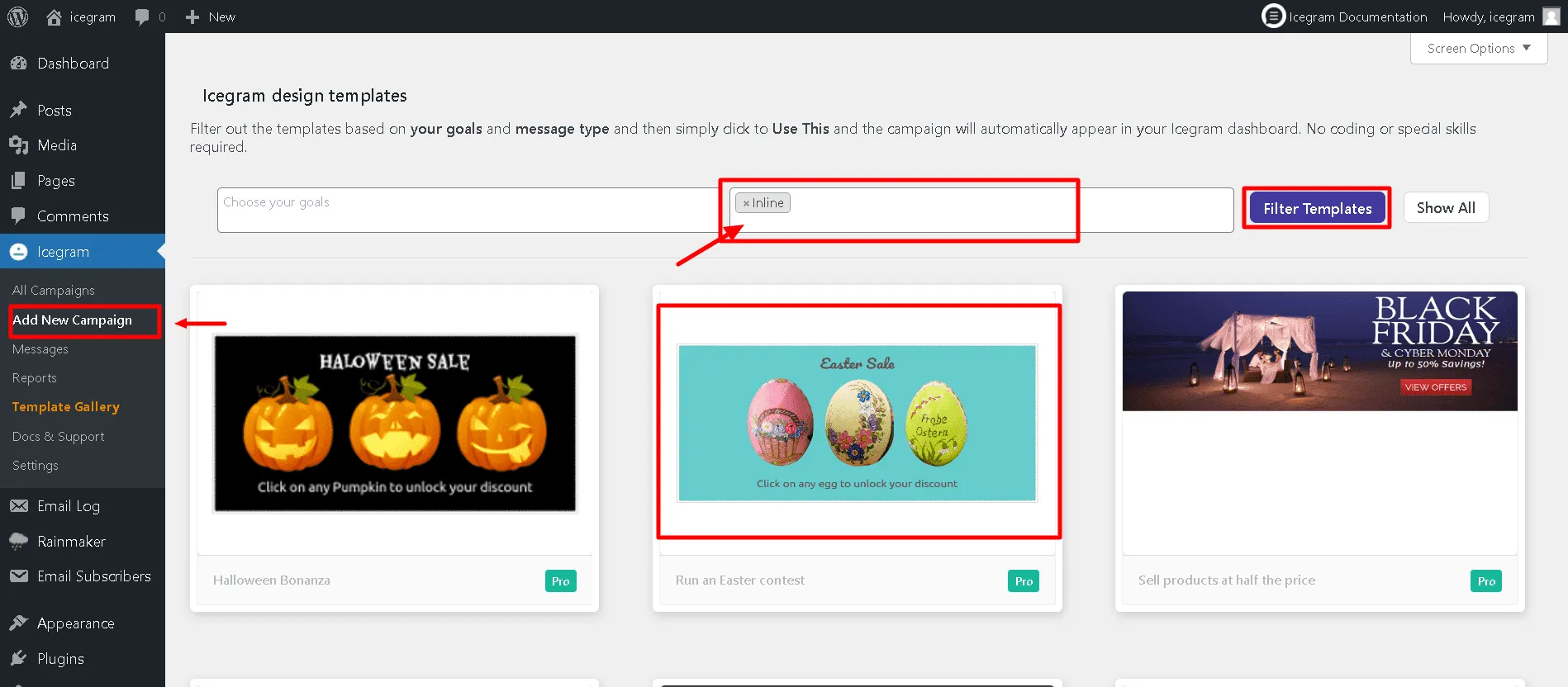
Navigate to
Icegram Engage→Campaignsand click Add New Campaign. -
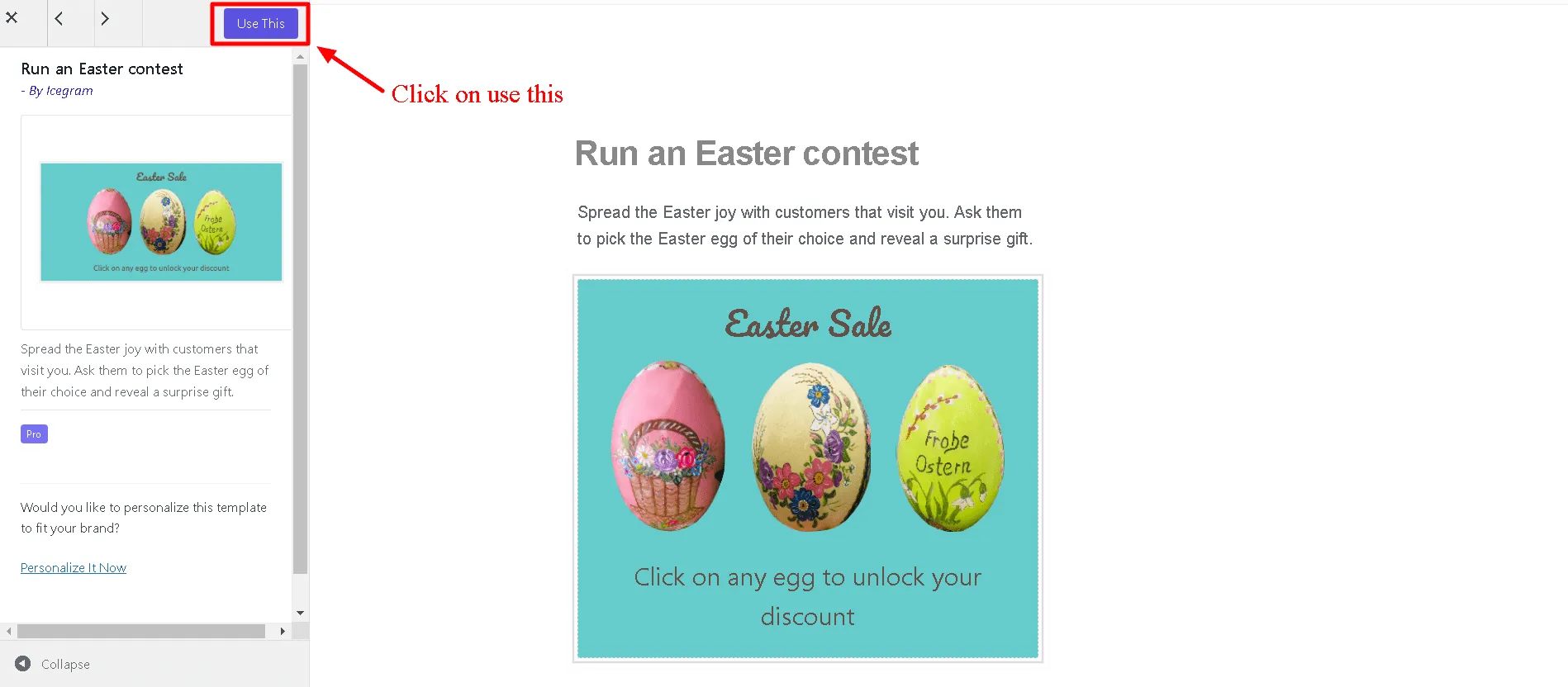
In the template gallery, select Inline and pick a layout.
-
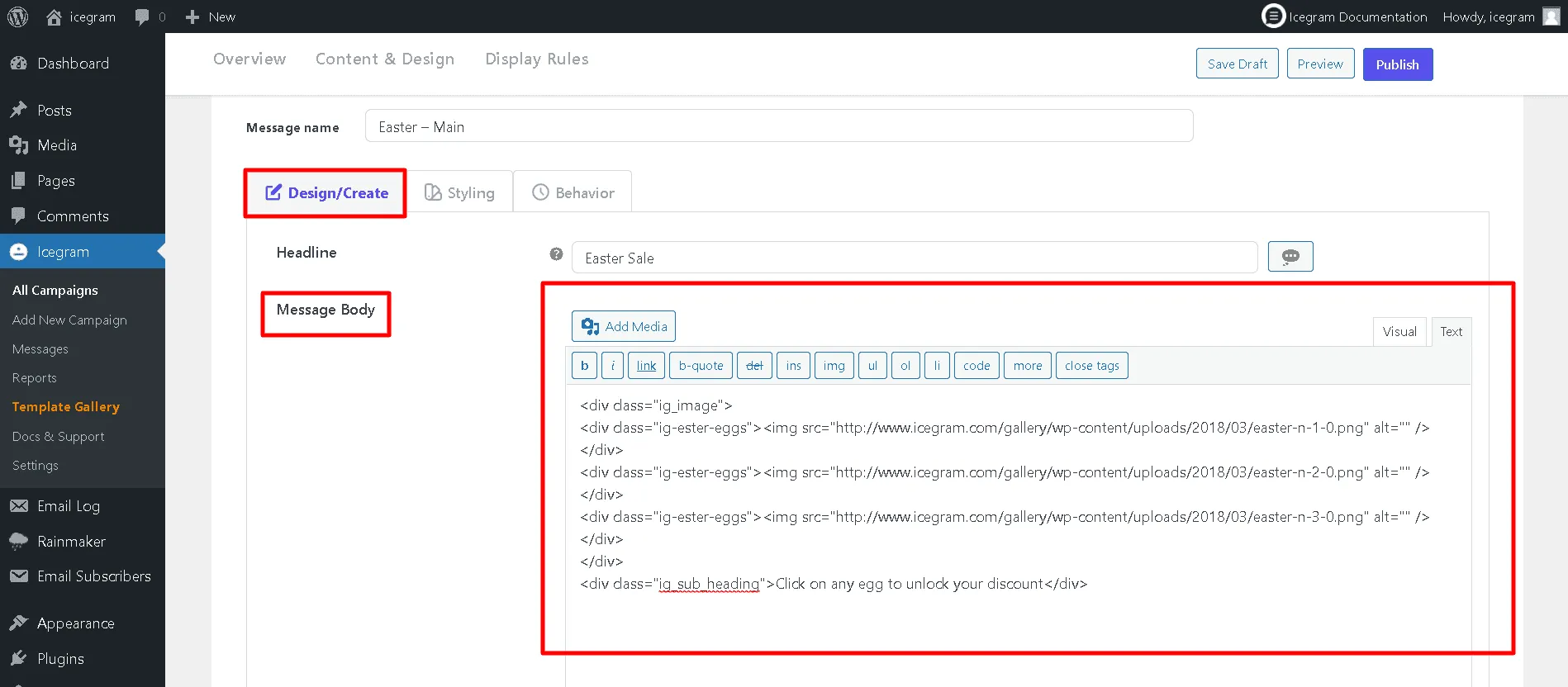
Enter your headline, body text, form fields, and CTA button.
-
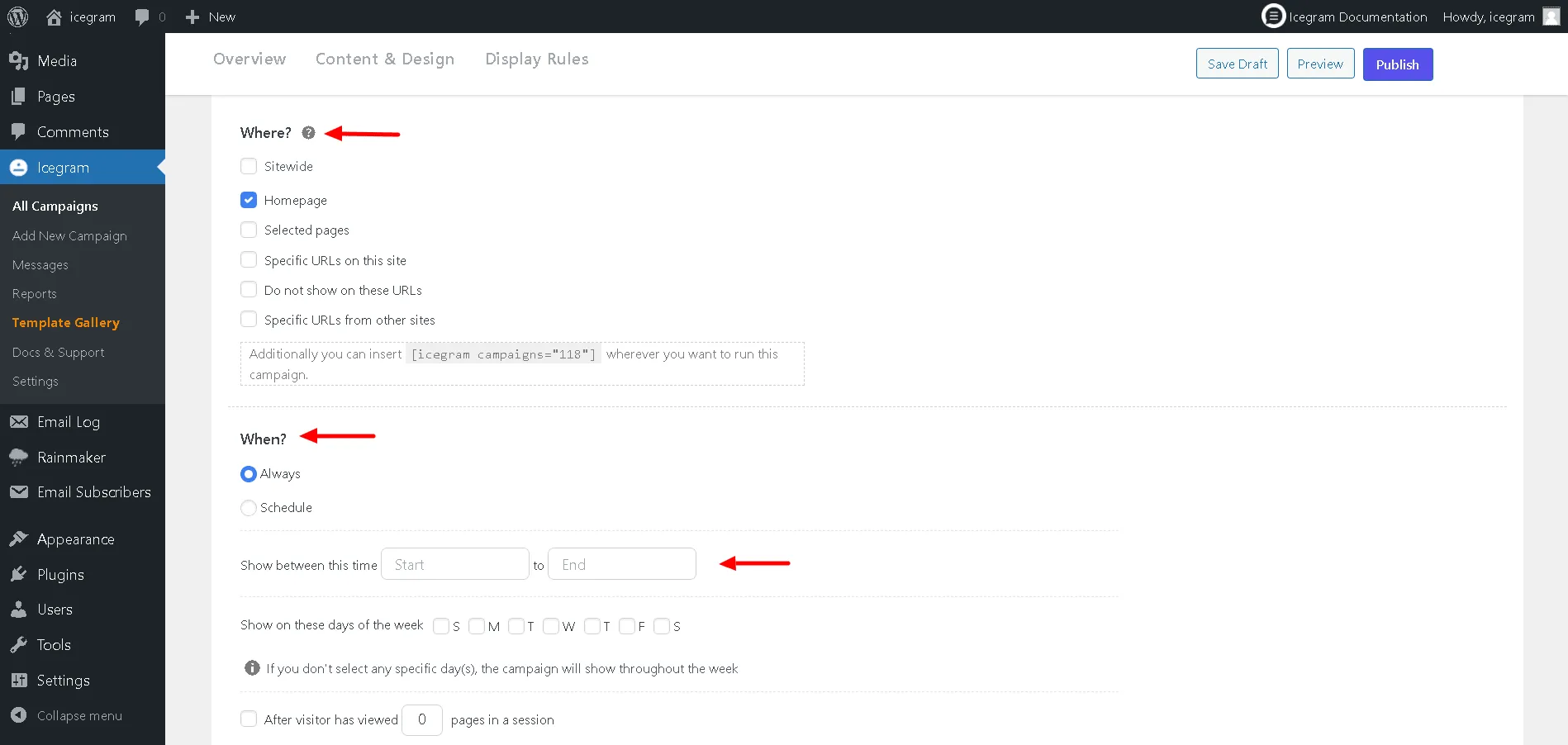
In the Where to Show settings, select where the inline message should embed:
- At the beginning of the post.
- At the end of the post.
- Embedded manually via shortcode
[icegram-message id="..."]anywhere in your text.
-
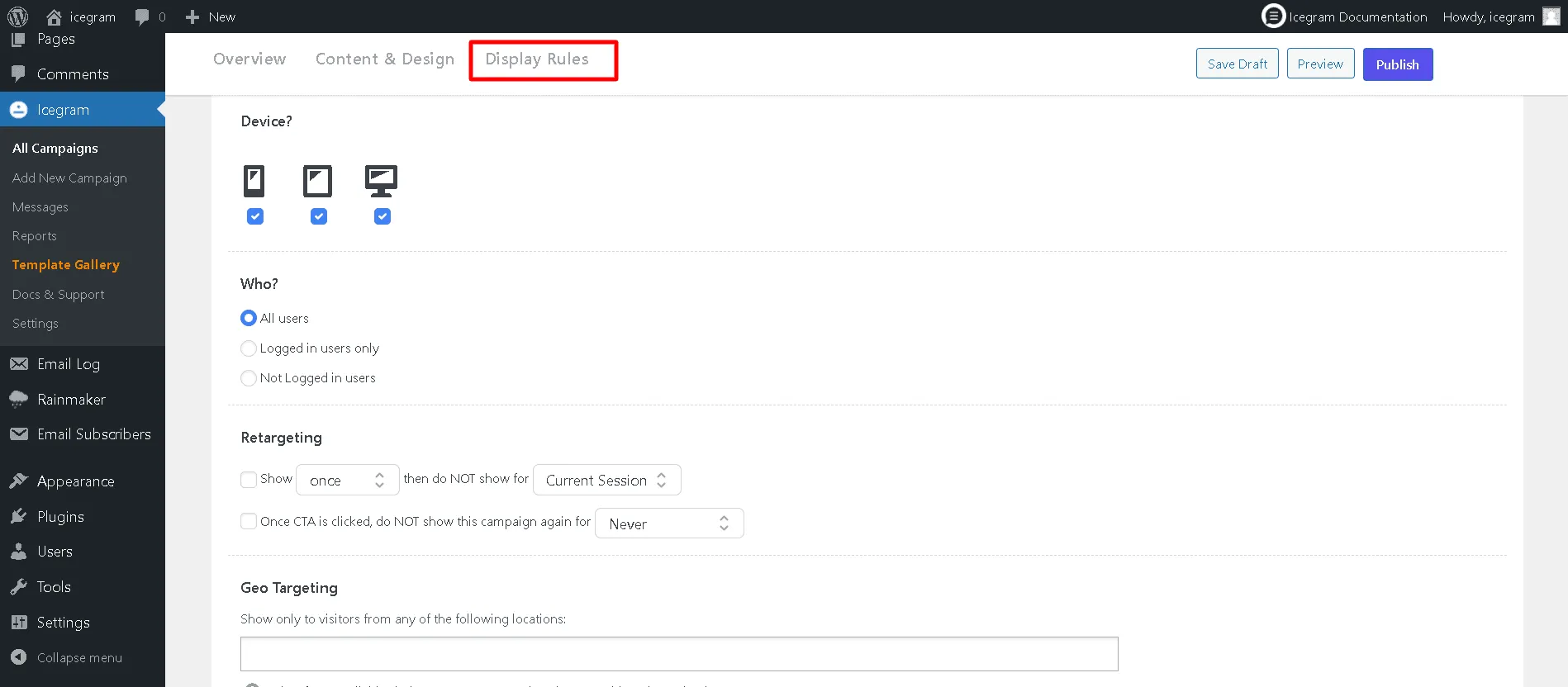
Set your targeting rules (categories, post types, or specific URLs).
-
Save and publish your campaign.