

How Audience Filtering Works in Icegram Express
MaxFilter, segment, and perform bulk actions on contacts based on lists, subscriber statuses, and keywords in Icegram Express.
The Audience page in Icegram Express includes powerful filtering and search tools that make it easy to segment your contact database, manage list memberships, and run bulk operations.
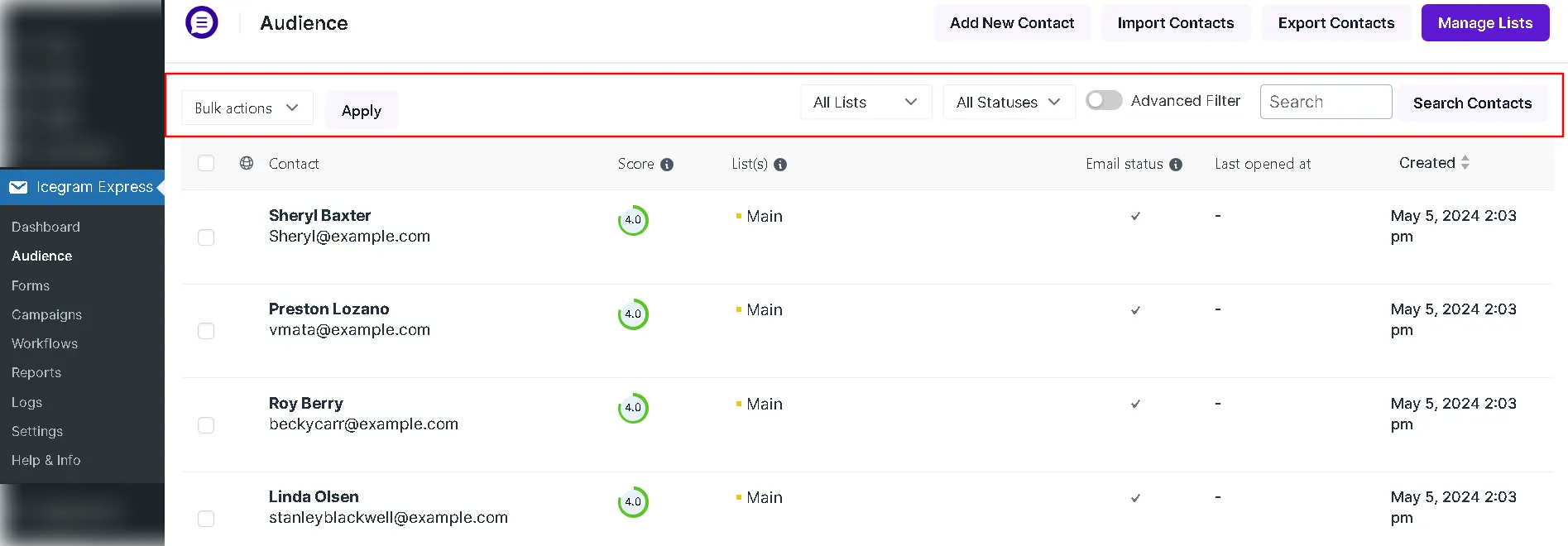
Available Audience Filters
You can combine multiple criteria to find specific subscribers:
- List Filter (
All Lists): Filter contacts belonging to a specific list. For example, if you run a WooCommerce store with distinct lists for Wholesale Buyers and Retail Customers, you can isolate either group with a single click. - Status Filter (
All Statuses): View contacts by their lifecycle status:- Subscribed: Active, confirmed subscribers receiving your broadcasts.
- Unconfirmed: Subscribers who signed up via double opt-in but have not yet confirmed their email.
- Unsubscribed: Contacts who chose to opt out of your communications.
- Bounced: Addresses that failed delivery (hard or soft bounce).
- Search Contacts: Enter any email address, first name, or last name into the search box to find matching subscriber records instantly.
Supported Bulk Actions
After filtering or selecting contacts via their checkboxes, choose an action from the Bulk Actions dropdown and click Apply:
- Move to List: Reassign selected contacts from their current list to a new destination list.
- Add to List: Add selected contacts to an additional list without removing them from their existing lists.
- Change Status: Manually update the subscription status of selected contacts in bulk (e.g., mark unconfirmed contacts as subscribed or unsubscribed).
- Send Confirmation Email: Re-send the double opt-in confirmation email in bulk to unconfirmed subscribers.
- Delete: Permanently remove selected contacts from your database.