

How to Assign Icegram Express Access Permissions to Specific User Roles
ProGrant specific Icegram Express administrative privileges and menu access permissions to custom WordPress user roles.
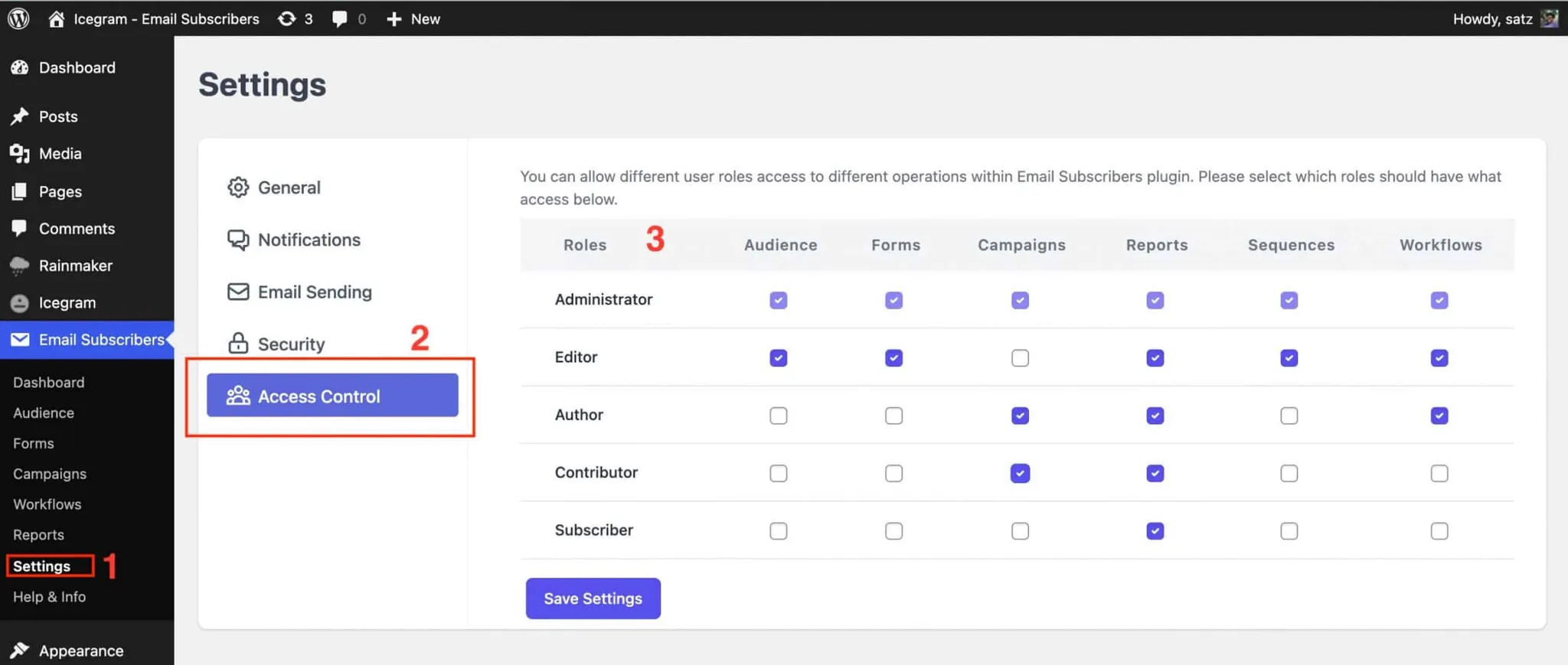
By default, only WordPress Administrators have full access to manage Icegram Express campaigns, lists, and settings. With the Access Control feature, you can delegate specific responsibilities (such as writing campaigns or managing audience lists) to other user roles like Editors or Shop Managers without giving them full administrative privileges.
Steps to Set User Role Permissions
-
In your WordPress dashboard, navigate to
Icegram Express→Settings→Access Control(orUser Roles). -
You will see a permission matrix listing each WordPress user role alongside Icegram Express menus (Audience, Campaigns, Templates, Workflows, Reports, Settings).
-
Check the boxes corresponding to the menus each role should be allowed to view and manage.
-
Click Save Settings at the bottom of the page.
Users with those assigned roles can now access only the designated Icegram Express sections when they log in to the WordPress dashboard.