


Customers are the lifeline of every business. And maintaining good relations with them is the most important activity you carry out as a business owner.
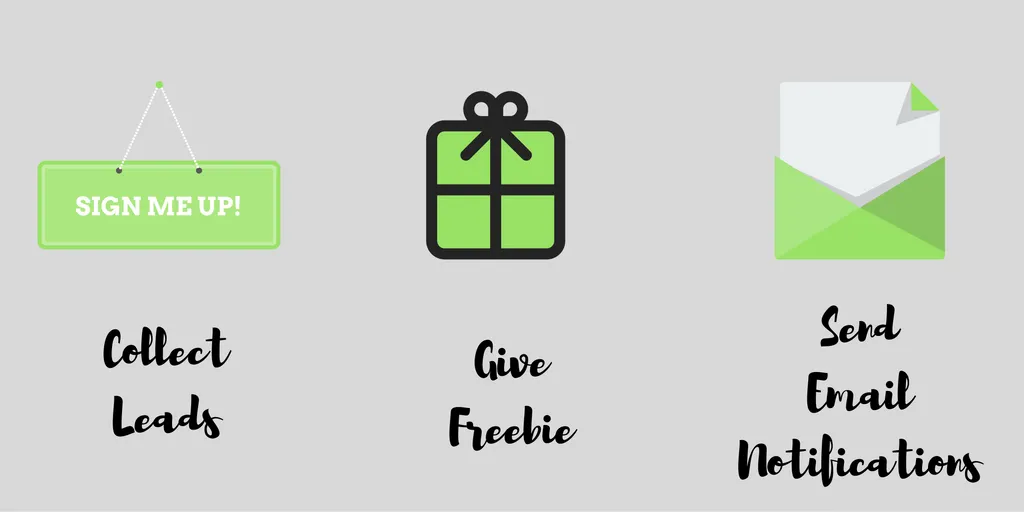
In this article, you will learn the simplest way to:
Plugins Needed
Let’s get started. First you need to download three light weight, free plugins onto your WordPress website.
** Benefits of these plugins:**
- Free
- Lightweight
- Work Seamlessly together
- No coding required
- Can be setup within 10 minutes
First, Form Creation
Step 1: Create a new form Let’s call it ‘New Subscriber List’. Select the parameter like - email address, name.
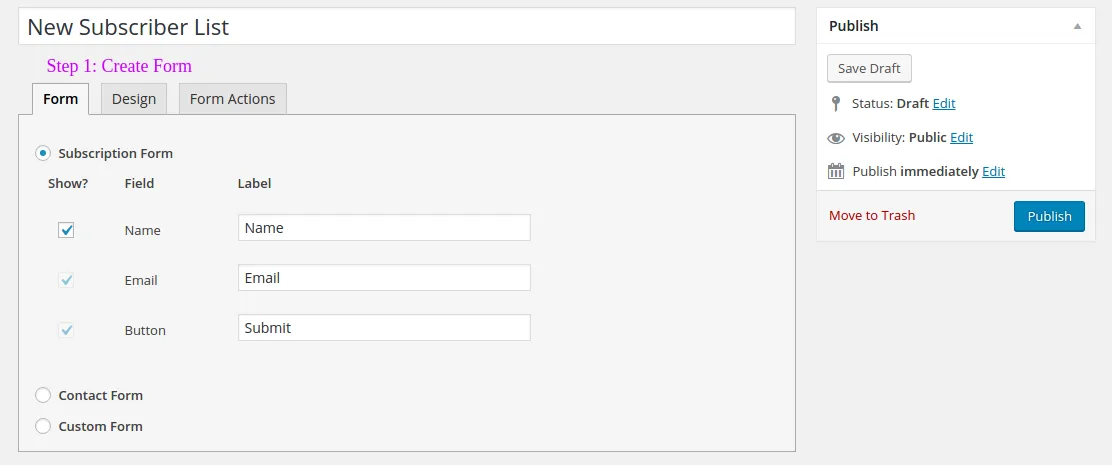
Icegram Collect’s Step-1
Step 2: Select the design Icegram Collect is really simple and gives you 3 elegant form designs to choose from.
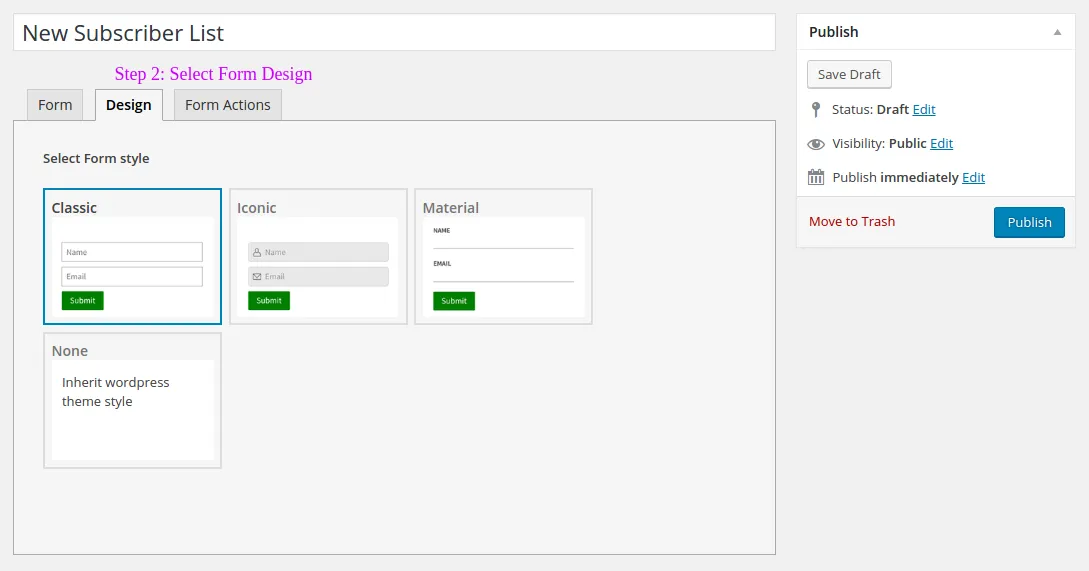
Icegram Collect’s Step-2
Step 3: Fill in the form actions Next, fill in the form actions. Make sure you select the Icegram Express option. Once the form is filled out, the leads will be automatically added to the Icegram Express database. Another important step here is, putting the URL of the page where the Freebie is loaded.
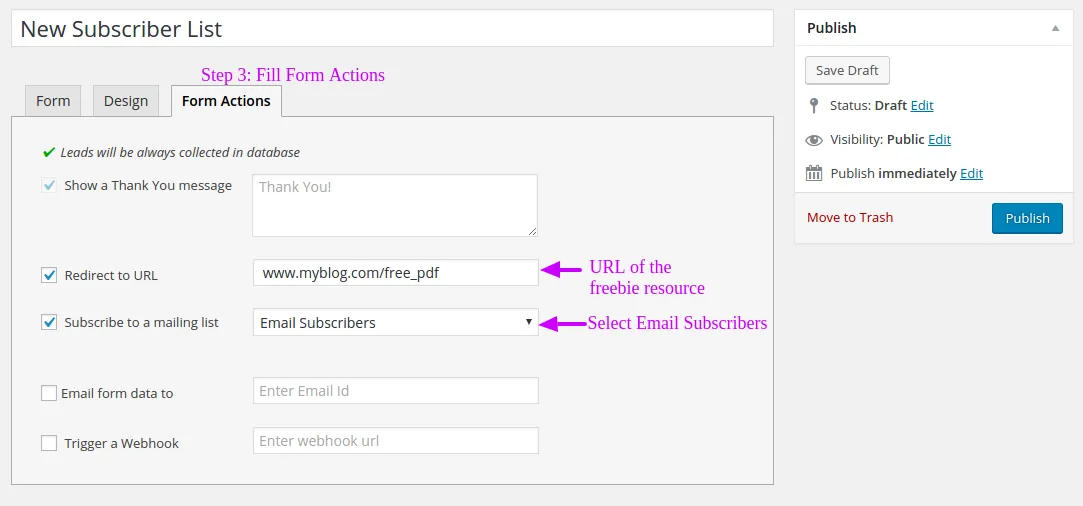
Icegram Collect’s Step-3
Second, Create Icegram Engage Message
Step 1: Create the Icegram Engage message
Fill in the message content. Make sure, you select the Icegram Collect form you previously created that’s ‘New Subscriber List’.
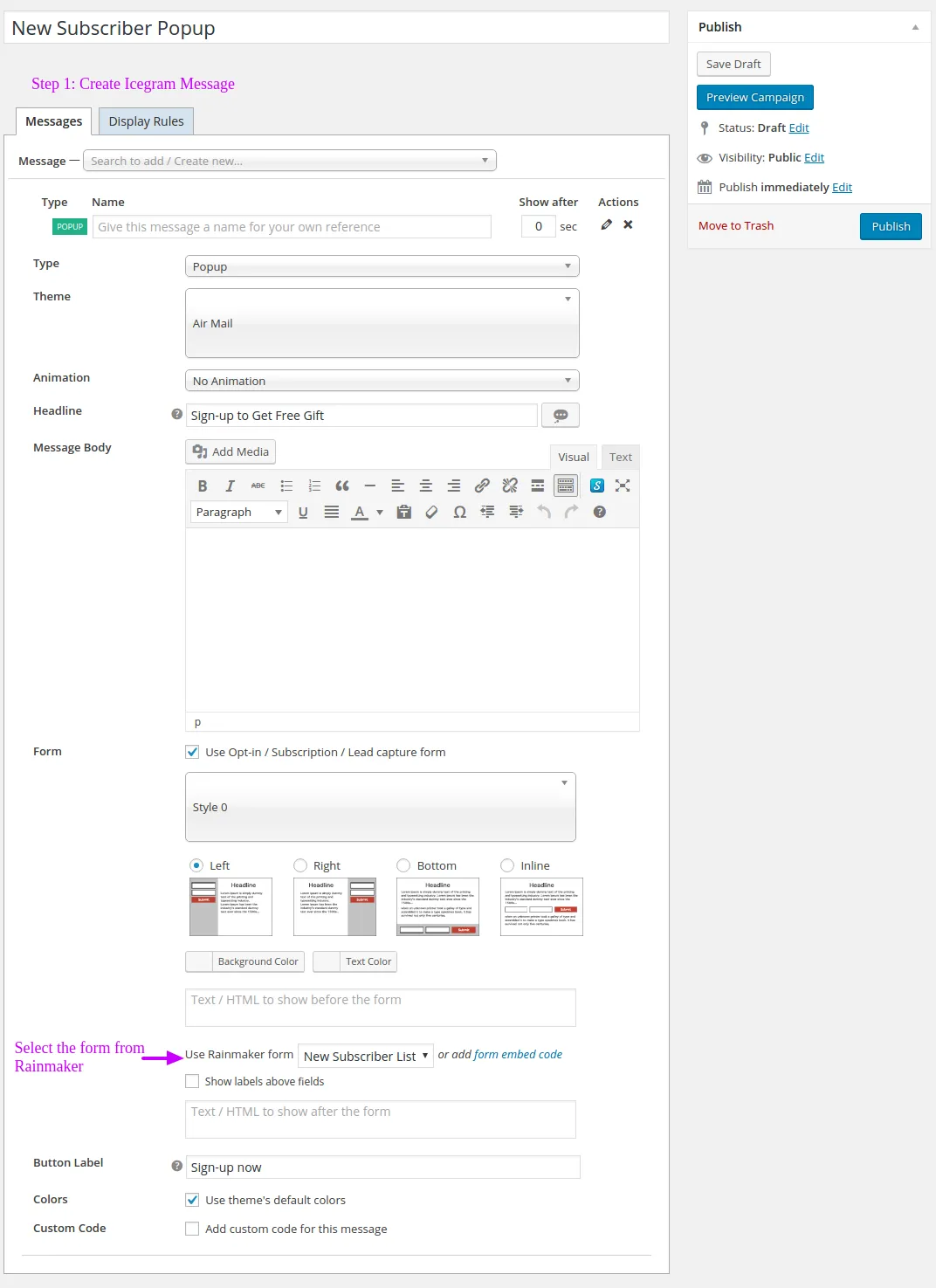
Icegram Engage’s Step-1
Step 2: Fill in the Display Rules
Select the pages, the device the retargeting rules etc.
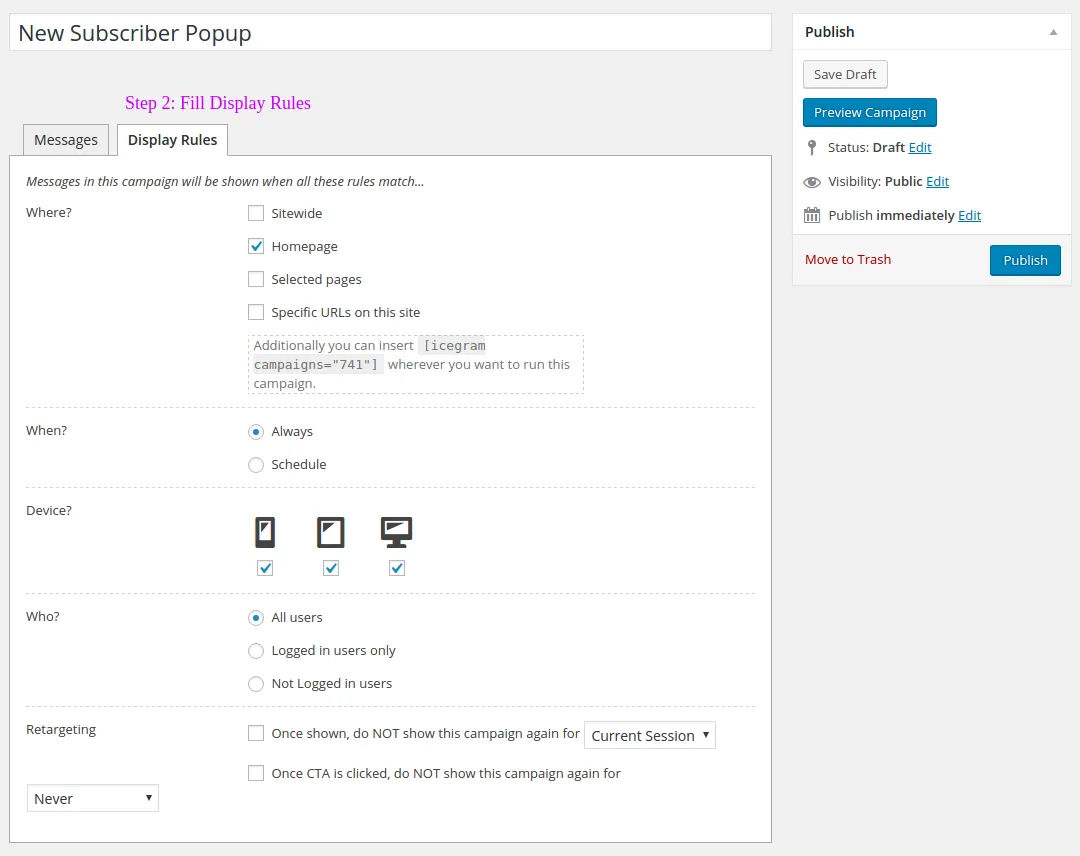
Icegram Engage’s Step-2
Step 3: Publish the Icegram Engage message
Third, Set the Post Notification Emails
Step 1: Compose/ Edit the New Post Notification Email For simplicity sake, let’s edit and publish the already created email template - New Post Published
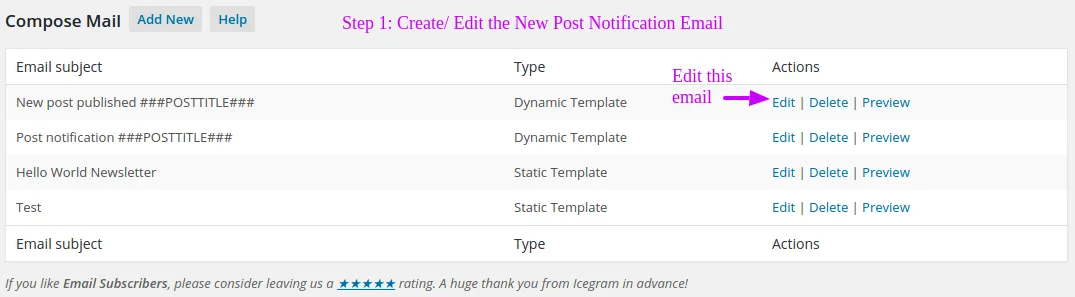
Post notification mail Step-1
Step 2: Go to Notifications Next, add a new notification. Make sure that you select the previously composed email template. In our case, the template is New Post Published.
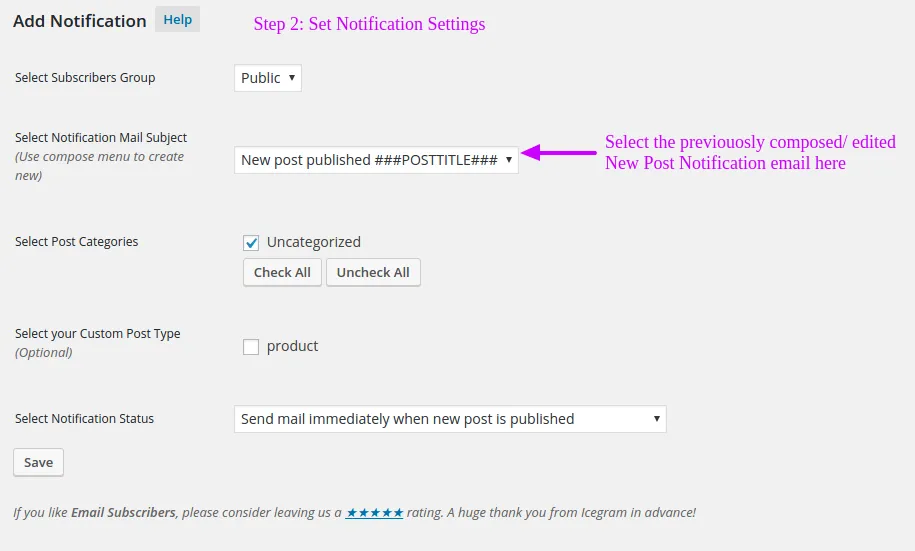
Post notification mail Step-1
Step 3: Save the notification
Last, Test the Process
Now that, all the initial settings are done. Test the whole leads cycle. Ideally, you should subscribe to the list with a test email id, you get your freebie then go ahead and post a new blog and check if you get a notification email on the test email id.
With these three plugins, you can easily collect leads, give away freebies, and keep your subscribers informed about new content.
If these things are achieved, your process is working fine.
Any Questions?
Feel free to write down any questions, suggestions in the comment section below.
Ian Giles
Where is the email subscribers list stored ?
Can it be accessed easily ?
Do you still need an email marketing platform like aweber or mailchimp ?
And you get complete functionality for free ?
Thanks
Andrea Juliao
Hi Ian,
The list is stored within the subscribers dashboard that’s within your WordPress admin panel. And you don’t need any email marketing platform like Aweber or Mail Chimp. Also, yes all this is available for free.
Thanks,
Andrea
Kathia
Just finished installing and editing everything. Was using mail chimp but found that there was no solid walk through like this one (which I loved!). Next, I’ll go through the whole testing phase. Just wanted to thank you for this walk through and for the plug-in itself. Super awesome so far!
Andrea Juliao
Thanks for the appreciation Kathia. Glad you found it useful.
Meg
Hi,
I have installed your plugins, however, I am having some problems with them.
I would like to give a freebie through the ‘pop up window’- and ‘Rainmaker’ does the job here. However, I also have a page where I advertise the freebies (with a full description of them what is within the set) and at the bottom I have the ‘subscribe box as well’. And here is the problem, when a person subscribes not via the pop up but the inserted subscription box, there is no redirection to an URL with a freebie which I would like to have. How can I modify the mode of the subscription confirmation letter so that an URL link could be send to a subscriber to download the freebie
Andrea Juliao
This too is possible. All you need to do is add the URL of the page which has the freebies to the button. So once a subscriber subscribes he will be redirected to that URL. He can then go ahead and download the freebie from that URL.
If you need help with setting it up, kindly drop us a ticket on support. We will be glad to set this up for you.
Regards,
Andrea.
Alex
Hi Andrea, Read your tutorial. Great stuff… But I’m having a bit of a problem. On my dashboard, in the Icegram new message area, the display rules simply isn’t showing :-( … I’m not really sure what to do about this or what’s causing it… Could you help? Thanks
Alex
lol… Sorry Dear. Scratch that. Found it now… I simply wasn’t thorough enough… Thank you for this great tip Andrea, was really helpful yeah
Tiffany
Where did you find it Alex? I can’t find the display rules either
IceDev
You can find display rule in campaign setting page. You will find display rule tab.
Toni
Hi there, during my testing of the subscription process, I don’t seem to be receiving the confirmation emails. I have gone through the troubleshooting but this hasn’t made a difference. Do you have any advice? Cheers
Mansi
Hi Toni,
Please check this: Subscribers are not receiving emails
Timothy Dube
Hi,
Thank you for the detailed walkthrough on how to set this up. I have been having trouble finding a good tutorial walkthrough on how to set up a lead capture and email campaign.
I have 2 questions:
Can I customize the look of the subscription box beyond the basic template offered? Like change colors and font ?
Once my subscribers are signed up, instead of sending them notifications of a new blog post ( i am not making a blog. i am making a store ) –> Can I use these tools to send a daily or weekly newsletter that I can write and schedule ahead of time?
Thanks for you time