

How to Schedule Cron Emails in cPanel
Configure a real server-level cron job in cPanel to handle background email queues in Icegram Express to ensure high deliverability and subscriber...
Setting up a server-level cron job in cPanel guarantees that Icegram Express processes pending emails on a strict schedule, regardless of visitor traffic.
Finding Your Cron URL
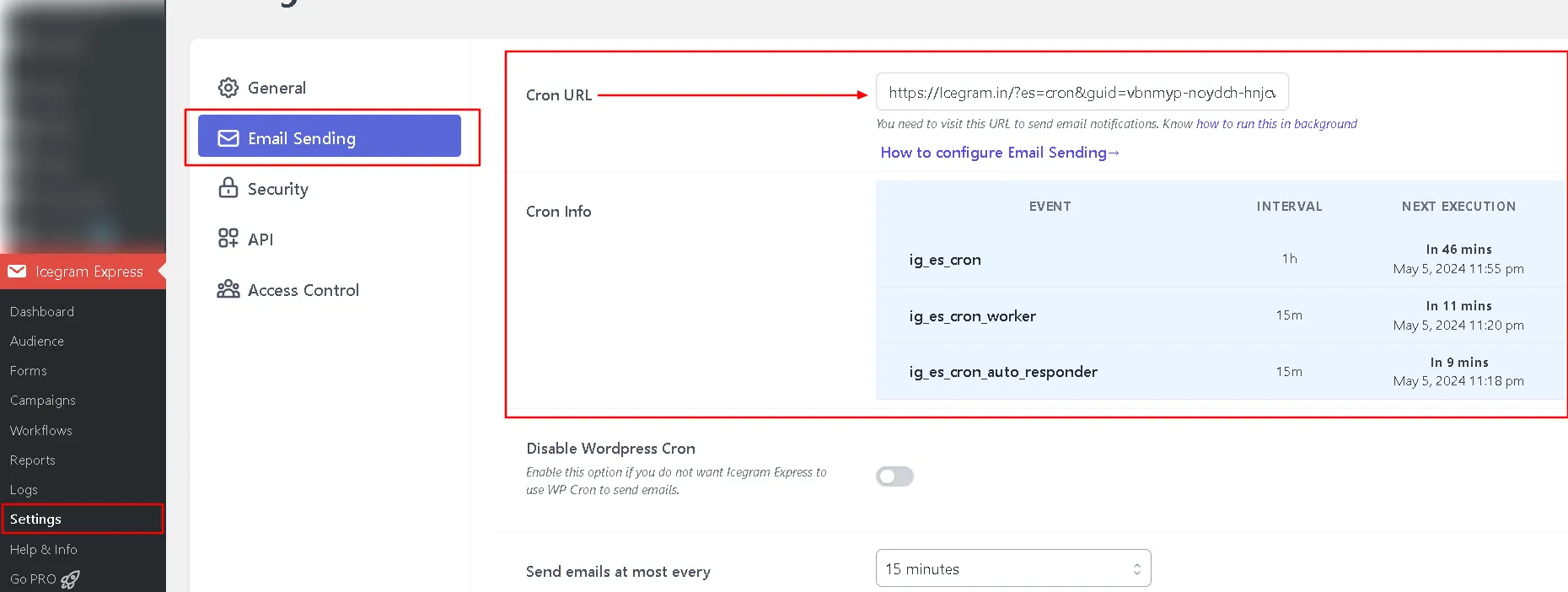
- In your WordPress admin, go to Icegram Express > Settings > Email Sending.
- Locate the Cron job URL field and copy the URL.
Setting Up the Cron Job in cPanel
-
Log in to your hosting cPanel dashboard.
-
In the search box, type
Cron Jobsand open the Cron Jobs tool (under the Advanced section). -
Under Add New Cron Job, select a preset from the Common Settings dropdown (e.g., Once Per 15 Minutes or Once Per 5 Minutes).
-
In the Command input box, enter one of the following commands (replace
https://example.com/?es=cron&guid=YOUR_GUIDwith your actual Cron URL):Using cURL (Recommended):
curl --silent "https://example.com/?es=cron&guid=YOUR_GUID" > /dev/null 2>&1Using wget:
wget --quiet -O /dev/null "https://example.com/?es=cron&guid=YOUR_GUID" -
Click Add New Cron Job to save your schedule.