

How to Schedule Cron Emails in Parallels Plesk
Set up scheduled server tasks in Parallels Plesk to automate Icegram Express background email delivery.
If your website hosting is managed using Parallels Plesk, you can set up a scheduled background task to trigger Icegram Express email batches reliably.
Finding Your Cron URL
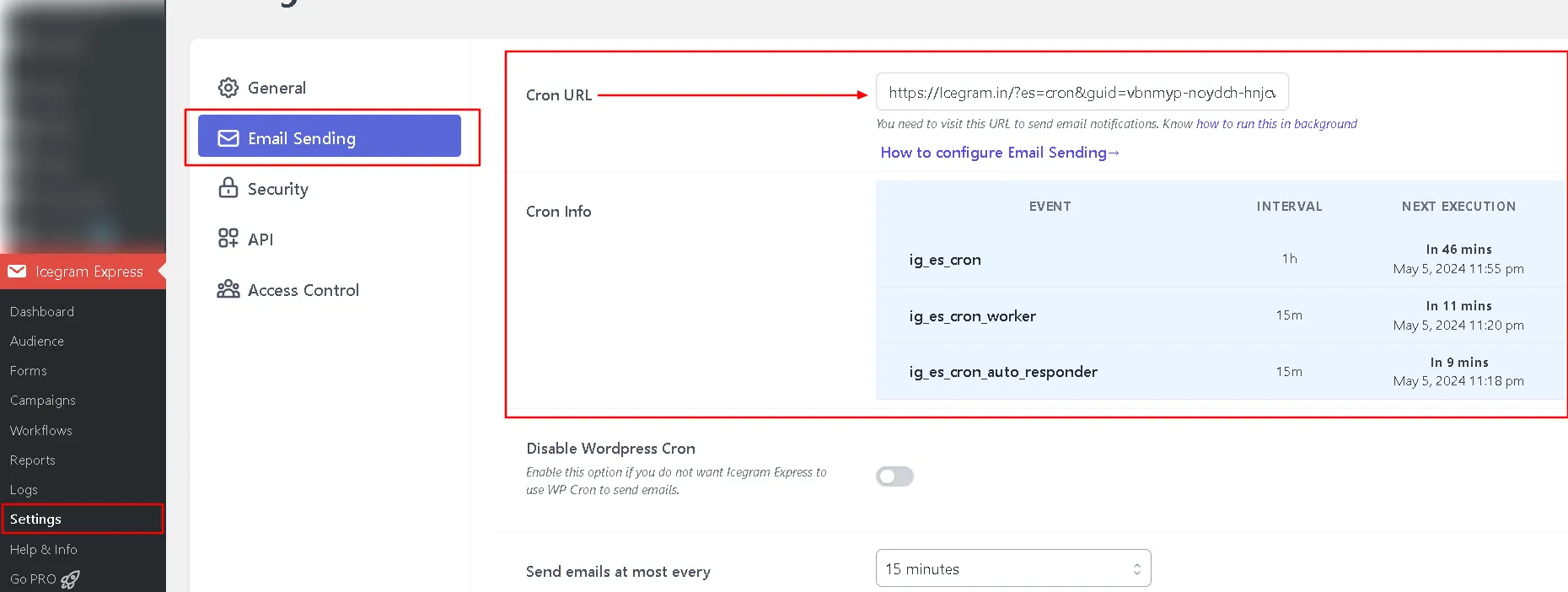
- In your WordPress admin, go to Icegram Express > Settings > Email Sending.
- Copy the full Cron job URL.
Setting Up Scheduled Tasks in Plesk
- Log in to your Plesk control panel.
- Navigate to Websites & Domains and locate your website.
- Click Scheduled Tasks (under Additional Tools).
- Click Add Task (or Schedule New Task).
- Set task type to Run a command or Fetch a URL:
- If using Fetch a URL, simply paste your Icegram Express Cron URL.
- If using Run a command, enter:
(Replace with your actual site URL and GUID)./usr/bin/wget -O - -q "https://example.com/?es=cron&guid=YOUR_GUID"
- Set the task schedule (e.g., cron style
*/10 * * * *for every 10 minutes). - Click OK to save the task.